Screenshots captured from an Appium session preserve the device screen at the moment a mobile test reaches a checkpoint or fails. Saving the image from the active driver session keeps visual evidence with the test run instead of depending on a manual emulator or simulator capture after the state has changed.
The WebDriver screenshot command returns a base64-encoded PNG from the current browsing context. In the Appium Python Client, the inherited Selenium method save_screenshot() calls that endpoint and writes the image to a local file on the machine running the test.
Screenshot capture needs a live session and a screen that the platform allows Appium to read. Android screens protected by FLAG_SECURE can return a blank or blocked image, and parallel jobs should write unique filenames so one test worker does not overwrite another worker's artifact.
Steps to capture screenshots in Appium tests:
- Check that the Appium server is ready before running the screenshot test.
$ curl --silent http://127.0.0.1:4723/status
{"value":{"ready":true,"message":"Appium is ready"}}
Start the server first if the status endpoint does not respond.
Related: How to start the Appium server - Create a directory for screenshot artifacts.
$ mkdir -p screenshots
Keep screenshots under the test report or CI artifact directory when the suite runs in automation.
- Create the Python screenshot test.
$ vi capture_appium_screenshot.py
- Add a session script that opens Android Settings and saves the current screen.
- capture_appium_screenshot.py
import struct
from pathlib import Path

from appium import webdriver
from appium.options.android import UiAutomator2Options

APPIUM_SERVER = "http://127.0.0.1:4723"
SCREENSHOT = Path("screenshots/settings-home.png")

capabilities = {
    "platformName": "Android",
    "automationName": "UiAutomator2",
    "deviceName": "Android Emulator",
    "appPackage": "com.android.settings",
    "appActivity": ".Settings",
    "language": "en",
    "locale": "US",
}


def png_size(path: Path) -> tuple[int, int]:
    data = path.read_bytes()
    if not data.startswith(b"\x89PNG\r\n\x1a\n"):
        raise RuntimeError(f"{path} is not a PNG screenshot")
    return struct.unpack(">II", data[16:24])


SCREENSHOT.parent.mkdir(exist_ok=True)

driver = webdriver.Remote(
    APPIUM_SERVER,
    options=UiAutomator2Options().load_capabilities(capabilities),
)

try:
    if not driver.save_screenshot(str(SCREENSHOT)):
        raise RuntimeError("Appium did not save the screenshot")
    width, height = png_size(SCREENSHOT)
    print(f"session={driver.session_id}")
    print(f"saved={SCREENSHOT}")
    print("format=PNG")
    print(f"size={width}x{height}")
finally:
    driver.quit()
Replace the package, activity, device name, and target filename with values from the app under test. The Appium Python Client adds the appium: vendor prefix for Appium-specific capability names when UiAutomator2Options sends the session request.
Related: How to configure Appium capabilities - Run the screenshot test.
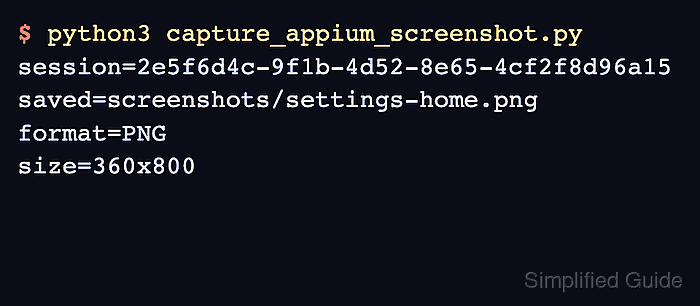
$ python3 capture_appium_screenshot.py
session=2e5f6d4c-9f1b-4d52-8e65-4cf2f8d96a15
saved=screenshots/settings-home.png
format=PNG
size=360x800
The session line confirms the script used an active Appium driver session. The PNG and size lines confirm that the saved file is an image rather than an empty artifact or error page.
- Keep the screenshot filename unique when the helper is called from a failure hook or a parallel test worker.
from datetime import datetime, timezone
from pathlib import Path

stamp = datetime.now(timezone.utc).strftime("%Y%m%d-%H%M%S")
SCREENSHOT = Path(f"screenshots/{stamp}-settings-home.png")
A fixed filename such as settings-home.png is fine for a single smoke test, but parallel CI jobs can overwrite it before the report uploader collects the file.
- Attach the screenshot directory to the test report or CI artifact upload.
For local debugging, open screenshots/settings-home.png after the run. For CI, publish the whole screenshots directory with the same job that stores logs and test reports.

Mohd Shakir Zakaria is a cloud architect with deep roots in software development and open-source advocacy. Certified in AWS, Red Hat, VMware, ITIL, and Linux, he specializes in designing and managing robust cloud and on-premises infrastructures.


