How to run an Appium test in Python
A Python Appium test proves more than a client import. The test has to connect to a running Appium server, create a mobile session with the right driver capabilities, perform one visible action, and close the session without leaving the device busy for the next run.
The official Appium Python Client extends Selenium for mobile automation and uses option classes such as UiAutomator2Options to send W3C WebDriver capabilities. Appium-specific values such as automationName are sent with the appium: vendor prefix when the options object builds the session request.
Use a prepared Android emulator, real Android device, or device-cloud session before running the test. A first smoke test can open the Android Settings app, tap Apps, and exit; replace the package, activity, and locator with the app state that your project can launch repeatedly.
Related: How to start the Appium server
Related: How to install the Appium Android driver
Related: How to configure Appium capabilities
Steps to run an Appium Python test:
- Open the Python project environment that will own the test dependency.
Use a virtual environment or project tool such as uv or pipenv if the test suite already has one. Keep the Appium-Python-Client version pinned with the rest of the project dependencies for repeatable CI runs.
- Install the Appium Python Client package.
$ python -m pip install Appium-Python-Client
Collecting Appium-Python-Client
##### snipped #####
Successfully installed Appium-Python-Client-5.3.1 selenium-4.45.0
Current Appium Python Client releases require Python 3.9 or newer and install the compatible Selenium binding automatically.
- Start the Appium server in another terminal.
$ appium --address 127.0.0.1 --port 4723 --log-level info
[Appium] Welcome to Appium v3.5.0
[Appium] Appium REST http interface listener started on http://127.0.0.1:4723
Start the server from the same APPIUM_HOME that contains the Android driver. Keep this terminal open while the Python test runs.
Related: How to start the Appium server - Confirm that the server can accept session requests.
$ curl --silent http://127.0.0.1:4723/status
{"value":{"ready":true,"message":"The server is ready to accept new connections","build":{"version":"3.5.0"}}}
ready only proves the HTTP server is running. A missing uiautomator2 driver or disconnected Android device can still fail at session creation.
- Create the Python test file.
$ vi tests/test_settings_app.py
- Add a minimal Android settings smoke test.
- tests/test_settings_app.py
import unittest

from appium import webdriver
from appium.options.android import UiAutomator2Options
from appium.webdriver.common.appiumby import AppiumBy

APPIUM_SERVER_URL = "http://127.0.0.1:4723"

CAPABILITIES = {
    "platformName": "Android",
    "automationName": "UiAutomator2",
    "deviceName": "Android Emulator",
    "appPackage": "com.android.settings",
    "appActivity": ".Settings",
    "language": "en",
    "locale": "US",
}


class SettingsSmokeTest(unittest.TestCase):
    def setUp(self):
        options = UiAutomator2Options().load_capabilities(CAPABILITIES)
        self.driver = webdriver.Remote(APPIUM_SERVER_URL, options=options)

    def tearDown(self):
        if self.driver:
            self.driver.quit()

    def test_open_apps_settings(self):
        apps = self.driver.find_element(
            by=AppiumBy.XPATH,
            value='//*[@text="Apps"]',
        )
        apps.click()


if __name__ == "__main__":
    unittest.main(verbosity=2)
The UiAutomator2Options object builds the Appium session request. Keep capabilities explicit in the test so server logs show the platform, driver, app package, and launch activity used for the session.
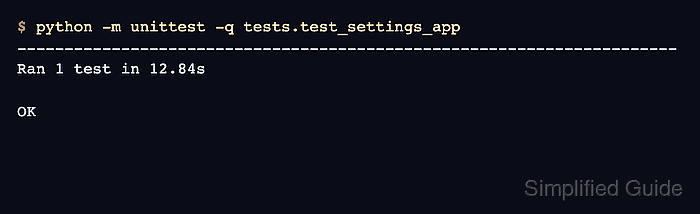
- Run the test with unittest.
$ python -m unittest -q tests.test_settings_app
----------------------------------------------------------------------
Ran 1 test in 12.84s

OK
If the command reports ModuleNotFoundError for appium, run it from the environment where the client package was installed.
- Check the Appium server terminal for the completed session.
[HTTP] --> POST /session {"capabilities":{"alwaysMatch":{"platformName":"Android","appium:automationName":"UiAutomator2","appium:deviceName":"Android Emulator","appium:appPackage":"com.android.settings","appium:appActivity":".Settings"}}}
[Appium] The 'uiautomator2' driver was installed and matched caps.
[HTTP] <-- POST /session 200
[HTTP] --> POST /session/4f8c2b7e-0000-4000-9000-000000000000/element {"using":"xpath","value":"//*[@text=\"Apps\"]"}
[HTTP] <-- POST /session/4f8c2b7e-0000-4000-9000-000000000000/element 200
[HTTP] --> DELETE /session/4f8c2b7e-0000-4000-9000-000000000000
[HTTP] <-- DELETE /session/4f8c2b7e-0000-4000-9000-000000000000 200
The POST /session and DELETE /session lines prove that the Python test created and closed an Appium session. If the test fails before DELETE /session appears, inspect the same log block before changing locators or capabilities.
Related: How to debug Appium session logs