How to debug Appium session logs
An Appium session failure is easiest to troubleshoot from the server log captured during the same new-session request. Client stack traces often hide whether the server rejected capabilities, could not load a driver, or failed later inside a platform driver.
The Appium server can write its log stream to a file with --log while --log-level console:file keeps console and file verbosity separate. Keeping the terminal at info and the file at debug preserves the HTTP request, capability payload, driver selection, and response status needed for the failed session without turning the live terminal into a long trace.
Session logs can contain app package names, device names, UDIDs, tokens, server paths, and capability values copied from the test runner. Store the log with the test artifact, mask values before sharing outside the team, and reproduce only the smallest failing session so the useful POST /session lines are not buried in unrelated commands.
Related: How to start the Appium server
Related: How to configure Appium capabilities
Related: How to install the Appium Android driver
Steps to debug Appium session logs:
- Start Appium with a dedicated session log file.
$ appium --address 127.0.0.1 --port 4723 --log appium-session.log --log-level info:debug --log-no-colors --log-timestamp
[Appium] Welcome to Appium v3.5.0
[Appium] Non-default server args:
[Appium] { address: '127.0.0.1',
  loglevel: 'info:debug',
  logNoColors: true,
  logTimestamp: true }
[Appium] Appium REST http interface listener started on http://127.0.0.1:4723
info:debug keeps console output at info and writes debug detail to appium-session.log. Start the server from the same shell, APPIUM_HOME, and config layer used by the failing test.
Related: How to use APPIUM_HOME for Appium extensions
Related: How to use an Appium server config file - Confirm that the server is accepting requests before reproducing the session failure.
$ curl --silent http://127.0.0.1:4723/status
{"value":{"ready":true,"message":"The server is ready to accept new connections","build":{"version":"3.5.0"}}}
If the status endpoint does not answer, fix the server start problem before looking for session-level errors.
Related: How to start the Appium server - Create a minimal session payload that matches the failing test capabilities.
$ vi session.json
- Add the platform, automation driver, and app identifiers that reproduce the failure.
- session.json
{
  "capabilities": {
    "alwaysMatch": {
      "platformName": "Android",
      "appium:automationName": "UiAutomator2",
      "appium:deviceName": "Android Emulator",
      "appium:appPackage": "com.example.mobile",
      "appium:appActivity": ".MainActivity"
    }
  }
}
Use the same capability names and values that the client sends. Raw JSON payloads keep the appium: prefix for Appium-specific capabilities.
Related: How to configure Appium capabilities - Reproduce the session request against the logging server.
$ curl --silent --request POST http://127.0.0.1:4723/session --header "Content-Type: application/json" --data @session.json
{"value":{"error":"unknown error","message":"Could not find a driver for automationName 'UiAutomator2' and platformName 'Android'. Have you installed a driver that supports those capabilities? Run 'appium driver list --installed' to see. (Lower-level error: Could not find installed driver to support given caps)"}}
When debugging a real project, run the failing test or client command instead of this sample curl request. Keep the reproduction to one session attempt when possible.
- Open the captured Appium log and match the request to the server error.
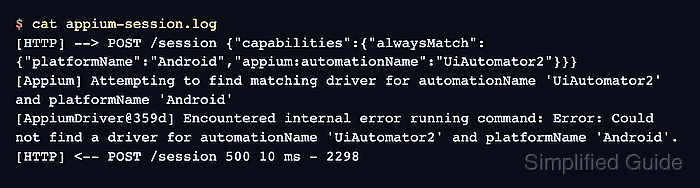
$ cat appium-session.log
[Appium] Welcome to Appium v3.5.0
[Appium] Appium REST http interface listener started on http://127.0.0.1:4723
[HTTP] --> POST /session {"capabilities":{"alwaysMatch":{"platformName":"Android","appium:automationName":"UiAutomator2","appium:deviceName":"Android Emulator","appium:appPackage":"com.example.mobile","appium:appActivity":".MainActivity"}}}
[Appium] Attempting to find matching driver for automationName 'UiAutomator2' and platformName 'Android'
[AppiumDriver@359d] Encountered internal error running command: Error: Could not find a driver for automationName 'UiAutomator2' and platformName 'Android'. Have you installed a driver that supports those capabilities? Run 'appium driver list --installed' to see.
[HTTP] <-- POST /session 500 10 ms - 2298
The POST /session line confirms the server received the session request. The next Appium or driver error usually identifies whether the problem is driver discovery, capabilities, device access, app launch, or a timeout inside the platform driver.
Tool: Application Log Pattern Analyzer - Check the active driver home when the log reports a missing automation driver.
$ appium driver list --installed
- Listing installed drivers (rerun with --verbose for more info)
No uiautomator2 row means the active APPIUM_HOME cannot load the Android driver. Install the driver or restart the server from the extension home that already has it.
Related: How to install the Appium Android driver
Related: How to use APPIUM_HOME for Appium extensions - Rerun the same session request after applying the fix indicated by the log.
The original error line should disappear from the next POST /session block. If a new device, app, or timeout error appears, keep debugging from that new log entry instead of changing several layers at once.
- Mask sensitive values before rerunning a log that will be shared.
$ vi appium-log-filters.json
- Add exact text or pattern rules for values that should not leave the team.
- appium-log-filters.json
[
  {
    "text": "com.example.mobile",
    "replacer": "com.example.REDACTED"
  }
]
Start Appium with --log-filters appium-log-filters.json for the shareable reproduction. Log filters apply to new output; they do not rewrite an existing appium-session.log file.
- Keep the session log with the failed test evidence and remove the temporary request file.
$ rm session.json
Keep appium-session.log with the test report or issue ticket after masking sensitive values. Remove the temporary payload file when the capability values have been moved back into the test runner.