How to run an Appium session on an iOS real device
Physical iOS hardware adds signing, trust, and device-preparation checks that a simulator never exercises. Running an Appium session on a connected iPhone or iPad confirms that Xcode can see the device, WebDriverAgent can start on it, and the XCUITest driver can launch the installed app under test.
The XCUITest driver starts iOS sessions by coordinating the Appium server, Apple's XCTest tooling, and a WebDriverAgent runner app on the device. The session capabilities must identify the physical device with appium:udid, identify the app with appium:bundleId or appium:app, and provide signing values that let xcodebuild build or launch WebDriverAgent for the target device.
Start with one unlocked device, one installed development-signed app, and one Apple team or task-specific .xcconfig file. Real-device failures usually happen before test code runs, so keep the first smoke test small enough to show the device listing, WDA signing path, session ID, app state, and server log without mixing in locator or assertion logic.
Related: How to install the Appium iOS driver
Related: How to configure Appium capabilities
Related: How to install an app for an Appium session
Steps to run an Appium session on an iOS real device:
- Prepare the iPhone or iPad for automation.
Trust the Mac from the device prompt, enable Settings → Privacy & Security → Developer Mode on iOS or iPadOS 16 and newer, and enable Settings → Developer → Enable UI Automation before starting the first session.
- List the connected device from Xcode tooling.
$ xcrun xctrace list devices
== Devices ==
iPhone 15 Pro (18.5) (00008130-001C195E0C91801E)
##### snipped #####
Use the parenthesized device UDID in appium:udid. If the phone is missing from this list, open Xcode → Window → Devices and Simulators and finish pairing or trust before continuing.
- Start the Appium server with the XCUITest driver available.
$ appium --address 127.0.0.1 --port 4723
[Appium] Welcome to Appium v3.5.0
[Appium] Attempting to load driver xcuitest...
[Appium] XCUITestDriver has been successfully loaded in 0.342s
[Appium] Appium REST http interface listener started on http://127.0.0.1:4723
Leave this terminal open while the client script creates the session.
Related: How to start the Appium server
Related: How to install the Appium iOS driver - Create the Python real-device smoke test.
$ cat > ios-real-device-session.py <<'PY'
from appium import webdriver
from appium.options.ios import XCUITestOptions

APPIUM_SERVER = "http://127.0.0.1:4723"
DEVICE_UDID = "00008130-001C195E0C91801E"
APP_BUNDLE_ID = "com.example.MyApp"

options = XCUITestOptions().load_capabilities({
    "platformName": "iOS",
    "appium:automationName": "XCUITest",
    "appium:udid": DEVICE_UDID,
    "appium:bundleId": APP_BUNDLE_ID,
    "appium:xcodeOrgId": "A1B2C3D4E5",
    "appium:xcodeSigningId": "Apple Developer",
    "appium:updatedWDABundleId": "com.example.WebDriverAgentRunner",
    "appium:noReset": True,
})

driver = webdriver.Remote(APPIUM_SERVER, options=options)

try:
    state = driver.execute_script(
        "mobile: queryAppState",
        {"bundleId": APP_BUNDLE_ID},
    )
    print(f"Session: {driver.session_id}")
    print(f"App state: {state}")
finally:
    driver.quit()
PY
Replace the UDID with the value from xctrace, replace APP_BUNDLE_ID with an app already installed on the device, and replace the team ID plus updatedWDABundleId with values accepted by your Apple provisioning profile. Install the Python client first if the appium import is missing: python3 -m pip install Appium-Python-Client.
- Run the smoke test.
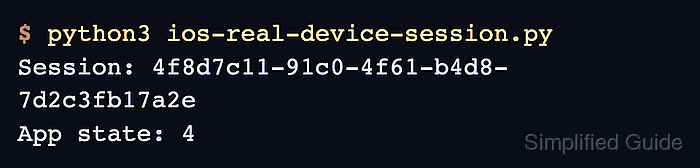
$ python3 ios-real-device-session.py
Session: 4f8d7c11-91c0-4f61-b4d8-7d2c3fb17a2e
App state: 4
App state: 4 means the bundle is running in the foreground according to XCTest. A session failure before this output usually points to device trust, Developer Mode, WDA signing, an unmatched UDID, or an app bundle ID that is not installed on the device.
- Check the Appium server terminal for the WDA and session success lines.
[XCUITest] WebDriverAgent successfully started after 18432ms
[HTTP] <-- POST /session 200 18951 ms - 921
The WDA line confirms that the runner app started on the physical device, and the HTTP 200 line confirms that the new-session request returned successfully.
- Remove the one-off smoke test if it was only created for connection validation.
$ rm ios-real-device-session.py