How to install a package in Anaconda Navigator
Installing a package in Anaconda Navigator adds the library to one selected Conda environment without typing a terminal command. The environment choice matters because packages installed in one environment do not appear in another, and installing into base can make project dependencies harder to separate.
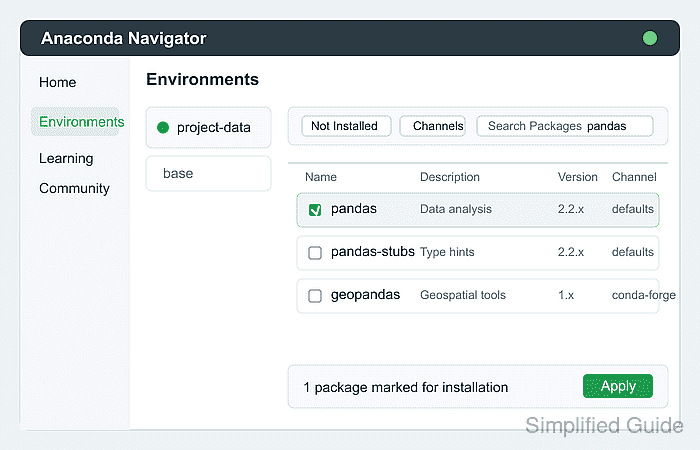
The package table lives on the Environments page. Navigator filters packages by the selected environment, enabled channels, and package-list filter, so a missing search result usually means the wrong environment, filter, or channel is selected rather than that Navigator cannot install the package.
Use a project environment for the install, review the dependency dialog before applying changes, and confirm the package from the Installed filter or by importing it from a notebook, terminal, or interpreter launched in that same environment. If the package is not available through the configured Conda channels, use a channel-specific or pip install path instead of forcing it into Navigator.
Steps to install a package in Anaconda Navigator:
- Open Anaconda Navigator.
- Select Environments from the left navigation.
- Select the environment that should receive the package.
Use a project environment instead of base unless the package belongs to the whole distribution install.
- Select Not Installed from the package filter beside Channels.
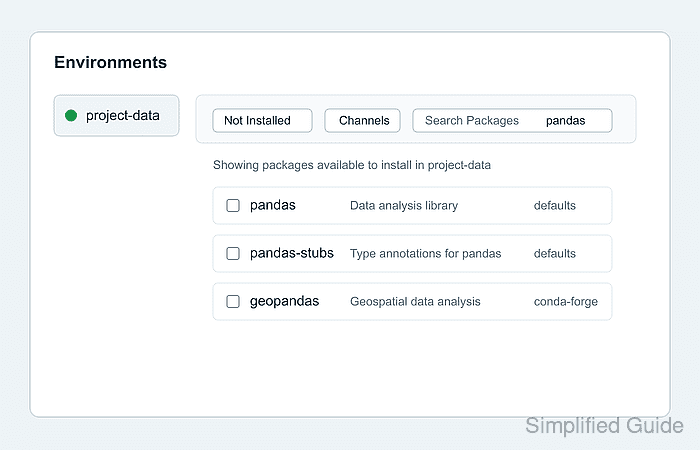
- Type the package name in Search Packages.
pandas
- Select the checkbox beside the package row.
- Click Apply.
- Review the Install Packages dialog.
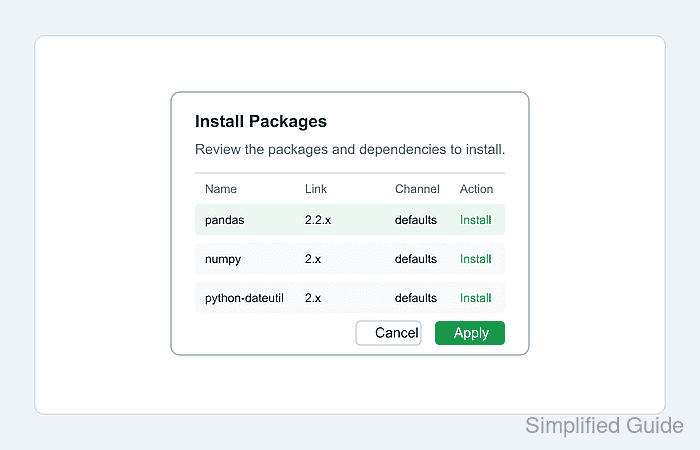
The dialog lists the selected package and dependency changes that Navigator will apply to the selected environment.
- Click Apply in the dialog to install the package.
- Select the Installed filter and search for the same package name.
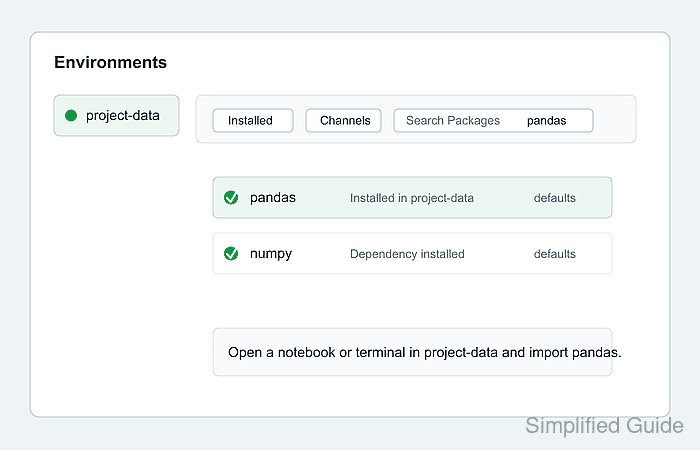
If a newly installed package does not appear, open Home and click Refresh before checking the package table again.
- Confirm that the package row appears under Installed for the selected environment.
- Launch a notebook, terminal, or interpreter from the same environment and import the package.
import pandas as pd
pd.__version__
'2.2.3'
Some packages use an import name that differs from the package name. Check the package documentation when the installed row appears in Navigator but the import fails.