How to clone an Anaconda environment
Cloning a Conda environment gives a project a disposable copy of a working package set before an upgrade, experiment, or local handoff. The source environment remains in place, while the clone gets its own prefix and can be activated or tested independently.
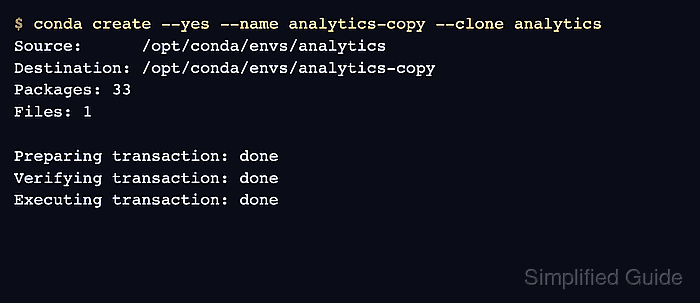
conda create –clone copies an existing local environment into a new named environment or target path. It is best suited to same-machine copies; use an environment file, explicit spec, or lockfile when the goal is to recreate the environment on another platform or host.
Run the clone from a terminal where conda is available, and choose a target name that does not already exist. Anaconda default channels may require Terms of Service acceptance before conda create can complete when those channels are configured.
Related: How to create a Conda environment
Related: How to list Anaconda environments
Related: How to export a Conda environment to YAML
Steps to clone a Conda environment:
- List the existing environments and identify the source name.
$ conda info --envs

# conda environments:
#
# * -> active
# + -> frozen
base                     /opt/conda
analytics                /opt/conda/envs/analytics
The source environment must already exist. Use the path instead of the name when cloning a prefix environment outside Conda's normal environment directories.
- Clone the source environment into a new target environment.
$ conda create --yes --name analytics-copy --clone analytics
Source:      /opt/conda/envs/analytics
Destination: /opt/conda/envs/analytics-copy
Packages: 33
Files: 1

## Package Plan ##

  environment location: /opt/conda/envs/analytics-copy

##### snipped #####

Preparing transaction: done
Verifying transaction: done
Executing transaction: done
#
# To activate this environment, use
#
#     $ conda activate analytics-copy
Replace analytics with the source environment and analytics-copy with a new target name. If conda reports a Terms of Service prompt for Anaconda channels, accept or remove the affected channels according to the policy used for the installation.
- Confirm that both the source and clone are registered.
$ conda info --envs

# conda environments:
#
# * -> active
# + -> frozen
base                     /opt/conda
analytics                /opt/conda/envs/analytics
analytics-copy           /opt/conda/envs/analytics-copy
- Run a command from the cloned environment.
$ conda run --name analytics-copy python -c "import sys; print(sys.prefix)"
/opt/conda/envs/analytics-copy
The printed prefix should point to the cloned environment, not the source environment or base.
- Activate the cloned environment for interactive work.
$ conda activate analytics-copy
(analytics-copy) $
If conda activate is not initialized in the shell, use conda run for one command or initialize the shell before opening a new terminal.
Related: How to activate a Conda environment
Related: How to run a command in a Conda environment without activating it