A WordPress media upload fails when the file is larger than the upload limit exposed by the active web PHP runtime. Raising that limit lets editors upload larger images, PDFs, videos, plugin ZIP files, or import files without bypassing the normal Media Library and admin screens.
WordPress calculates its displayed upload size from the smaller of upload_max_filesize and post_max_size. A theme setting or wp-config.php memory constant cannot override those PHP request limits, so the change needs to land in the configuration file that the web request actually reads.
A per-site .user.ini file in the WordPress document root works with CGI, FastCGI, and PHP-FPM. Hosts that run PHP as an Apache module need the equivalent host control panel, virtual-host, .htaccess, or global php.ini setting instead, and managed hosts may cap the value above the site configuration layer.
Steps to increase WordPress upload size with .user.ini:
- Open the WordPress document root that contains wp-config.php.
$ cd /var/www/example.com/public_html
Use the live site's document root, not a deployment template or staging copy. Managed hosts may label the same directory as public_html, htdocs, or the domain's web root.
- Check the current upload limit in Media → Add New.
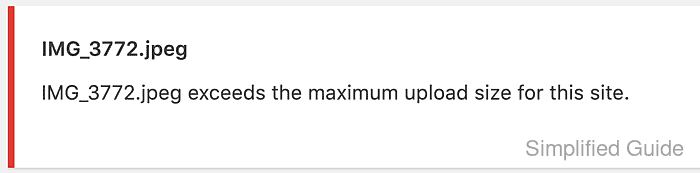
The line below the upload button shows the value that WordPress currently allows for media uploads. A failed upload can also show exceeds the maximum upload size for this site.
- Create a temporary web request probe in the document root.
$ sudoedit upload-limit-check.php
- upload-limit-check.php
<?php
require __DIR__ . '/wp-load.php';
header( 'Content-Type: text/plain' );

printf( "Server API: %s\n", PHP_SAPI );
printf( "Loaded config: %s\n", php_ini_loaded_file() ?: 'none' );
printf( "User ini: %s\n", ini_get( 'user_ini.filename' ) ?: 'disabled' );
printf( "upload_max_filesize: %s\n", ini_get( 'upload_max_filesize' ) );
printf( "post_max_size: %s\n", ini_get( 'post_max_size' ) );
printf( "memory_limit: %s\n", ini_get( 'memory_limit' ) );
printf( "WordPress max upload: %s\n", size_format( wp_max_upload_size() ) );
The probe is public while it exists and exposes server configuration values. Use a temporary filename, request it once or twice, and remove it before leaving the shell.
- Request the probe through the public site URL.
$ curl -sS https://www.example.com/upload-limit-check.php
Server API: fpm-fcgi
Loaded config: /etc/php/8.3/fpm/php.ini
User ini: .user.ini
upload_max_filesize: 2M
post_max_size: 8M
memory_limit: 128M
WordPress max upload: 2 MB
WordPress uses the smaller value from upload_max_filesize and post_max_size. If User ini is disabled or the Server API is apache2handler, use the host's supported PHP configuration path instead of .user.ini.
- Back up the existing per-site PHP override file when it already exists.
$ sudo cp -a .user.ini .user.ini.bak
Skip this command only when the file does not exist yet. Keep existing application-specific settings and change only the upload-related lines.
- Edit or create .user.ini in the document root.
$ sudoedit .user.ini
- .user.ini
upload_max_filesize = 64M
post_max_size = 64M
memory_limit = 256M
max_execution_time = 300
max_input_time = 300
Set post_max_size at least as high as upload_max_filesize because the whole multipart request counts against post_max_size. Keep memory_limit higher than post_max_size unless the host's memory policy requires a lower value.
- Reload PHP-FPM when the server is self-managed.
$ sudo systemctl reload php8.3-fpm
Use the actual service name for the server, such as php8.2-fpm, php8.3-fpm, or php-fpm. On managed hosting without service access, wait for user_ini.cache_ttl to expire, commonly up to five minutes.
- Request the probe again and confirm the new runtime values.
$ curl -sS https://www.example.com/upload-limit-check.php
Server API: fpm-fcgi
Loaded config: /etc/php/8.3/fpm/php.ini
User ini: .user.ini
upload_max_filesize: 64M
post_max_size: 64M
memory_limit: 256M
WordPress max upload: 64 MB
If the values do not change, the request is reading a different document root, a different PHP pool, or a host-level policy that overrides per-site values.
- Remove the temporary probe.
$ sudo rm upload-limit-check.php
- Test a new upload from Media → Add New.
The screen should show the new maximum upload file size, and a file below that limit should complete normally. If a web server or proxy returns 413 Request Entity Too Large before WordPress shows an upload error, raise that server's request-body limit separately and reload that service.