Command-line management of Windows Defender Firewall makes it possible to enable or disable profiles, add rules, and back up policies quickly from scripts or remote sessions. Consistent firewall changes reduce troubleshooting time and help keep endpoints aligned with a defined security baseline.
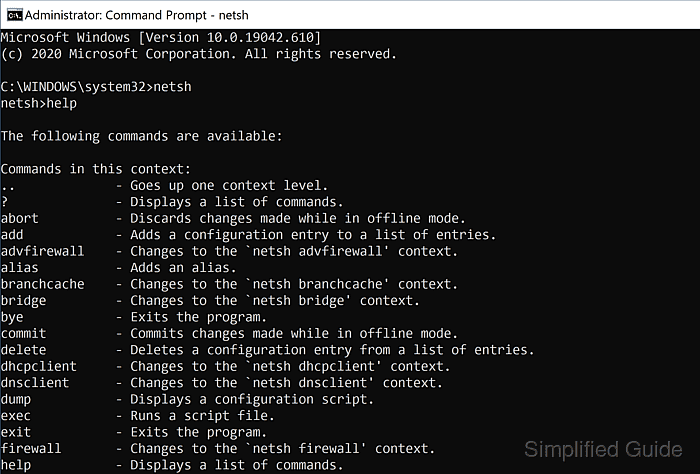
Windows Defender Firewall with Advanced Security stores rules in a local policy store and evaluates them per network profile (Domain, Private, Public). Rules can match direction, protocol, local or remote ports, program paths, and addresses, with filtering enforced by the Windows Filtering Platform.
Most changes require an elevated Command Prompt, and domain-managed machines can have local rules overridden by Group Policy. Disabling the firewall or setting an overly restrictive default policy can immediately break remote access (RDP, SMB, WinRM), so exporting a backup .wfw policy before major edits helps recovery. For new automation, PowerShell NetSecurity cmdlets offer deeper control, but netsh advfirewall remains widely available for quick compatibility.
Steps to configure Windows Defender Firewall from the command line:
- Open an elevated Command Prompt.
C:\> net session
There are no entries in the list.

The command completed successfully.
netsh changes that modify firewall settings fail without Administrator privileges.
- Check that the Windows Defender Firewall service is running.
C:\> sc query mpssvc SERVICE_NAME: mpssvc TYPE : 20 WIN32_SHARE_PROCESS STATE : 4 RUNNING ##### snipped ##### - Show the firewall state for all profiles.
C:\> netsh advfirewall show allprofiles state

Domain Profile Settings:
----------------------------------------------------------------------
State                                 ON

Private Profile Settings:
----------------------------------------------------------------------
State                                 ON

Public Profile Settings:
----------------------------------------------------------------------
State                                 ON

Ok.
- Enable the firewall for all profiles.
C:\> netsh advfirewall set allprofiles state on
Ok.
- Disable the firewall for all profiles.
C:\> netsh advfirewall set allprofiles state off
Ok.
Turning off Windows Defender Firewall exposes services to the network and can violate security policy.
- Set the default inbound/outbound policy for the current profile.
C:\> netsh advfirewall set currentprofile firewallpolicy blockinbound,allowoutbound
Ok.
The common baseline is blockinbound,allowoutbound; using blockinbound,blockoutbound blocks outbound traffic unless explicit allow rules exist.
- Allow inbound TCP connections to port 8080.
C:\> netsh advfirewall firewall add rule name="Allow TCP 8080" dir=in action=allow protocol=TCP localport=8080 profile=any
Ok.
Rule names are used for management; keep names unique and descriptive.
C:\> netsh advfirewall firewall show rule name="Allow TCP 8080"
Rule Name:                            Allow TCP 8080
Enabled:                              Yes
Direction:                            In
Profiles:                             Domain,Private,Public
Protocol:                             TCP
LocalPort:                            8080
Action:                               Allow
Ok.
C:\> netsh advfirewall firewall delete rule name="Allow TCP 8080"
Deleted 1 rule(s).
Ok.
- Block inbound TCP connections to port 8081.
C:\> netsh advfirewall firewall add rule name="Block TCP 8081" dir=in action=block protocol=TCP localport=8081 profile=any
Ok.
Blocking ports used for administration (for example RDP on 3389/TCP) can immediately cut off remote access.
- Allow inbound connections for a specific program.
C:\> netsh advfirewall firewall add rule name="Allow Example App" dir=in action=allow program="C:\Program Files\Example App\example.exe" enable=yes profile=any
Ok.
Use the full absolute path to the executable; wrap paths containing spaces in double quotes.
- Block outbound connections for a specific program.
C:\> netsh advfirewall firewall add rule name="Block Example App Outbound" dir=out action=block program="C:\Program Files\Example App\example.exe" enable=yes profile=any
Ok.
Outbound blocks can break updates, licensing, and authentication flows for the targeted application.
- Allow inbound ping by adding an ICMPv4 echo request rule.
C:\> netsh advfirewall firewall add rule name="Allow ICMPv4 Echo Request" dir=in action=allow protocol=icmpv4:8,any profile=any
Ok.
Disable ping again by removing the rule.
C:\> netsh advfirewall firewall delete rule name="Allow ICMPv4 Echo Request"
Deleted 1 rule(s).
Ok.
- Enable Remote Desktop inbound rules in the built-in rule group.
C:\> netsh advfirewall firewall set rule group="remote desktop" new enable=Yes
Updated 6 rule(s).
Ok.
Disable the same group with enable=No.
C:\> netsh advfirewall firewall set rule group="remote desktop" new enable=No
Updated 6 rule(s).
Ok.
Rule group names can differ on non-English Windows installations.
- Enable firewall logging for dropped connections in the current profile.
C:\> netsh advfirewall set currentprofile logging filename "C:\Windows\System32\LogFiles\Firewall\pfirewall.log" maxfilesize 4096 droppedconnections enable allowedconnections disable
Ok.
maxfilesize is in kilobytes; enable allowed traffic logging with allowedconnections enable when needed for troubleshooting.
- Export the current firewall policy to a backup .wfw file.
C:\> netsh advfirewall export "%USERPROFILE%\Desktop\firewall-backup.wfw"
Ok.
- Import a saved firewall policy from a .wfw file.
C:\> netsh advfirewall import "%USERPROFILE%\Desktop\firewall-backup.wfw"
Ok.
Import replaces the current local firewall policy and can break connectivity if restrictive rules are included.
- Restore default firewall policy settings.
C:\> netsh advfirewall reset
Ok.
Reset removes custom rules and restores defaults; export a backup policy first when recovery is required.

Mohd Shakir Zakaria is a cloud architect with deep roots in software development and open-source advocacy. Certified in AWS, Red Hat, VMware, ITIL, and Linux, he specializes in designing and managing robust cloud and on-premises infrastructures.


