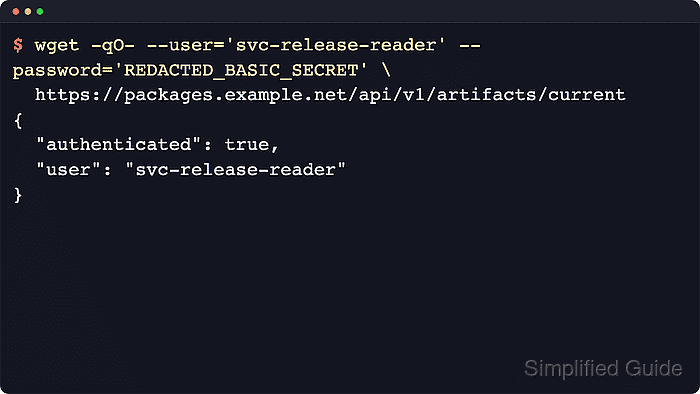
Authenticated downloads are common on private package feeds, internal artifact stores, and license-restricted mirrors where access is tied to specific accounts. Automation still needs access to those resources, and configuring wget for Basic Authentication allows scheduled jobs and scripts to fetch protected files without manual intervention.

On HTTP and HTTPS endpoints, wget implements Basic Authentication by attaching a user name and password to the request, typically in the Authorization header and protected in transit by TLS when HTTPS is used. The same credential flags drive logins for FTP targets, so a single command-line pattern can handle web and FTP servers alike, whether credentials are provided directly, prompted interactively, or read from configuration files.

Because Basic Authentication relies on easily decoded base64 strings before encryption is applied, careless handling can leak secrets through shell history, process listings, or world-readable configuration files. Safer patterns rely on interactive prompts, locked-down /home/user/.wgetrc files, and short‑lived shell variables instead of hard-coding passwords into long‑lived scripts. The procedure below focuses on Linux and favors approaches that minimize credential exposure while still supporting fully unattended downloads.

Steps to use basic authentication in wget:

  1. Open a terminal on Linux where wget is installed.
    $ wget --version | head -n 2
    GNU Wget 1.21.4 built on linux-gnu.
  2. Perform a one-off authenticated HTTPS download by providing --user and --password on the command line.
    $ wget --user='user' --password='ExamplePass!' https://files.example.net/reports/daily-report.csv
    --2026-01-10 04:18:29--  https://files.example.net/reports/daily-report.csv
    Resolving files.example.net (files.example.net)... 203.0.113.50
    Connecting to files.example.net (files.example.net)|203.0.113.50|:443... connected.
    HTTP request sent, awaiting response... 401 Unauthorized
    Authentication selected: Basic realm="Restricted"
    Connecting to files.example.net (files.example.net)|203.0.113.50|:443... connected.
    HTTP request sent, awaiting response... 200 OK
    Length: 25 [text/plain]
    Saving to: 'daily-report.csv'
    
         0K                                                       100% 1.19M=0s
    
    2026-01-10 04:18:29 (1.19 MB/s) - 'daily-report.csv' saved [25/25]

    Passwords passed directly via --password can be exposed through shell history and process listings visible to other users on multi-user systems.

  3. Request the password interactively instead of typing it in clear text by adding --ask-password alongside --user.
    $ wget --user='user' --ask-password https://files.example.net/reports/daily-report.csv
    Password for user 'user': --2026-01-10 04:18:33--  https://files.example.net/reports/daily-report.csv
    Resolving files.example.net (files.example.net)... 203.0.113.50
    Connecting to files.example.net (files.example.net)|203.0.113.50|:443... connected.
    HTTP request sent, awaiting response... 401 Unauthorized
    Authentication selected: Basic realm="Restricted"
    Connecting to files.example.net (files.example.net)|203.0.113.50|:443... connected.
    HTTP request sent, awaiting response... 200 OK
    Length: 25 [text/plain]
    Saving to: 'daily-report.csv.1'
    
         0K                                                       100% 1.52M=0s
    
    2026-01-10 04:18:33 (1.52 MB/s) - 'daily-report.csv.1' saved [25/25]

    The --ask-password flag keeps the password out of shell history and avoids embedding it directly in scripts.

  4. Use the same credential flags with an ftp:// URL when an authenticated FTP server exposes private files.
    $ wget --user='backupuser' --password='BackupPass!' ftp://ftp.example.net/private/backups/latest.tar.gz
    --2026-01-10 04:18:39--  ftp://ftp.example.net/private/backups/latest.tar.gz
               => 'latest.tar.gz'
    Resolving ftp.example.net (ftp.example.net)... 203.0.113.50
    Connecting to ftp.example.net (ftp.example.net)|203.0.113.50|:21... connected.
    Logging in as backupuser ... Logged in!
    ==> SYST ... done.    ==> PWD ... done.
    ==> TYPE I ... done.  ==> CWD (1) /private/backups ... done.
    ==> SIZE latest.tar.gz ... 6
    ==> PASV ... done.    ==> RETR latest.tar.gz ... done.
    Length: 6 (unauthoritative)
    
         0K                                                       100% 34.4K=0s
    
    2026-01-10 04:18:39 (34.4 KB/s) - 'latest.tar.gz' saved [6]
  5. Place credentials that must persist for scheduled jobs into a per-user .wgetrc file with restrictive permissions.
    $ printf 'user=user\npassword=ExamplePass!\n' > ~/.wgetrc
    $ chmod 600 ~/.wgetrc
    $ ls -l ~/.wgetrc
    -rw------- 1 user user 32 Jan 10 04:18 /home/user/.wgetrc

    An .wgetrc file that is readable by other accounts exposes plain-text credentials to anyone with local access.

  6. Run wget without explicit --user or --password options after .wgetrc is configured for the default host.
    $ wget https://files.example.net/reports/daily-report.csv
    --2026-01-10 04:18:52--  https://files.example.net/reports/daily-report.csv
    Resolving files.example.net (files.example.net)... 203.0.113.50
    Connecting to files.example.net (files.example.net)|203.0.113.50|:443... connected.
    HTTP request sent, awaiting response... 401 Unauthorized
    Authentication selected: Basic realm="Restricted"
    Connecting to files.example.net (files.example.net)|203.0.113.50|:443... connected.
    HTTP request sent, awaiting response... 200 OK
    Length: 25 [text/plain]
    Saving to: 'daily-report.csv.2'
    
         0K                                                       100% 1.57M=0s
    
    2026-01-10 04:18:52 (1.57 MB/s) - 'daily-report.csv.2' saved [25/25]

    When present, per-user .wgetrc settings are applied automatically to matching HTTP, HTTPS, and FTP requests.

  7. Use a short-lived shell variable for scripting scenarios where a password is needed but should not be written to disk.
    $ read -rsp "Password: " WGET_PASSWORD
    $ printf '\n'
    $ wget --user='user' --password="$WGET_PASSWORD" https://files.example.net/reports/daily-report.csv
    --2026-01-10 04:19:30--  https://files.example.net/reports/daily-report.csv
    Resolving files.example.net (files.example.net)... 203.0.113.50
    Connecting to files.example.net (files.example.net)|203.0.113.50|:443... connected.
    HTTP request sent, awaiting response... 200 OK
    Length: 25 [text/plain]
    Saving to: 'daily-report.csv.3'
    
         0K                                                       100% 1.88M=0s
    
    2026-01-10 04:19:30 (1.88 MB/s) - 'daily-report.csv.3' saved [25/25]
    $ unset WGET_PASSWORD

    Shell variables reduce the risk of leaving credentials in files, but environment inspection tools may still reveal them on systems that expose process environments.

  8. Confirm that authenticated downloads succeeded by checking the exit status and inspecting the downloaded file.
    $ echo $?
    0
    $ ls -lh daily-report.csv
    -rw-r--r-- 1 user user 25 Jan 10 04:19 daily-report.csv

    A zero exit status from wget combined with a 200 OK response and an expected file size indicates a successful authenticated transfer.