A Snapper rollback lets you return an openSUSE or SLES system to a previously bootable root filesystem state after a bad package transaction, a broken configuration change, or another system-level mistake. It is most useful when the machine can still reach GRUB and at least one older snapshot represents a known-good state.
On the default Btrfs installation layout, Snapper stores bootable snapshots for the root filesystem in the default root configuration. The supported recovery flow is to list the available snapshots, boot the chosen snapshot from GRUB in read-only mode, confirm that it contains the state you want, then run snapper rollback to create a new writable default root based on that snapshot.
This rollback path only works when the system still uses the supported default Btrfs root layout and the root filesystem is on a single device. It also only rolls back what is inside the snapshotted root subvolume, so excluded paths such as home, opt, srv, tmp, usr/local, much of var, and boot-loader data are not restored by the rollback.
Steps to roll back to a Snapper snapshot in openSUSE and SLES:
- Open a terminal and confirm that Snapper has a root configuration for the installed system.
$ sudo snapper list-configs
Config | Subvolume
-------+----------
root   | /
Only snapshots created for the default root configuration can be booted from GRUB for a full system rollback.
- Verify that the installed root filesystem still matches the supported rollback layout.
$ findmnt -no FSTYPE /
btrfs

$ sudo /sbin/btrfs filesystem show /
Label: none  uuid: 11111111-2222-3333-4444-555555555555
        Total devices 1 FS bytes used 6.24GiB
        devid    1 size 40.00GiB used 12.03GiB path /dev/vda2
The filesystem type for
/
must be
btrfs
, and the output needs to report
Total devices 1
for the documented rollback workflow.
If
/
is not
btrfs
, the root spans multiple devices, or the default subvolume layout was customized, stop here and use another recovery method instead of forcing a Snapper rollback.
- List the available root snapshots and identify the last known-good state by its number, date, and description.
$ sudo snapper --iso list
Type   | #  | Pre # | Date                      | User | Cleanup | Description           | Userdata
-------+----+-------+---------------------------+------+---------+-----------------------+--------------
single | 0  |       |                           | root |         | current               |
single | 1  |       | 2026-03-24 10:16:39 +0800 | root |         | first root filesystem |
single | 2  |       | 2026-03-24 10:18:11 +0800 | root | number  | after installation    | important=yes
pre    | 42 |       | 2026-03-29 07:14:11 +0800 | root | number  | zypp(zypper)          | important=yes
post   | 43 | 42    | 2026-03-29 07:16:30 +0800 | root | number  |                       | important=yes
Descriptions such as after installation, zypp(zypper), or yast_* make it easier to map a snapshot to the change you want to undo.
If you want the original installation state, look for the bootable snapshot whose description is after installation.
- Reboot the machine, open the GRUB snapshot entry such as Bootable snapshots or Start Bootloader from a read-only snapshot, and boot the snapshot that matches the number from the previous step.
GRUB lists snapshots by date, with the newest entries first. The exact menu label can differ slightly between openSUSE Leap and SLES releases.
- Log in to the booted snapshot and confirm that it actually contains the state you want to restore before making it permanent.
The snapshot root is mounted read-only, so this is the safe point to check package state, configuration files, or service behavior. If the system is not in the right state, reboot back to the current system and test a different snapshot instead.
Changes made under excluded paths such as home or srv are not reverted by the later rollback, so verify any application data there separately.
- Run the rollback from inside the booted snapshot to create a new writable default root based on that snapshot.
$ sudo snapper rollback -d "Rollback after failed package update"
This command creates a read-only backup of the system state you are leaving and a new read-write snapshot that becomes the default root on the next normal boot.
The documented recovery path is to boot the candidate snapshot first and then run snapper rollback without a snapshot number so you can inspect the system before replacing the default root.
- Reboot and select the normal default boot entry so the reinstated root filesystem becomes active.
$ sudo reboot
After the reboot, use the standard default entry rather than the read-only snapshot entry that you used for inspection.
- Verify that the rollback created the expected replacement snapshots and that the recovered system is now running normally.
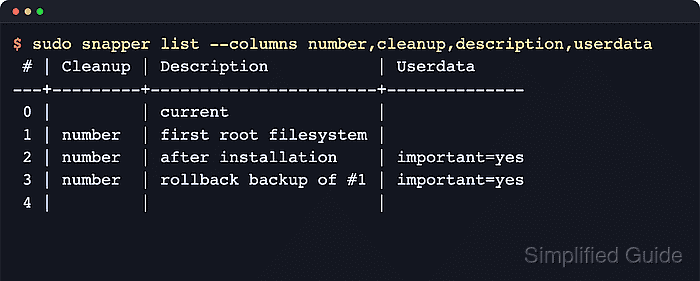
$ sudo snapper list --columns number,cleanup,description,userdata
 # | Cleanup | Description           | Userdata
---+---------+-----------------------+--------------
 0 |         | current               |
 1 | number  | first root filesystem |
 2 | number  | after installation    | important=yes
 3 | number  | rollback backup of #1 | important=yes
 4 |         |                       |
The exact numbers vary, but a successful rollback leaves a rollback backup of #… entry for the system you replaced and a fresh writable snapshot that becomes the new default root.
Finish by testing the workload that failed originally, then review services and third-party software that keep data in excluded paths such as opt, srv, var, or home because Snapper does not roll those locations back with the root snapshot.

Mohd Shakir Zakaria is a cloud architect with deep roots in software development and open-source advocacy. Certified in AWS, Red Hat, VMware, ITIL, and Linux, he specializes in designing and managing robust cloud and on-premises infrastructures.


