Assigning a static IP address on a SUSE system keeps SSH access, firewall rules, DNS records, reverse proxies, and service bindings tied to a predictable network identity. That matters for servers, lab hosts, hypervisors, and any workstation that must stay reachable at the same address after lease renewals or reboots.
The exact configuration path depends on which network stack owns the interface. Current openSUSE desktops and laptops, plus SLES 16 systems, use NetworkManager by default and store connection profiles under /etc/NetworkManager/system-connections. Many openSUSE server hosts and SLES 15 server-certified environments still rely on wicked and traditional /etc/sysconfig/network/ifcfg-* files.
Identify the active backend before making changes and keep all edits inside that backend's workflow. Reapplying a static profile can briefly drop the active link, so use a local console or another out-of-band path for remote systems whenever possible. On wicked systems, the static address alone does not create a default gateway or permanent resolver policy, so add those explicitly instead of assuming DHCP values will remain in place.
Methods to configure a static IP address in openSUSE and SLES:
Steps to configure a static IP address in openSUSE and SLES:
Configure a static IP address on SUSE systems managed by NetworkManager
Use this method when the target interface is managed by NetworkManager. This is the default path on current openSUSE desktops and laptops and on SLES 16 systems where NetworkManager is installed and enabled out of the box.
A static NetworkManager profile keeps the address, gateway, DNS servers, and search domain together in one connection profile. Reactivating that profile applies the new settings immediately, which makes nmcli the clean CLI path for Ethernet or Wi-Fi connections that already exist.
- Confirm that NetworkManager is active and identify the connection profile attached to the target device.
$ systemctl is-active NetworkManager
active
$ nmcli device status
DEVICE  TYPE      STATE                   CONNECTION
eth0    ethernet  connected               Wired connection 1
lo      loopback  connected (externally)  lo
If the device does not show an active NetworkManager connection, use the wicked method instead of forcing both tools onto the same interface.
- Review the current IPv4 settings on the active connection profile before changing them.
$ nmcli -f ipv4.method,ipv4.addresses,ipv4.gateway,ipv4.dns,ipv4.dns-search connection show "Wired connection 1"
ipv4.method:                            auto
ipv4.addresses:                         --
ipv4.gateway:                           --
ipv4.dns:                               --
ipv4.dns-search:                        --
- Set the static IPv4 address, default gateway, and DNS policy on the connection profile.
$ sudo nmcli connection modify "Wired connection 1" \
    ipv4.method manual \
    ipv4.addresses 192.0.2.10/24 \
    ipv4.gateway 192.0.2.1 \
    ipv4.dns "192.0.2.53 192.0.2.54" \
    ipv4.dns-search "example.com"
Replace the sample values with the real host address, prefix length, gateway, and resolver addresses assigned to the target network.
Omit ipv4.dns-search if the network does not use a search suffix, or add ipv4.ignore-auto-dns yes when DHCP-provided resolvers must be ignored completely on mixed environments.
- Reactivate the profile so the interface moves from DHCP to the new static settings.
$ sudo nmcli connection up "Wired connection 1"
Connection successfully activated (D-Bus active path: /org/freedesktop/NetworkManager/ActiveConnection/2)
Reactivating the active profile can interrupt the current SSH session for a few seconds. Apply the change from a console, IPMI, hypervisor console, or another recovery path when the host is remote.
- Verify that the device now holds the expected address and that the default route points at the intended gateway.
$ ip -br address show dev eth0
eth0             UP             192.0.2.10/24 fe80::5054:ff:fe12:3456/64
$ ip route show default
default via 192.0.2.1 dev eth0 proto static metric 100
- Check that the active resolver view matches the static profile when DNS servers were configured as part of the change.
$ grep -E '^(search|nameserver)' /etc/resolv.conf
search example.com
nameserver 192.0.2.53
nameserver 192.0.2.54
Configure a static IP address on SUSE systems managed by wicked
Use this method when the system is controlled by wicked and stores interface definitions in /etc/sysconfig/network/ifcfg-*. This remains common on openSUSE server hosts and on SLES 15 environments where server certification or existing operational policy keeps wicked in place.
With wicked, the interface address, start mode, and other per-device settings live in the interface file, while static routing and resolver policy are handled separately. That split is important because setting only the address does not automatically create the default gateway or permanent DNS configuration.
- Confirm that wicked is the active backend and identify the interface name that needs the static address.
$ systemctl is-active wicked
active
$ systemctl is-active NetworkManager
inactive
$ ip -br link show
lo               UNKNOWN        00:00:00:00:00:00
eth0             UP             52:54:00:12:34:56
If NetworkManager is active for the target device, do not edit /etc/sysconfig/network/ifcfg-* for that interface.
- Open the interface definition file for the target device with elevated privileges.
$ sudo vi /etc/sysconfig/network/ifcfg-eth0
Create the file if it does not already exist. /etc/sysconfig/network/ifcfg.template and man 5 ifcfg list the supported per-interface variables.
- Set the interface to start automatically with a static IPv4 address.
STARTMODE='auto'
BOOTPROTO='static'
IPADDR='192.0.2.10/24'
Add IPv6 settings such as IPADDR_0 or IPADDR6 only when the interface also needs a static IPv6 address.
- Add the default route so the host has a persistent gateway after DHCP is removed.
$ sudo vi /etc/sysconfig/network/routes
# Destination     Gateway     Netmask  Interface
default           192.0.2.1   -        eth0
Use /etc/sysconfig/network/ifroute-eth0 instead when the route should stay scoped to one interface file, but keep the same destination, gateway, and interface columns.
- Keep resolver policy in the netconfig workflow instead of the interface file when static DNS servers are also required.
- Reload the interface so wicked reapplies the changed configuration.
$ sudo wicked ifreload eth0
eth0             up
Reloading the live interface can interrupt remote access while the address and route are replaced. Use a local console or out-of-band management path when changing the only network link to the system.
- Verify that the address and default route are now present on the intended device.
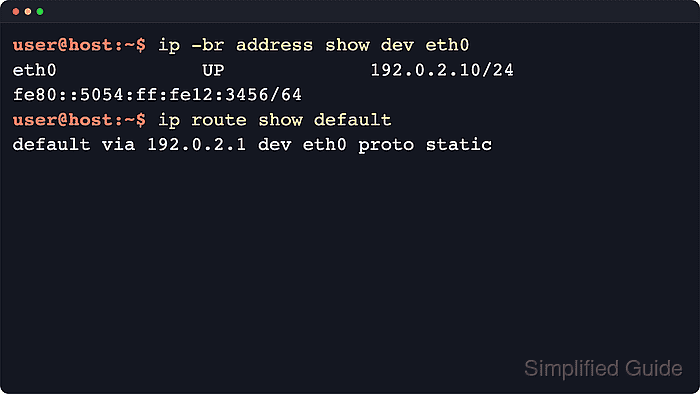
$ ip -br address show dev eth0
eth0             UP             192.0.2.10/24 fe80::5054:ff:fe12:3456/64
$ ip route show default
default via 192.0.2.1 dev eth0 proto static
If the address does not appear and the cable is disconnected, add LINK_REQUIRED=no to the interface file only when there is a specific need to apply the static address without carrier detection.

Mohd Shakir Zakaria is a cloud architect with deep roots in software development and open-source advocacy. Certified in AWS, Red Hat, VMware, ITIL, and Linux, he specializes in designing and managing robust cloud and on-premises infrastructures.


