Enabling Flatpak on openSUSE or SLES makes desktop applications available outside the regular RPM package set, which is useful when a needed tool ships on Flathub but not in the default distribution repositories. It also separates application updates from the base operating system so workstation software can move faster without replacing core system packages.
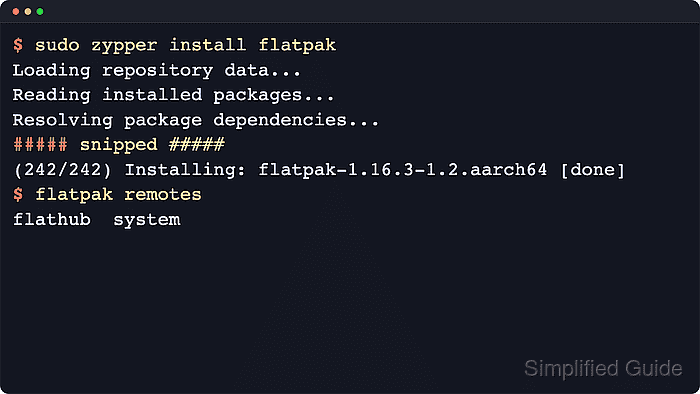
Flatpak installs a sandboxed application runtime and stores software sources as remotes such as Flathub. The package itself is installed with zypper, and the configured remote can then be used from the command line with flatpak or through desktop software tools such as GNOME Software on systems that include the desktop stack.
Flatpak is available in the maintained openSUSE repositories, while SLES package availability depends on the system's registration state and enabled repositories or modules. After adding Flathub, restart the system before expecting desktop integration to be fully available in graphical software managers.
Steps to enable Flatpak in openSUSE and SLES:
- Open a terminal session with a user account that can run sudo.
- Refresh the enabled package repositories so zypper resolves the current package metadata.
$ sudo zypper refresh
- Install the flatpak package.
$ sudo zypper install flatpak
##### snipped #####
(242/242) Installing: flatpak-1.16.3-1.2.aarch64 [done]
Current openSUSE repositories also pull in xdg-desktop-portal and related desktop integration packages as dependencies.
On SLES, a No provider of 'flatpak' found message usually means the system is not registered for the required repositories or modules yet.
- Add the Flathub remote so Flatpak applications can be installed system-wide.
$ sudo flatpak remote-add --if-not-exists flathub https://dl.flathub.org/repo/flathub.flatpakrepo
Flatpak uses system-wide remotes by default, so leaving out –user makes Flathub available to all local users.
- Confirm that the Flathub remote is present and marked as a system remote.
$ flatpak remotes
flathub  system
The system flag confirms that the remote is available to every local account instead of only the current user.
- Restart the system to complete the desktop-side Flatpak integration.
$ sudo systemctl reboot

Mohd Shakir Zakaria is a cloud architect with deep roots in software development and open-source advocacy. Certified in AWS, Red Hat, VMware, ITIL, and Linux, he specializes in designing and managing robust cloud and on-premises infrastructures.


