Mounting an SMB share on macOS makes a Windows, NAS, or Samba folder available as a local filesystem path for Finder and Terminal work. A terminal mount is useful when the share needs a predictable mount point, when Finder is not enough for scripts, or when the operator needs a command that can be repeated.
macOS includes the smbfs filesystem client, and the system mount command can attach an SMB/CIFS URL to a local directory. Apple's Finder path uses Go → Connect to Server with addresses such as smb://files.example.net/team, while the command line uses the same server and share parts with mount -t smbfs.
The examples use files.example.net, the share team, and a user-owned mount point at ~/Volumes/team. Keep passwords out of the command line so they are not stored in shell history, and confirm that the account has permission on the server before treating a local mount failure as a macOS problem.
Steps to mount an SMB share on macOS with Terminal:
- Create a local mount directory for the share.
$ mkdir -p "$HOME/Volumes/team"
Use a user-owned directory for a temporary mount. Mounting under /Volumes usually requires administrative privileges and can conflict with Finder-created volume names.
- Mount the SMB share with the system mount command.
$ mount -t smbfs //sguser@files.example.net/team "$HOME/Volumes/team"
Password for files.example.net:
Do not put the password in the SMB URL. Enter it at the prompt so it does not appear in shell history, process listings, or copied command examples.
- Confirm that macOS attached the share to the expected path.
$ mount
##### snipped #####
//sguser@files.example.net/team on /Users/sguser/Volumes/team (smbfs, nodev, nosuid, mounted by sguser)
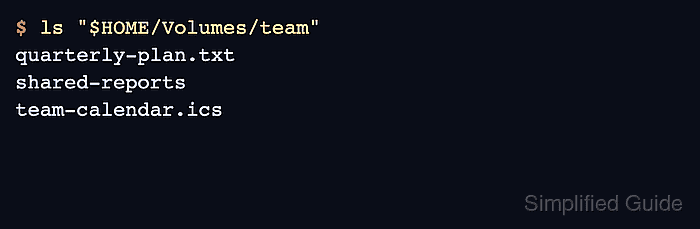
- List the mounted share contents.
$ ls "$HOME/Volumes/team"
quarterly-plan.txt
shared-reports
team-calendar.ics
If the share should allow writes, create and remove a small test file after confirming with the share owner. A successful mount can still be read-only because of server-side share or filesystem permissions.
- Open the mounted share in Finder.
$ open "$HOME/Volumes/team"
- Disconnect the share when access is no longer needed.
$ umount "$HOME/Volumes/team"
Ejecting the volume from Finder performs the same disconnect for Finder-mounted shares. Close open files before unmounting to avoid interrupted writes.

Mohd Shakir Zakaria is a cloud architect with deep roots in software development and open-source advocacy. Certified in AWS, Red Hat, VMware, ITIL, and Linux, he specializes in designing and managing robust cloud and on-premises infrastructures.


