A dated backup is ready for recovery only when its complete directory tree can be staged without touching the live working copy. An isolated recovery root lets an administrator inspect the selected point in time before any application-specific cutover.
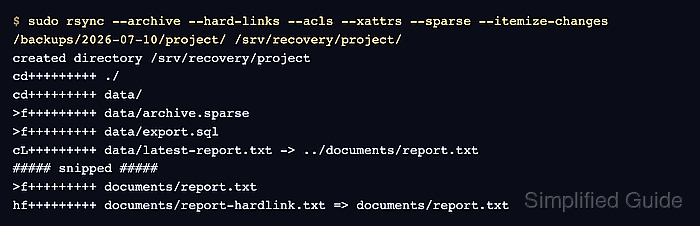
Directory recovery often needs more than the metadata covered by rsync archive mode. Hard-link relationships, ACLs, extended attributes, and sparse allocation require explicit preservation options, so the copy and every comparison must use the same option set.
The recovery parent stays access-restricted, and the dated backup remains the read-only source. A final checksum dry run uses --delete only as a comparison signal: it reports destination-only paths but changes nothing.
Steps to restore a directory from an rsync backup:
- List the available backup dates and select the recovery point.
$ sudo ls -1 /backups
2026-07-10
Confirm the date against the backup inventory or change record before using its directory tree as the restore source.
- Create a restricted parent for the recovered tree.
$ sudo install -d -m 0750 /srv/recovery
Keep the destination separate from the live application directory. Copying over a live tree can replace newer files while leaving unrelated destination-only paths in place.
- Preview the selected backup in the recovery destination.
$ sudo rsync --archive --hard-links --acls --xattrs --sparse --dry-run --itemize-changes /backups/2026-07-10/project/ /srv/recovery/project/
created directory /srv/recovery/project
cd+++++++++ ./
cd+++++++++ data/
>f+++++++++ data/archive.sparse
>f+++++++++ data/export.sql
cL+++++++++ data/latest-report.txt -> ../documents/report.txt
>f+++++++++ data/session.tmp
cd+++++++++ documents/
>f+++++++++ documents/notes.txt
>f+++++++++ documents/report.txt
hf+++++++++ documents/report-hardlink.txt => documents/report.txt
The trailing slash on /backups/2026-07-10/project/ copies its contents into /srv/recovery/project/. Keep the preservation options and both paths unchanged in the live restore.
Related: How to control rsync directory copies with trailing slashes
Related: How to preview rsync changes before syncing - Restore the directory after the preview lists only the selected backup paths.
$ sudo rsync --archive --hard-links --acls --xattrs --sparse --itemize-changes /backups/2026-07-10/project/ /srv/recovery/project/
created directory /srv/recovery/project
cd+++++++++ ./
cd+++++++++ data/
>f+++++++++ data/archive.sparse
>f+++++++++ data/export.sql
cL+++++++++ data/latest-report.txt -> ../documents/report.txt
>f+++++++++ data/session.tmp
cd+++++++++ documents/
>f+++++++++ documents/notes.txt
>f+++++++++ documents/report.txt
hf+++++++++ documents/report-hardlink.txt => documents/report.txt
--archive preserves the directory structure and core Unix metadata. The additional options preserve hard links, ACLs, extended attributes, and sparse file regions.
- List every path in the recovered tree.
$ sudo find /srv/recovery/project -print
/srv/recovery/project
/srv/recovery/project/data
/srv/recovery/project/data/archive.sparse
/srv/recovery/project/data/session.tmp
/srv/recovery/project/data/export.sql
/srv/recovery/project/data/latest-report.txt
/srv/recovery/project/documents
/srv/recovery/project/documents/notes.txt
/srv/recovery/project/documents/report.txt
/srv/recovery/project/documents/report-hardlink.txt
- Compare the recovered tree with the backup by content, preserved metadata, and deletion scope.
$ sudo rsync --archive --hard-links --acls --xattrs --sparse --checksum --dry-run --itemize-changes --delete /backups/2026-07-10/project/ /srv/recovery/project/
No output means rsync found no content, selected metadata, link, or destination-only path differences. A *deleting line identifies an extra recovery path, but --dry-run prevents --delete from removing it.
Related: How to mirror a directory with rsync and delete extra files

Mohd Shakir Zakaria is a cloud architect with deep roots in software development and open-source advocacy. Certified in AWS, Red Hat, VMware, ITIL, and Linux, he specializes in designing and managing robust cloud and on-premises infrastructures.


