A standard fresh Redmine installation uses the administrator login admin and password admin. This public password must be replaced at first sign-in to secure the administrator account.
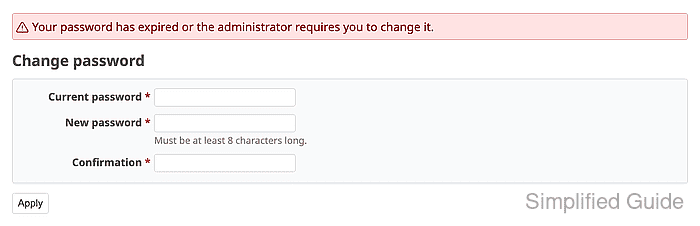
The current Redmine release redirects the default admin account to My account → Change password after the first successful sign-in. The form asks for the current password, the new password, and the confirmation, and Redmine enforces the configured minimum password length before accepting the change.
Built-in Redmine passwords can be changed in the web interface, while LDAP or other external authentication sources manage passwords outside Redmine. A completed change rejects admin as the old password and accepts only the new administrator password.
Steps to change the default Redmine admin password:
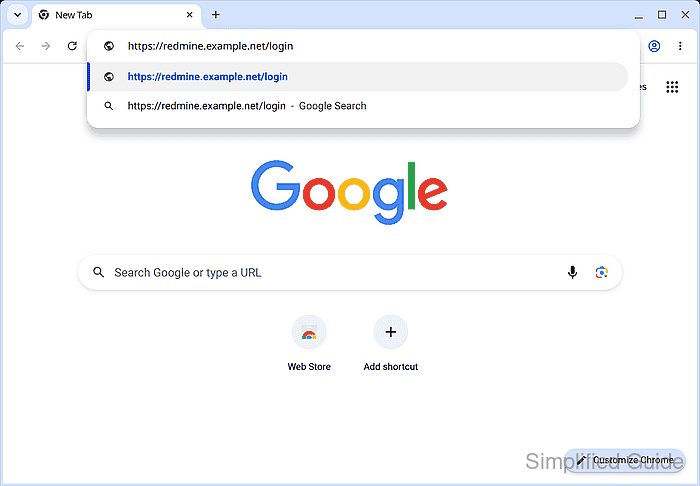
- Open the sign-in page of your Redmine site, such as https://redmine.example.net/login.
Anyone with the public default credentials can gain administrator access until the password is replaced.
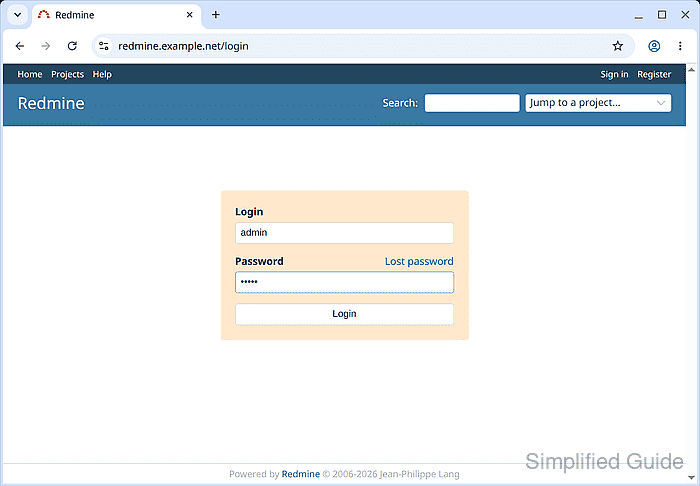
- Sign in with admin as both the Login and the Password.
- Enter admin as the Current password and your new password in New password and Confirmation.
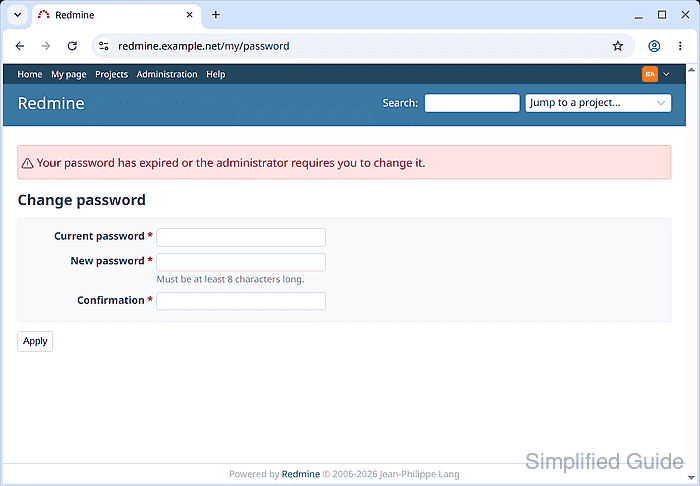
Redmine requires at least 8 characters unless the site administrator changed the minimum password length.
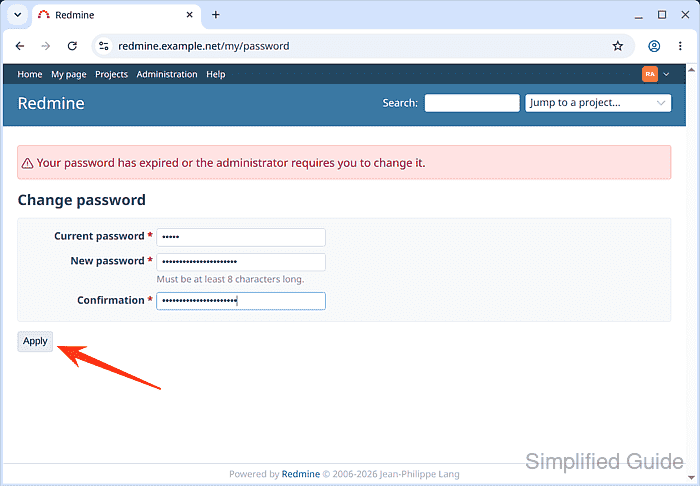
- Click Apply to save the new password.
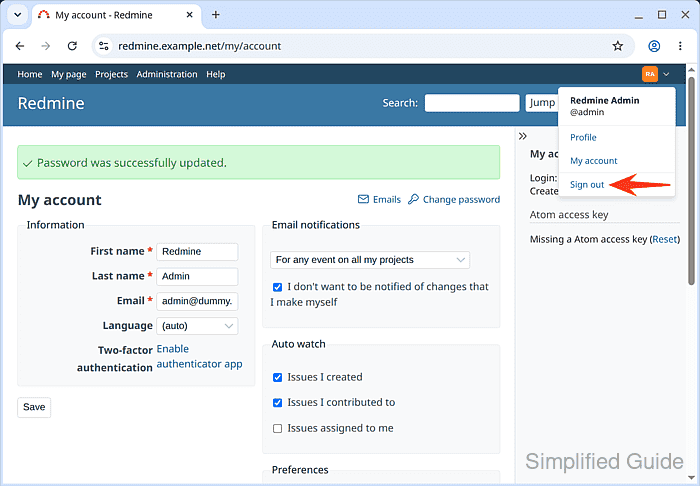
- Sign out from the account menu at the top right.
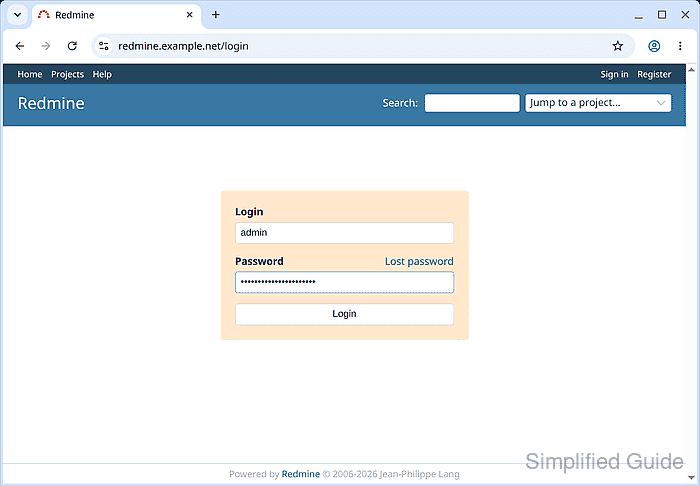
- Sign in with admin and your new password.
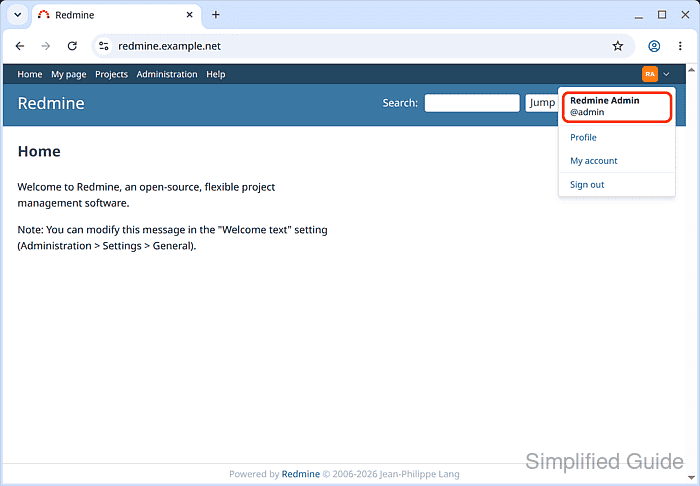
- Confirm that the account menu at the top right shows @admin, the administrator login.