Delete a Python virtual environment when the interpreter tree is broken, the dependency set is no longer needed, or a project needs a fresh sandbox before packages are installed again. The project source stays outside the environment directory, so deleting the environment removes the local interpreter and installed packages without removing the application files.
A venv environment contains its own interpreter, activation helpers, private site-packages directory, and pyvenv.cfg file under a path such as .venv. Python virtual environments are disposable project directories, so the normal reset path is to save any needed package list, delete the environment directory, and create a replacement instead of trying to repair stale files in place.
On Linux or macOS, a POSIX shell can remove a project-local environment named .venv from the project root. Activation is only shell-local state, but terminals, editor tasks, or background jobs can still point at the old interpreter; close or deactivate them before deleting the directory. On Windows, the same deletion principle applies with different path and activation syntax.
Steps to delete a Python virtual environment:
- Change to the project directory that owns the virtual environment.
$ cd ~/workspace/service-api
Running the delete commands from the environment's parent directory keeps the removal target short and easy to verify.
- Confirm that the target directory is really the virtual environment intended for removal.
$ ls .venv/bin/python .venv/pyvenv.cfg
.venv/bin/python
.venv/pyvenv.cfg
A venv directory normally contains its own interpreter path plus a pyvenv.cfg file. Stop here if the path points anywhere unexpected.
- Save the installed package set first when the environment will be rebuilt with the same application dependencies.
$ .venv/bin/python -m pip freeze > requirements.txt
Calling the environment's interpreter directly captures packages from that environment even when the current shell is not activated against it.
- Review the saved package list before deleting the environment.
$ cat requirements.txt
certifi==2026.5.20
charset-normalizer==3.4.7
idna==3.18
requests==2.32.3
urllib3==2.7.0
- Check whether the current shell is still activated against that environment.
$ printf '%s\n' "${VIRTUAL_ENV:-not active}"
/home/devops/workspace/service-api/.venv
If the variable prints the .venv path, deactivate the shell before deletion. If it prints not active, skip the next step.
- Deactivate the virtual environment in the current shell session.
(.venv) $ deactivate
Closing the shell also ends activation, but any editor, terminal tab, or background task still using the environment should be stopped separately.
- Remove the virtual environment directory from the project root.
$ rm -r .venv
The rm -r command recursively deletes the target directory, so verify the parent directory and environment name before pressing Enter.
- Verify that the environment directory is gone before recreating or reinstalling packages.
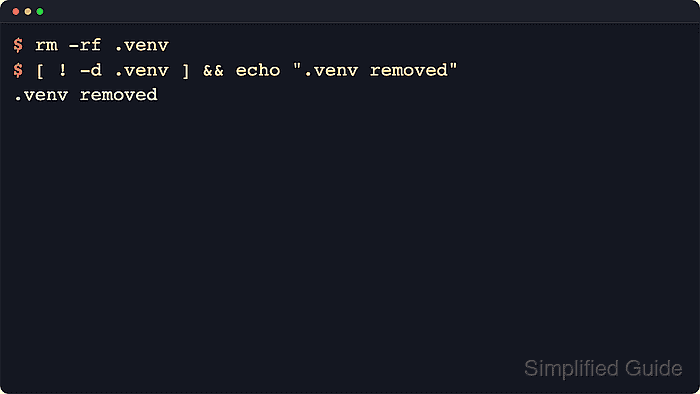
$ [ ! -d .venv ] && echo ".venv removed"
.venv removed
A direct directory check confirms that the old interpreter tree and installed packages are no longer present.

Mohd Shakir Zakaria is a cloud architect with deep roots in software development and open-source advocacy. Certified in AWS, Red Hat, VMware, ITIL, and Linux, he specializes in designing and managing robust cloud and on-premises infrastructures.


