Playwright projects use npm to add the Playwright Test runner, browser automation package, and starter configuration to a Node.js workspace. This setup fits JavaScript or TypeScript test suites that need Chromium, Firefox, or WebKit automation from the same project directory.
The npm initializer creates the Playwright config, example tests, package entries, and browser install plan in one pass. The scaffold shown here uses TypeScript and a Chromium starter project so the first install stays small; add Firefox or WebKit projects later when the suite must run against those engines.
Current Playwright packages require Node.js 18 or newer, and browser processes need operating-system libraries on minimal Linux or CI hosts. The sample path is ~/projects/playwright-demo; keep the install inside the project that will own package.json and playwright.config.ts.
Related: Install the latest Node.js on Ubuntu
Related: Install Playwright with Python
Related: Run Playwright tests
Steps to install Playwright with npm:
- Open the Node.js project directory.
$ cd ~/projects/playwright-demo
- Confirm that the project uses a supported Node.js runtime.
$ node --version
v22.22.1
Current @playwright/test releases require Node.js 18 or newer.
Related: Install the latest Node.js on Ubuntu - Scaffold the Playwright Test project with npm.
$ npm init playwright@latest -- --quiet --browser=chromium --lang=ts --no-browsers
Getting started with writing end-to-end tests with Playwright:
Initializing project in '.'
Installing Playwright Test (npm install --save-dev @playwright/test)
added 3 packages, and audited 4 packages in 1s
Writing playwright.config.ts.
Writing tests/example.spec.ts.
Success! Created a Playwright Test project at ~/projects/playwright-demo
Omit --quiet when you want the interactive prompts from the official initializer. The --browser=chromium choice keeps the starter config focused on one browser; edit playwright.config.ts later when the project needs Firefox or WebKit too.
- Install Chromium and the Linux libraries needed to launch it.
$ npx playwright install --with-deps chromium
Installing dependencies
##### snipped #####
Downloading Chrome for Testing 149.0.7827.55 (playwright chromium v1228)
Chromium 149.0.7827.55 downloaded to ~/.cache/ms-playwright/chromium-1228
##### snipped #####
Chrome Headless Shell 149.0.7827.55 downloaded to ~/.cache/ms-playwright/chromium_headless_shell-1228
Use npx playwright install without a browser name when the project config runs all default browser projects. On macOS or Windows, omit --with-deps because system browser libraries are not installed through the Linux package manager.
- Confirm the installed Playwright command.
$ npx playwright --version
Version 1.61.1
- Run the generated Chromium tests.
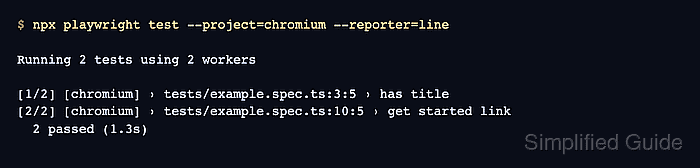
$ npx playwright test --project=chromium --reporter=line

Running 2 tests using 2 workers

[1/2] [chromium] › tests/example.spec.ts:3:5 › has title
[2/2] [chromium] › tests/example.spec.ts:10:5 › get started link
  2 passed (1.3s)
After this smoke test passes, replace tests/example.spec.ts with project-specific tests or continue with the general test-run workflow.
Related: Run Playwright tests

Mohd Shakir Zakaria is a cloud architect with deep roots in software development and open-source advocacy. Certified in AWS, Red Hat, VMware, ITIL, and Linux, he specializes in designing and managing robust cloud and on-premises infrastructures.


