Conda environments keep Python packages and compiled libraries together, which matters for scientific Python projects that depend on binary packages such as NumPy. Installing NumPy through Conda fits notebooks, analysis scripts, and teaching environments that already use Conda as the package and environment manager.
Create a named environment instead of changing the base environment. Conda can solve the Python version and NumPy package in one transaction, so the interpreter, array package, and compiled math libraries stay tied to the same environment.
The channel used for NumPy depends on the Conda installation and configuration. Miniforge commonly uses conda-forge, while Anaconda or Miniconda may use default channels unless a channel is specified; use the Conda package path first before adding pip packages to the same environment.
Related: Install with pip
Related: Install with uv
Related: Fix import errors
Steps to install NumPy with Conda:
- Open a terminal where the conda command is available.
On Windows, use Anaconda Prompt or Miniforge Prompt. On macOS or Linux, use a terminal session initialized for Conda.
- Create a named Conda environment with Python and NumPy.
$ conda create --yes --name numpy-demo python=3.12 numpy
Channels:
 - conda-forge
##### snipped #####
# To activate this environment, use
#
#     $ conda activate numpy-demo
Replace numpy-demo with a project-specific environment name. The channel line and package versions can differ when the local Conda configuration uses another channel.
- Activate the new Conda environment.
$ conda activate numpy-demo
- Confirm that NumPy is installed in the active environment.
$ conda list numpy
# packages in environment at /home/user/miniforge3/envs/numpy-demo:
#
# Name                     Version          Build            Channel
numpy                      2.5.0            py312hce9e0af_0  conda-forge
The exact NumPy version, build string, channel, and environment path depend on the platform and Conda configuration.
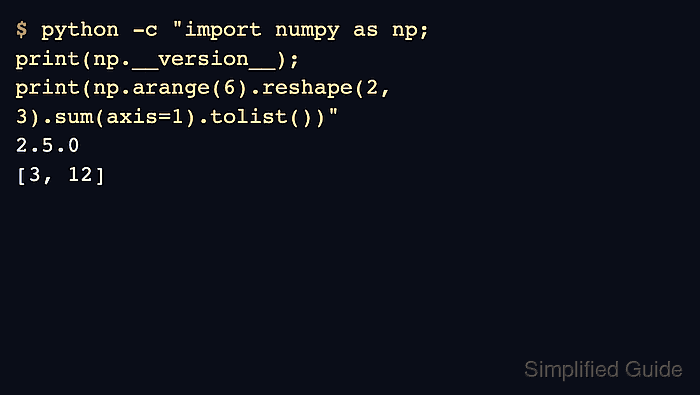
- Verify that the active environment imports NumPy and runs a small array calculation.
$ python -c "import numpy as np; print(np.__version__); print(np.arange(6).reshape(2, 3).sum(axis=1).tolist())"
2.5.0
[3, 12]
The version line may differ. A traceback means the active interpreter still cannot import NumPy from this environment.
Related: Fix import errors - Deactivate the temporary environment before removing it.
$ conda deactivate
- Remove the temporary example environment when the installation was only a test.
$ conda remove --yes --name numpy-demo --all
Remove all packages in environment /home/user/miniforge3/envs/numpy-demo:
##### snipped #####
Executing transaction: done
Keep the environment for real project work. This cleanup removes the sample environment, not Conda itself.

Mohd Shakir Zakaria is a cloud architect with deep roots in software development and open-source advocacy. Certified in AWS, Red Hat, VMware, ITIL, and Linux, he specializes in designing and managing robust cloud and on-premises infrastructures.


