Node.js dependency installs can execute third-party code. With npm 12, project approvals restrict dependency install scripts to reviewed packages, and strict enforcement makes unreviewed additions fail.
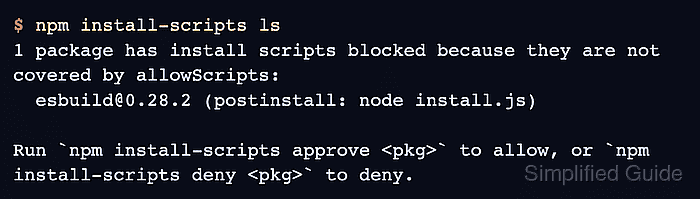
npm 12 blocks unapproved dependency install scripts by default. A warning such as “1 package had install scripts blocked because they are not covered by allowScripts” identifies a missing review decision, and npm 11 words it as “not yet covered by allowScripts”. The dependency may be present on disk but incompletely initialized because its script was skipped.
Project-local approvals keep developer and continuous-integration installs under the same policy. Strict enforcement rejects scripts without a recorded decision, while explicit denials keep unwanted scripts blocked. Approval permits install-time code execution with the installing account's access; it does not sandbox the package or establish that its code is safe.
Steps to review and control npm dependency install scripts:
- Install the dependency without running lifecycle scripts.
$ npm install esbuild --ignore-scripts

added 2 packages, and audited 3 packages in 7s

found 0 vulnerabilities
esbuild is the example dependency. For dependencies already listed in package.json, use npm install --ignore-scripts without a package name. npm versions before 12 have different script defaults and commands.
- List dependencies with pending install-script review.
$ npm install-scripts ls
1 package has install scripts blocked because they are not covered by allowScripts:
  esbuild@0.28.2 (postinstall: node install.js)

Run `npm install-scripts approve <pkg>` to allow, or `npm install-scripts deny <pkg>` to deny.
Each listed dependency needs a review decision, including transitive dependencies.
- Open node_modules/esbuild/install.js in a text editor to read the install script.
The listing names postinstall: node install.js, so that file holds the code to review, including anything it loads, downloads, runs, or writes.
- Approve the reviewed dependency that must run its install script.
$ npm install-scripts approve esbuild
Approved esbuild:
  added esbuild@0.28.2
Approval records permission in package.json and does not run the script. It is pinned to the installed version, so a different version needs another review. If the script should stay blocked, use npm install-scripts deny esbuild instead, but a denied package may not work without its install script.
- Enable strict project enforcement.
$ npm config set strict-allow-scripts true --location=project
This writes strict-allow-scripts=true to the project .npmrc file, and unreviewed install scripts now fail with ESTRICTALLOWSCRIPTS. The policy reaches every install when .npmrc, package.json, and package-lock.json are in version control. ignore-scripts=true overrides this policy and suppresses even approved scripts.
- Run a clean install with the approved script.
npm ci replaces node_modules with the locked dependency set. Approved scripts now execute with your account's access.
$ npm ci

added 2 packages, and audited 3 packages in 2s

found 0 vulnerabilities
- Check that the approved dependency works.
$ npx esbuild --version
npm notice run script-policy-demo@1.0.0 npx
npm notice run 'esbuild' --version
0.28.2
npx runs the copy installed in node_modules, and the version matches the approved entry.