Disk services in Nagios Core turn filesystem free-space thresholds into normal service states before storage pressure interrupts the host. The check_disk plugin reports OK, WARNING, or CRITICAL from the mounted filesystem path, so a disk check can use the same alerting, retry, and notification rules as other services.
Current Debian and Ubuntu Nagios packages already load a reusable check_disk command definition and include a standard directory for custom objects. The service object only needs to attach an existing host to that command with warning and critical thresholds plus the mounted path to check.
A localhost service can monitor the root filesystem with a warning threshold below 20% free space and a critical threshold below 10% free space. Remote Linux filesystems should normally be checked by an agent such as NRPE or NCPA running on the monitored host, because the Nagios server cannot see a remote host's local disks through a plain network check.
Steps to monitor disk usage with Nagios Core:
- Run check_disk manually against the filesystem path.
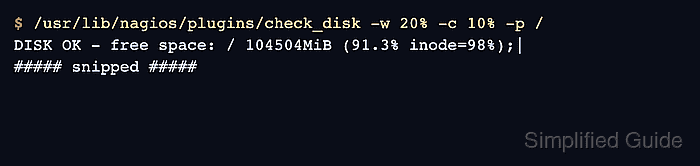
$ /usr/lib/nagios/plugins/check_disk -w 20% -c 10% -p /
DISK OK - free space: / 104504MiB (91.3% inode=98%);|
##### snipped #####
check_disk percentage thresholds are free-space thresholds. -w 20% means WARNING when less than 20 percent is free, and -c 10% means CRITICAL when less than 10 percent is free.
- Create a service object for the disk check.
$ sudo vi /etc/nagios4/conf.d/localhost-disk-usage.cfg
define service {
    use                     generic-service
    host_name               localhost
    service_description     Disk Usage
    check_command           check_disk!20%!10%!/
}
Replace localhost with the real Nagios host object when monitoring another host. On Debian and Ubuntu packages, the check_disk command definition is loaded from /etc/nagios-plugins/config/disk.cfg, and /etc/nagios4/conf.d is included by /etc/nagios4/nagios.cfg.
Related: How to add a service check in Nagios Core - Test the Nagios Core configuration.
$ sudo nagios4 -v /etc/nagios4/nagios.cfg

Nagios Core 4.4.6
##### snipped #####
Checking objects...
	Checked 9 services.
	Checked 1 hosts.
	Checked 1 host groups.
##### snipped #####
Total Warnings: 0
Total Errors:   0

Things look okay - No serious problems were detected during the pre-flight check
Fix validation errors before reloading Nagios Core. A misspelled host name or missing command definition prevents the new service from loading.
Related: How to validate the Nagios Core configuration - Reload Nagios Core to apply the new object.
$ sudo systemctl reload nagios4
On systems where the package does not support reload, restart the service during a maintenance window instead.
- Open the Services view in the Nagios Core web interface and check the Disk Usage service under localhost.
The service may show Pending until the next scheduled active check. Reschedule the service check when immediate proof is needed.
Related: How to reschedule an active check in Nagios Core

Mohd Shakir Zakaria is a cloud architect with deep roots in software development and open-source advocacy. Certified in AWS, Red Hat, VMware, ITIL, and Linux, he specializes in designing and managing robust cloud and on-premises infrastructures.


