The local hour on a Windows PC depends on its time zone as well as its clock. Changing the time zone to match your region corrects the displayed local time without resetting the clock.
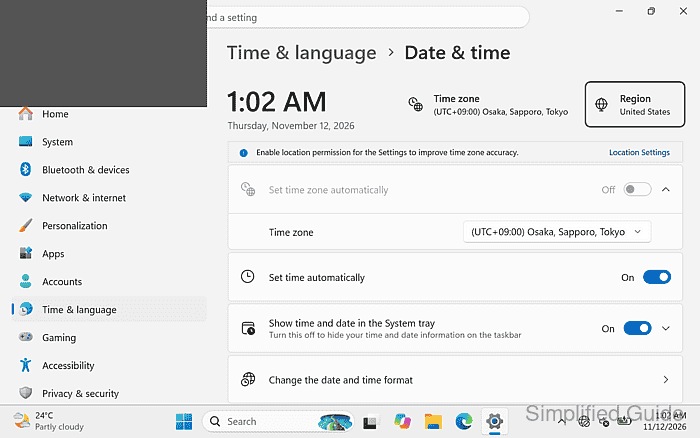
Automatic time zone selection uses location services, while a manual selection keeps the PC on a chosen region. Manual selection suits a computer at a fixed site or a laptop whose detected location is wrong.
Time zones also define local daylight saving rules, so choosing a region is more accurate than matching its current UTC offset alone. A time zone change does not repair a clock with the wrong minutes or date.
Steps to change the time zone in Windows 11:
- Open Settings with Win + I.
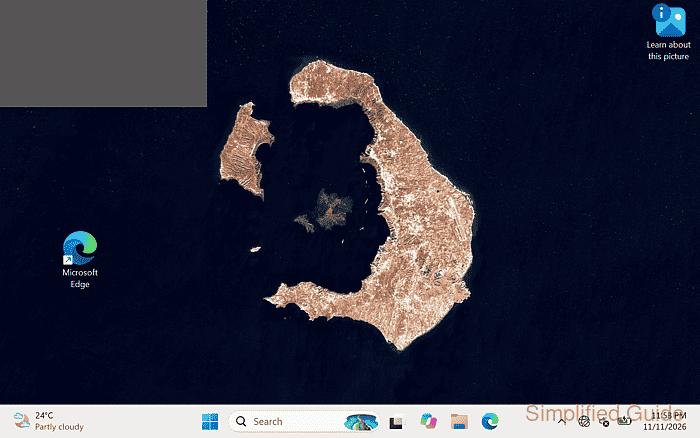
- Select Time & language in the left sidebar.

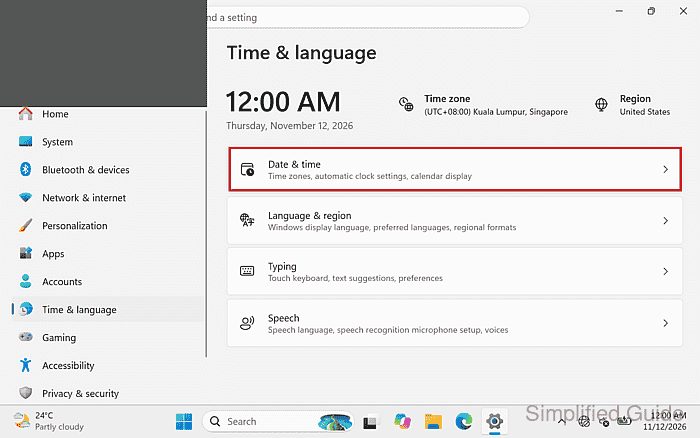
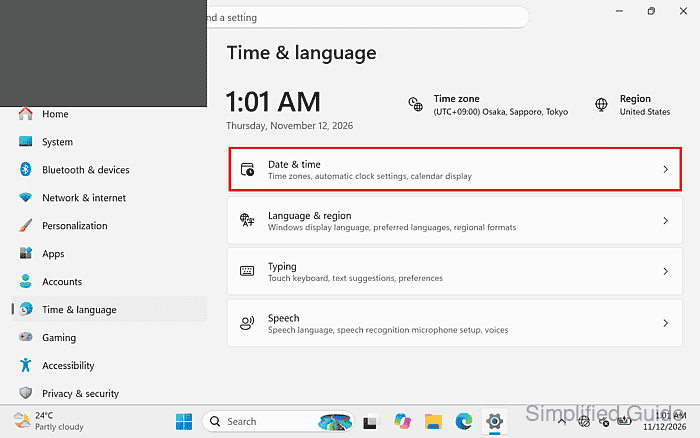
- Open Date & time.
- Turn off Set time zone automatically if it is On.
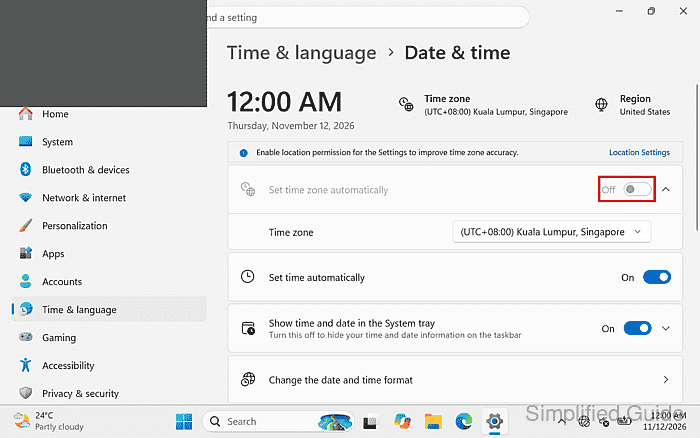
An unavailable switch already set to Off does not prevent manual selection. The separate Set time automatically switch controls clock synchronization and can stay On.
- Select your region from the Time zone drop-down list.
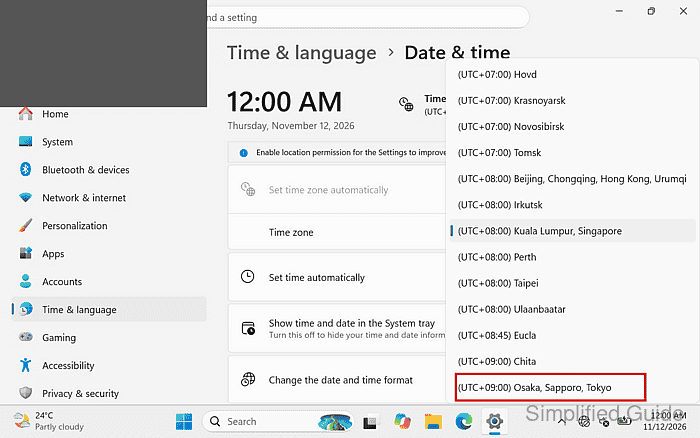
The city or region names distinguish time zones with different daylight saving rules. The selection applies immediately without a Save button or a restart.
- Select Time & language in the left sidebar.
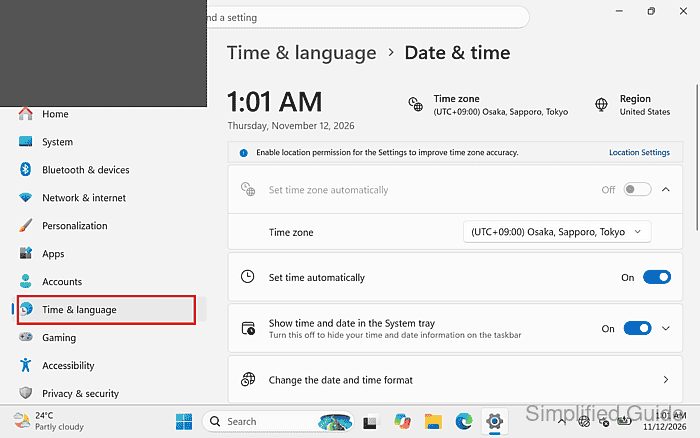
- Open Date & time again.
- Confirm that Time zone still shows your chosen region.
The clock at the top of the page reflects the selected zone. A reverted selection means the change has not persisted; organization policy or virtual machine time synchronization can override it.