Disabling the Telnet Client removes a legacy unencrypted network client from Windows 11 and Windows 10. That is useful when a workstation no longer needs ad-hoc telnet port probes, when a security baseline forbids older remote-access tools, or when network testing should move to current commands such as Test-NetConnection instead.
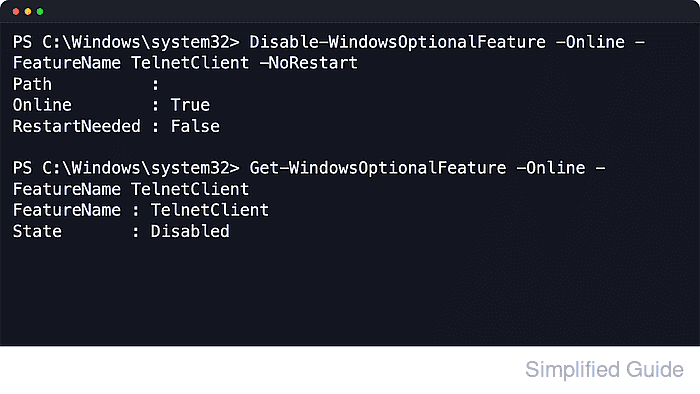
Telnet Client is installed as an optional Windows feature named TelnetClient. Windows keeps that feature state in the optional-features component store, so Get-WindowsOptionalFeature can show whether it is enabled and Disable-WindowsOptionalFeature can turn it off for the running operating system without opening the graphical features panels.
The change must be made from an elevated Windows PowerShell session because optional-feature servicing requires Administrator rights. Some systems still need a restart before the state settles from Disable Pending to Disabled, and policy on managed devices can prevent the change or reapply the feature later. Any script or runbook that still depends on telnet host port needs a different validation method after the client is removed.
Related: How to enable Telnet Client in Windows
Related: How to run PowerShell as administrator
Steps to disable Telnet Client in Windows from Windows PowerShell:
- Open an elevated Windows PowerShell session.
Prefer the built-in Windows PowerShell entry when both Windows PowerShell and PowerShell are installed, because Microsoft documents these optional-feature cmdlets for Windows PowerShell on Windows client systems.
- Check the current state of the optional feature.
PS C:\Windows\system32> Get-WindowsOptionalFeature -Online -FeatureName TelnetClient |
>>   Select-Object FeatureName, State

FeatureName  State
-----------  -----
TelnetClient Enabled
If the state already shows Disabled, the feature is already off and the remaining steps serve as a verification pass only.
- Disable the feature without forcing an immediate restart.
PS C:\Windows\system32> Disable-WindowsOptionalFeature -Online -FeatureName TelnetClient -NoRestart

Path          :
Online        : True
RestartNeeded : False
The -NoRestart switch lets the change finish later if Windows reports that a reboot is still required.
- Restart Windows if the command reports RestartNeeded : True or if a later status check shows Disable Pending.
PS C:\Windows\system32> Restart-Computer
Restart only when the current desktop session can be interrupted safely, because open applications and unsaved work are closed.
- Confirm that the feature state is now Disabled.
PS C:\Windows\system32> Get-WindowsOptionalFeature -Online -FeatureName TelnetClient |
>>   Select-Object FeatureName, State

FeatureName  State
-----------  -----
TelnetClient Disabled
- Verify that the telnet command is no longer available in the shell.
PS C:\Windows\system32> telnet
telnet : The term 'telnet' is not recognized as the name of a cmdlet, function, script file, or operable program.
Any script, shortcut, or troubleshooting note that still expects telnet to exist fails until the feature is enabled again.

Mohd Shakir Zakaria is a cloud architect with deep roots in software development and open-source advocacy. Certified in AWS, Red Hat, VMware, ITIL, and Linux, he specializes in designing and managing robust cloud and on-premises infrastructures.


