RAR archives often arrive from Windows tools, download sites, game mods, or backup handoffs where the original directory layout matters. Extracting them from a terminal keeps the destination explicit, so files are not mixed into the current directory or overwritten without the operator seeing the prompt.
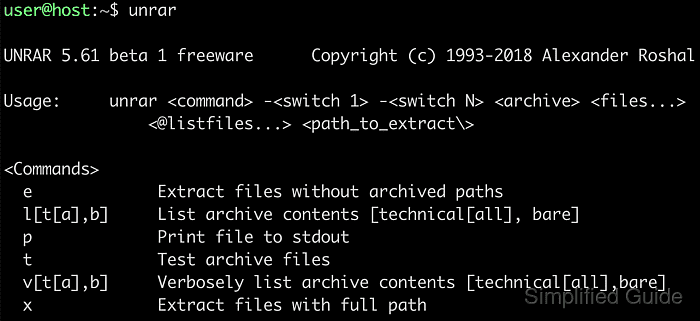
The unrar command can inspect, test, and extract the same archive before any file is restored. The l action shows stored names and paths, t reads the archive data as an integrity check, and x extracts while preserving archived directories.
Treat unfamiliar archives as untrusted input, especially when they came from email, chat, or public downloads. Use a dedicated destination directory, prefer -o- when existing files must not be overwritten, and run split sets from the first volume such as project.part1.rar or project.part01.rar.
Steps to extract RAR files in Linux:
- Check the archive type before extraction.
$ file testfile.rar5.rar
testfile.rar5.rar: RAR archive data, v5
When the archive is split across volumes, run the listing, test, and extraction commands against the first volume such as project.part1.rar or project.part01.rar.
- List the archive contents without writing files.
$ unrar l testfile.rar5.rar

UNRAR 7.20 freeware      Copyright (c) 1993-2026 Alexander Roshal

Archive: testfile.rar5.rar
Details: RAR 5

 Attributes       Size     Date    Time   Name
----------- ----------  ---------- -----  ----
 -rw-rw-rw-         12  2001-01-01 05:00  testfile.txt
----------- ----------  ---------- -----  ----
                    12                    1
The l action confirms file names, sizes, and the stored directory layout before anything is unpacked.
- Test the archive data before extraction.
$ unrar t testfile.rar5.rar

UNRAR 7.20 freeware      Copyright (c) 1993-2026 Alexander Roshal

Testing archive testfile.rar5.rar

Testing     testfile.txt                                             100%  OK
All OK
Encrypted archives prompt for a password during t or x when unrar needs to read the protected file data.
- Create a dedicated target directory.
$ mkdir -p extracted
Extracting into a clean directory makes it easier to review the restored files and avoids mixing them with unrelated data already present in the current path.
- Extract the archive while preserving stored paths and refusing overwrites.
$ unrar x -o- testfile.rar5.rar extracted/

UNRAR 7.20 freeware      Copyright (c) 1993-2026 Alexander Roshal


Extracting from testfile.rar5.rar

Extracting  extracted/testfile.txt                                   100%  OK
All OK
The x action keeps archived directories. Use e only when the stored directory structure should be discarded.
- Verify that the expected files were written to the destination directory.
$ find extracted -maxdepth 2 -type f
extracted/testfile.txt
A clean directory listing after All OK confirms that the files were restored into the intended target path.