Changing a filesystem UUID prevents cloned or restored storage from presenting the same identifier as the original copy. That matters when multiple copies of the same filesystem are attached to one system, because a reused UUID can make mount rules or recovery work point at the wrong volume.
In Linux, the filesystem stores its own UUID in on-disk metadata, and tools such as blkid, lsblk, findmnt, and /etc/fstab can use that value with UUID=… references. That filesystem UUID is separate from a partition-table PARTUUID, so changing one does not automatically change the other.
The command flow below was verified on Ubuntu 26.04 against an unmounted ext4 filesystem and uses tune2fs from e2fsprogs. Root, boot, encrypted, or resume-related filesystems need extra care because every saved reference to the old UUID must be updated before rebooting, and non-ext filesystems such as XFS, Btrfs, or swap use different tools.
Steps to change a disk or partition filesystem UUID in Linux:
- Open a terminal with access to sudo.
- Identify the target filesystem device and its current UUID.
$ lsblk -o NAME,TYPE,FSTYPE,UUID,MOUNTPOINTS
NAME   TYPE FSTYPE UUID                                 MOUNTPOINTS
vda    disk
└─vda1 part ext4   40d2c9cb-8b7e-42d9-9d17-0d424dc7a811 /
vdb    disk
└─vdb1 part ext4   3f5e6c0d-2c2f-4a7f-b2b7-a1d4fd6c9ec4 /mnt/data
Use the device that holds the filesystem itself, such as /dev/vdb1 or /dev/nvme1n1p1, not the parent disk unless the filesystem was created directly on that whole-disk device.
- Confirm the exact filesystem metadata on the target device before changing anything.
$ sudo blkid /dev/vdb1
/dev/vdb1: LABEL="data" UUID="3f5e6c0d-2c2f-4a7f-b2b7-a1d4fd6c9ec4" BLOCK_SIZE="4096" TYPE="ext4"
The UUID field is the filesystem identifier that tune2fs changes. If a configuration uses PARTUUID=… instead, that identifier comes from the partition table and needs a different workflow.
- Unmount the filesystem so the metadata can be checked and updated safely.
$ sudo umount /dev/vdb1
Some ext4 configurations can change the UUID while mounted, but the broadly compatible maintenance-window workflow is to unmount first. If the target is the root filesystem, a boot filesystem, or another busy production volume, perform the change from a rescue system or a maintenance window instead.
- Check the filesystem for errors before writing a new UUID.
$ sudo e2fsck -f /dev/vdb1
e2fsck 1.47.2 (1-Jan-2025)
Pass 1: Checking inodes, blocks, and sizes
Pass 2: Checking directory structure
Pass 3: Checking directory connectivity
Pass 4: Checking reference counts
Pass 5: Checking group summary information
data: 12/16384 files (8.3% non-contiguous), 2097/16384 blocks
e2fsck is the checker for ext2, ext3, and ext4. If it reports damage that needs repair, complete that repair before changing the UUID.
- Generate and write a new random UUID to the ext filesystem.
$ sudo tune2fs -U random /dev/vdb1
tune2fs 1.47.2 (1-Jan-2025)
tune2fs -U random avoids depending on a separate uuidgen package. For a preselected value, replace random with a full UUID such as 8f407127-907c-4ff0-99d3-3b1d7cde9e12.
Tool: Universally Unique Identifier (UUID) GeneratorThis command applies to ext2, ext3, and ext4 filesystems. Other filesystem types use different tools and workflows, such as xfs_admin for XFS or btrfstune for Btrfs.
- Read the filesystem metadata again and note the new UUID for the remaining steps.
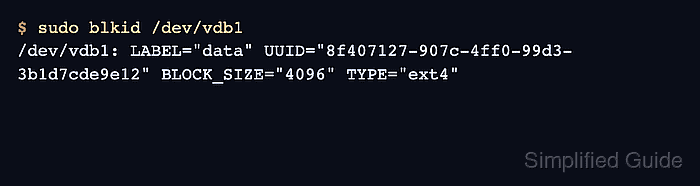
$ sudo blkid /dev/vdb1
/dev/vdb1: LABEL="data" UUID="8f407127-907c-4ff0-99d3-3b1d7cde9e12" BLOCK_SIZE="4096" TYPE="ext4"
- Create a backup of the current /etc/fstab file before editing any saved mount configuration.
$ sudo cp --archive /etc/fstab /etc/fstab.bak
- Update every saved reference that still uses the old UUID, starting with /etc/fstab.
$ sudoedit /etc/fstab
UUID=8f407127-907c-4ff0-99d3-3b1d7cde9e12 /mnt/data ext4 defaults 0 2
##### snipped #####
If the filesystem is used for boot files, encrypted mappings, hibernation resume, or custom boot loader entries, update those references before rebooting or the system may fail to start cleanly.
- Verify the saved mount configuration before relying on it at boot.
$ sudo findmnt --verify --verbose /mnt/data
/mnt/data
   [ ] target exists
   [ ] UUID=8f407127-907c-4ff0-99d3-3b1d7cde9e12 translated to /dev/vdb1
   [ ] source /dev/vdb1 exists
   [ ] FS type is ext4
Success, no errors or warnings detected
Current mount(8) documentation recommends findmnt –verify for checking /etc/fstab content instead of using mount -a only as a syntax test.
- Mount the filesystem again by its configured mount point.
$ sudo mount /mnt/data
- Confirm that the filesystem is mounted at the expected path with the new UUID-backed configuration.
$ findmnt --target /mnt/data --output TARGET,SOURCE,FSTYPE,OPTIONS
TARGET    SOURCE    FSTYPE OPTIONS
/mnt/data /dev/vdb1 ext4   rw,relatime
If the mount fails, compare the current blkid output against every saved UUID=… reference before rebooting.

Mohd Shakir Zakaria is a cloud architect with deep roots in software development and open-source advocacy. Certified in AWS, Red Hat, VMware, ITIL, and Linux, he specializes in designing and managing robust cloud and on-premises infrastructures.


