A missing GRUB menu usually appears after another operating system, firmware reset, disk clone, or failed bootloader update changes the path the firmware uses to start Linux. Recovering it from live media mounts the installed system from outside, writes the GRUB loader back to the boot path, and rebuilds the menu that points to the installed kernels.
A live USB session supplies a working shell while the installed root filesystem is mounted under /mnt. On UEFI systems, the EFI system partition must also be mounted at /mnt/boot/efi before grub-install runs; on legacy BIOS systems, grub-install writes to the whole disk instead.
The examples assume an Ubuntu or Debian style system on a single disk where the live session can mount the installed root filesystem directly. Encrypted volumes, LVM, RAID, separate boot partitions, or non-x86 firmware need the same recovery order but different device names, unlocked mappings, or grub-install target options.
Steps to recover GRUB from live media:
- Boot the computer from a Linux live USB in the same firmware mode as the installed system.
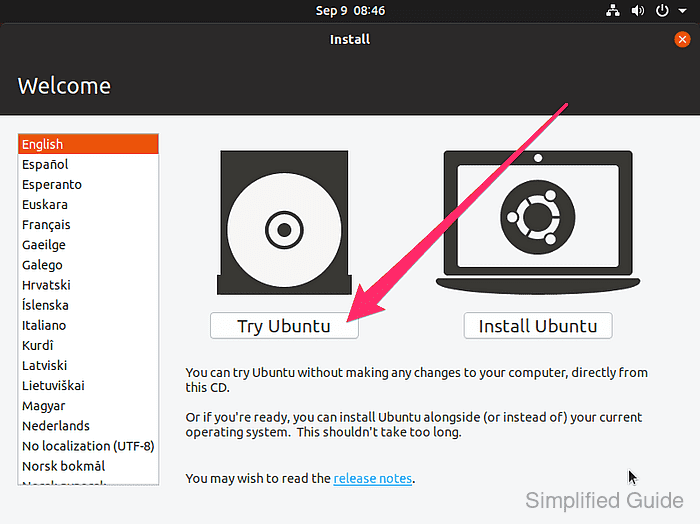
For Ubuntu installation media, choose Try Ubuntu instead of starting the installer. If the installed system uses UEFI, select the UEFI entry for the live USB from the firmware boot menu.
- Open a terminal in the live environment.
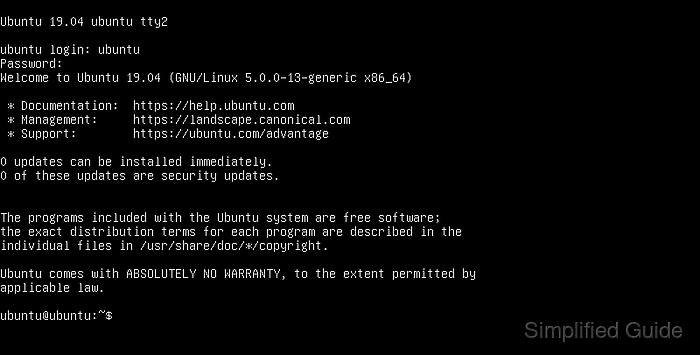
If no graphical session is available, press Ctrl + Alt + F2 to reach a TTY and log in with the live media account.
- Identify the installed root partition, EFI system partition, and live media device.
$ lsblk --fs --output NAME,SIZE,FSTYPE,LABEL,MOUNTPOINTS
NAME      SIZE FSTYPE  LABEL        MOUNTPOINTS
sda     476.9G
|-sda1    512M vfat    EFI
`-sda2 476.4G ext4    ubuntu-root
sdb      14.6G iso9660 Ubuntu       /cdrom
The installed root partition is the Linux filesystem that contains the damaged system, such as /dev/sda2. The EFI system partition is usually a small vfat partition, such as /dev/sda1. Do not target the live USB device.
- Mount the installed root filesystem under /mnt.
$ sudo mount /dev/sda2 /mnt
Replace /dev/sda2 with the installed root partition found in the previous step. Mounting the wrong root filesystem can reinstall GRUB for the wrong operating system.
- Create the EFI mount point for a UEFI system.
$ sudo mkdir -p /mnt/boot/efi
If the installed system has a separate Linux /boot partition, mount that partition at /mnt/boot before creating or using /mnt/boot/efi.
- Mount the EFI system partition.
$ sudo mount /dev/sda1 /mnt/boot/efi
Skip this step on a legacy BIOS installation that has no EFI system partition.
- Bind the live system interfaces needed inside the mounted system.
$ sudo mount --rbind /dev /mnt/dev
$ sudo mount --rbind /proc /mnt/proc
$ sudo mount --rbind /sys /mnt/sys
$ sudo mount --rbind /run /mnt/run
These recursive bind mounts let grub-install see block devices, pseudo-terminals, kernel state, firmware variables, and runtime files from inside the chroot.
- Reinstall GRUB for a UEFI boot path.
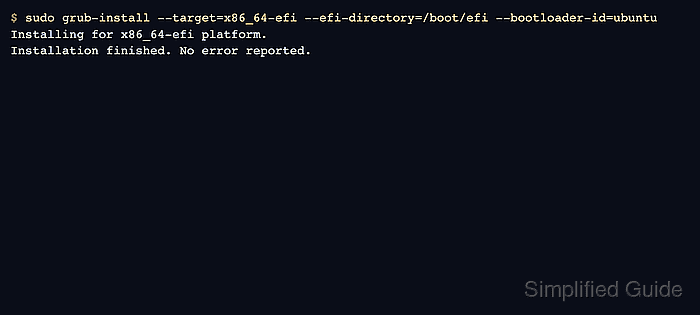
$ sudo chroot /mnt grub-install --target=x86_64-efi --efi-directory=/boot/efi --bootloader-id=ubuntu
Installing for x86_64-efi platform.
Installation finished. No error reported.
For legacy BIOS systems, run sudo chroot /mnt grub-install /dev/sda instead and target the whole disk, not a partition such as /dev/sda1. For Debian, use --bootloader-id=debian or keep the existing distribution bootloader ID.
- Regenerate the GRUB menu inside the installed system.
$ sudo chroot /mnt update-grub
Sourcing file `/etc/default/grub'
Generating grub configuration file ...
Found linux image: /boot/vmlinuz-6.14.0-24-generic
Found initrd image: /boot/initrd.img-6.14.0-24-generic
Adding boot menu entry for UEFI Firmware Settings ...
done
On distributions without update-grub, run sudo chroot /mnt grub-mkconfig -o /boot/grub/grub.cfg instead.
- Unmount the bind-mounted live system interfaces.
$ sudo umount --recursive /mnt/run
$ sudo umount --recursive /mnt/sys
$ sudo umount --recursive /mnt/proc
$ sudo umount --recursive /mnt/dev
- Unmount the EFI system partition.
$ sudo umount /mnt/boot/efi
Skip this step if the system uses legacy BIOS or if no EFI system partition was mounted.
- Unmount the installed root filesystem.
$ sudo umount /mnt
- Reboot from the internal disk.
$ sudo reboot
Remove the live USB when the firmware screen or boot menu appears so the machine starts from the repaired disk.
- Confirm that the installed Linux system starts from its normal root filesystem.
$ findmnt /
TARGET SOURCE    FSTYPE OPTIONS
/      /dev/sda2 ext4   rw,relatime
The recovered state is a visible GRUB menu or a direct boot through the restored GRUB entry, followed by a normal login to the installed system.

Mohd Shakir Zakaria is a cloud architect with deep roots in software development and open-source advocacy. Certified in AWS, Red Hat, VMware, ITIL, and Linux, he specializes in designing and managing robust cloud and on-premises infrastructures.


