Memory information checks help confirm whether a Linux host has the expected RAM capacity before sizing workloads, opening a support case, or comparing a server to an inventory record. The first reading should separate usable memory from cache and swap so a capacity check does not get mistaken for a pressure incident.
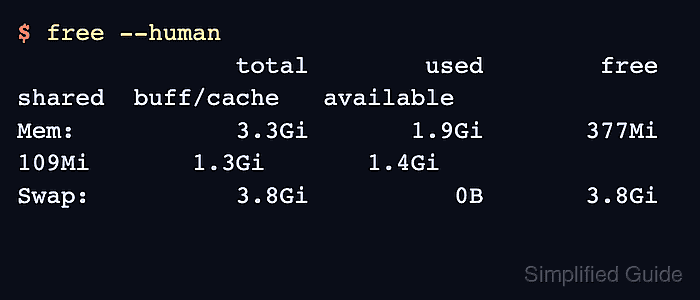
The free command and /proc/meminfo read kernel memory counters and show what the running system can allocate. These values are the right source for total memory, available memory, cache, swap, huge pages, and other runtime counters that change as workloads run.
Hardware-level commands use a different source. lsmem reads memory block information from sysfs, while dmidecode reads DMI and SMBIOS firmware tables for memory device size, type, speed, and slot details. Containers and some virtual machines hide those interfaces, so run hardware-detail commands on the host or full guest that owns the memory.
Steps to show memory information in Linux:
- Display total, used, free, cache, available, and swap memory.
$ free --human
               total        used        free      shared  buff/cache   available
Mem:           3.3Gi       1.9Gi       366Mi       109Mi       1.3Gi       1.4Gi
Swap:          3.8Gi          0B       3.8Gi
available estimates memory that applications can allocate without immediate swapping. buff/cache is mostly reclaimable file cache, not permanently occupied application memory.
Related: How to check memory usage in Linux - Read the raw kernel memory counters from /proc/meminfo.
$ cat /proc/meminfo
MemTotal:        3461112 kB
MemFree:          375492 kB
MemAvailable:    1448432 kB
Buffers:           38452 kB
Cached:          1242596 kB
SwapCached:            0 kB
Active:          2135860 kB
Inactive:         546660 kB
##### snipped #####
SwapTotal:       3984380 kB
SwapFree:        3984380 kB
##### snipped #####
MemTotal is the physical memory visible to the kernel. MemAvailable is the safer capacity signal for new allocations because it accounts for reclaimable cache.
- Summarize virtual memory counters with vmstat.
$ vmstat --stats
      3461112 K total memory
      2010704 K used memory
      2134860 K active memory
       546660 K inactive memory
       377468 K free memory
        38452 K buffer memory
      1305588 K swap cache
      3984380 K total swap
            0 K used swap
      3984380 K free swap
##### snipped #####
vmstat –stats is useful when a report needs one snapshot that includes memory, swap, paging, and CPU counter totals.
- List memory blocks on the full host or virtual machine.
$ lsmem
RANGE                                 SIZE  STATE REMOVABLE BLOCK
0x0000000040000000-0x000000013fffffff   4G online       yes  8-39

Memory block size:                128M
Total online memory:                4G
Total offline memory:               0B
If lsmem is missing on a minimal Ubuntu system, install the package that provides it with sudo apt install util-linux-extra. In containers, lsmem can fail when /sys/devices/system/memory is not exposed.
- Show firmware memory-device details when slot, speed, type, or module information is needed.
$ sudo dmidecode --type memory
# dmidecode 3.6
Getting SMBIOS data from sysfs.
SMBIOS 3.6.0 present.

Handle 0x0008, DMI type 17, 92 bytes
Memory Device
        Size: 4 GB
        Form Factor: DIMM
        Locator: Not Specified
        Type: DRAM
        Speed: Unknown
        Manufacturer: Not Specified
        Serial Number: Not shown
        Part Number: Not shown
##### snipped #####
dmidecode requires root access and can print serial numbers, asset tags, and part numbers. Remove hardware identifiers before sharing command output outside the support case or asset record that needs them.
- Match the command to the question being answered.
Use free, /proc/meminfo, or vmstat for memory visible to the running kernel. Use lsmem or dmidecode for host hardware layout and module inventory. Firmware capacity can be slightly higher than MemTotal because firmware, devices, or the hypervisor may reserve memory before Linux reports usable pages.