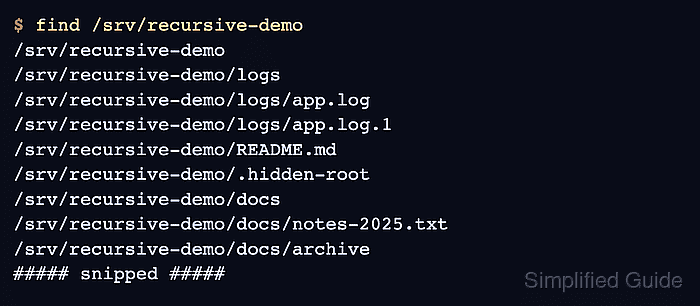
In Linux environments, recursively listing files reveals the full structure of a directory tree, including nested subdirectories and hidden files. This kind of overview is useful when cleaning up old data, auditing deployments, or tracking down configuration files scattered across multiple levels.

Common tools such as ls, find, du, and tree implement recursion in slightly different ways. Some focus on displaying directory contents, others specialize in searching by name or attributes, and some summarize disk usage. Combining these tools makes it possible to both see the hierarchy and act on specific subsets of files.

Recursive operations can touch a large number of paths, which may produce very long outputs and increase disk I/O on busy systems. Access permissions, filesystem mounts, and symbolic links can also affect results, so commands often need to be run with sudo and, on very large trees, against carefully chosen subdirectories instead of the filesystem root.

Steps to recursively list files in Linux:

  1. Open a terminal in the target directory or specify the directory path when running commands.
    $ pwd
    /home/user/projects

    Commands in the following steps support any readable directory path, not just the current working directory.

  2. Use the ls command with the -R option to list files and subdirectories recursively.
    $ ls -R recursive/
    recursive/:
    subdirectory-01  subdirectory-02
    
    recursive/subdirectory-01:
    file-01  file-02  file-03
    
    recursive/subdirectory-02:
    file-01  file-02  file-03
    
    $ ls -lR recursive/
    recursive/:
    total 8
    drwxr-xr-x 2 user user 4096 Aug 28 11:10 subdirectory-01
    drwxr-xr-x 2 user user 4096 Aug 28 11:10 subdirectory-02
    
    recursive/subdirectory-01:
    total 0
    -rw-r--r-- 1 user user 0 Aug 28 11:10 file-01
    -rw-r--r-- 1 user user 0 Aug 28 11:10 file-02
    -rw-r--r-- 1 user user 0 Aug 28 11:10 file-03
    
    recursive/subdirectory-02:
    total 0
    -rw-r--r-- 1 user user 0 Aug 28 11:10 file-01
    -rw-r--r-- 1 user user 0 Aug 28 11:10 file-02
    -rw-r--r-- 1 user user 0 Aug 28 11:10 file-03

    The -R flag recurses into each child directory; adding -l shows ownership, permissions, and timestamps.

  3. Display command usage for ls to review additional recursive and formatting options when needed.
    $ ls --help
    Usage: ls [OPTION]... [FILE]...
    List information about the FILEs (the current directory by default).
    Sort entries alphabetically if none of -cftuvSUX nor --sort is specified.
    
    Mandatory arguments to long options are mandatory for short options too.
      -a, --all                  do not ignore entries starting with .
      -A, --almost-all           do not list implied . and ..
          --author               with -l, print the author of each file
    ##### snipped #####
    Exit status:
     0  if OK,
     1  if minor problems (e.g., cannot access subdirectory),
     2  if serious trouble (e.g., cannot access command-line argument).

    Help output documents useful combinations such as -R with –group-directories-first or -h for human-readable sizes.

  4. Use the find command without extra predicates to obtain a simple recursive list of all paths.
    $ find recursive/
    recursive/
    recursive/subdirectory-01
    recursive/subdirectory-01/file-01
    recursive/subdirectory-01/file-02
    recursive/subdirectory-01/file-03
    recursive/subdirectory-02
    recursive/subdirectory-02/file-01
    recursive/subdirectory-02/file-02
    recursive/subdirectory-02/file-03

    find follows the directory tree starting from the given path and prints every directory and file encountered.

  5. Add filters to find to match only certain files, such as by name pattern or type.
    $ find recursive/ -type f -name "file-0[12]"
    recursive/subdirectory-01/file-01
    recursive/subdirectory-01/file-02
    recursive/subdirectory-02/file-01
    recursive/subdirectory-02/file-02

    Combining -type f with -name avoids listing directories when only regular files are needed.

  6. Use the -ls or -print actions with find for detailed file information or stable machine-readable output.
    $ find recursive/ -ls
    536809      4 drwxr-xr-x   4 user     user         4096 Aug 28 11:10 recursive/
    536810      4 drwxr-xr-x   2 user     user         4096 Aug 28 11:10 recursive/subdirectory-01
    536812      0 -rw-r--r--   1 user     user            0 Aug 28 11:10 recursive/subdirectory-01/file-01
    ##### snipped #####
    
    $ find recursive/ -print
    recursive/
    recursive/subdirectory-01
    recursive/subdirectory-01/file-01
    recursive/subdirectory-01/file-02
    recursive/subdirectory-01/file-03
    recursive/subdirectory-02
    recursive/subdirectory-02/file-01
    recursive/subdirectory-02/file-02
    recursive/subdirectory-02/file-03

    The -ls action prints permission bits, owners, sizes, and timestamps; -print guarantees every path is printed exactly once.

  7. Review find help output to discover advanced predicates such as size, age, or permission filters.
    $ find --help
    Usage: find [-H] [-L] [-P] [-Olevel] [-D debugopts] [path...] [expression]
    
    default path is the current directory; default expression is -print
    expression may consist of: operators, options, tests, and actions:
    operators (decreasing precedence; -and is implicit where no others are given):
          ( EXPR )   ! EXPR   -not EXPR   EXPR1 -a EXPR2   EXPR1 -and EXPR2
    ##### snipped #####

    Predicates such as -mtime, -size, and -perm make recursive listings double as powerful searches.

  8. Use the du command with the -a switch to list each file and directory with its disk usage.
    $ du -a recursive/
    0 recursive/subdirectory-01/file-01
    0 recursive/subdirectory-01/file-02
    0 recursive/subdirectory-01/file-03
    4 recursive/subdirectory-01
    0 recursive/subdirectory-02/file-01
    0 recursive/subdirectory-02/file-02
    0 recursive/subdirectory-02/file-03
    4 recursive/subdirectory-02
    12  recursive/

    Recursive du output helps correlate files with their contribution to total space usage.

  9. Show du help to discover options for human-readable units, depth limits, or excluding paths.
    $ du --help
    Usage: du [OPTION]... [FILE]...
      or:  du [OPTION]... --files0-from=F
    Summarize disk usage of the set of FILEs, recursively for directories.
    
    Mandatory arguments to long options are mandatory for short options too.
      -0, --null            end each output line with NUL, not newline
      -a, --all             write counts for all files, not just directories
    ##### snipped #####

    Options such as -h and –max-depth keep output readable on large directory trees.

  10. Install the tree utility from the distribution package manager when a graphical directory tree view is preferred.
    $ sudo apt update && sudo apt install --assume-yes tree

    tree is not part of a minimal base system on many Linux distributions and may need explicit installation.

  11. Generate a hierarchical view with tree to visualize the directory structure.
    $ tree recursive/
    recursive/
    ├── subdirectory-01
    │   ├── file-01
    │   ├── file-02
    │   └── file-03
    └── subdirectory-02
        ├── file-01
        ├── file-02
        └── file-03
    
    2 directories, 6 files

    Use tree for human-friendly inspection and find or du when scripting or performing detailed searches.

  12. Switch to full-path and indentation-free output modes in tree when the listing must be parsed by other tools.
    $ tree -i -f recursive/
    recursive
    recursive/subdirectory-01
    recursive/subdirectory-01/file-01
    recursive/subdirectory-01/file-02
    recursive/subdirectory-01/file-03
    recursive/subdirectory-02
    recursive/subdirectory-02/file-01
    recursive/subdirectory-02/file-02
    recursive/subdirectory-02/file-03
    
    2 directories, 6 files

    The -f flag prints full paths and -i omits graphical indentation characters for easier post-processing.

  13. Display tree help for a summary of additional options such as pattern filters, depth limits, and HTML or JSON output.
    $ tree --help
    usage: tree [-acdfghilnpqrstuvxACDFJQNSUX] [-H baseHREF] [-T title ]
      [-L level [-R]] [-P pattern] [-I pattern] [-o filename] [--version]
    ##### snipped #####

    Advanced options enable export of recursive listings to XML, JSON, or HTML formats suitable for documentation or automation.

  14. Confirm recursion depth and performance on large directory trees by testing commands on a smaller subset before running them at the filesystem root.
    $ find /var/log -maxdepth 3 -type f | wc -l
    245

    Running recursive commands such as find or tree on / or very large mount points can produce massive output and heavy disk I/O, which may impact system responsiveness.</WRAP>

Discuss the article:

Comment anonymously. Login not required.