Unsetting an environment variable removes stale overrides, proxy settings, temporary credentials, and test values from the current shell session. That cleanup matters when a command should fall back to its default behavior instead of continuing to inherit a value that was exported earlier.
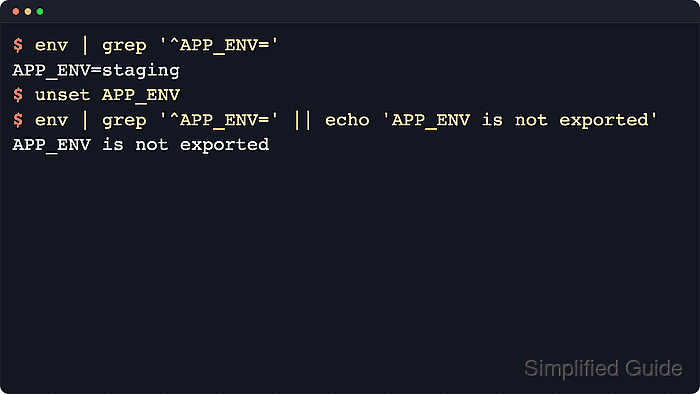
Shells such as Bash and Zsh keep exported names in the shell process and pass them to child processes started from that shell. The unset builtin removes the name from the current shell, and commands launched afterward no longer receive it in their environment. If the value reappears in a new terminal, a startup file or another session-level config source is setting it again.
These steps use APP_ENV as the example variable name on Linux. Replace it with the real variable that should be removed, remember that already-running processes keep their own copy until they are restarted, and expect a failure if the name was marked readonly. Interactive Bash shells usually read ~/.bashrc, login Bash shells use ~/.bash_profile or ~/.profile, and Zsh commonly uses ~/.zshenv, ~/.zshrc, or ~/.zprofile depending on how the session starts.
Steps to unset an environment variable in Linux:
- Check the current exported value before removing it.
$ printenv APP_ENV
staging
No output means the name is not currently exported from this shell.
- Remove the variable from the current shell session.
$ unset APP_ENV
Readonly names cannot be removed, and Bash returns a cannot unset: readonly variable error in that case.
- Confirm that the current shell no longer exports the variable.
$ printenv APP_ENV || echo 'APP_ENV is not exported'
APP_ENV is not exported
- Verify that new child processes started from the current shell no longer inherit the variable.
$ sh -c 'printenv APP_ENV || echo "APP_ENV is not exported"'
APP_ENV is not exported
Environment variables affect child processes, so this check proves the change applies beyond the interactive prompt.
- Search the common user startup files when the variable returns in new terminals or after login.
$ grep --line-number 'APP_ENV' ~/.bashrc ~/.bash_profile ~/.profile ~/.zshenv ~/.zshrc ~/.zprofile 2>/dev/null
/home/user/.bashrc:1:export APP_ENV="staging"
No match in these files means the value may be coming from /etc/environment, /etc/profile, /etc/profile.d/*.sh, a display-manager session file, a service unit, or an application launcher instead of the user shell startup files.
- Open the startup file that defines the variable.
$ nano ~/.bashrc
Use ~/.bash_profile or ~/.profile for login Bash shells, and use ~/.zshenv, ~/.zshrc, or ~/.zprofile for the equivalent Zsh path that is actually setting the value. If the match is in /etc/environment or /etc/profile.d/*.sh, edit the system-wide file with sudoedit instead.
- Remove or comment out the matching export line and save the file.
# export APP_ENV="staging"
Delete the line instead of commenting it out when the old value contains a credential or token.
- Start a new shell that reads the edited startup file and confirm the variable stays unset.
$ bash -ic 'printenv APP_ENV || echo "APP_ENV is not exported"'
APP_ENV is not exported
Use bash -lc after editing ~/.bash_profile or ~/.profile, and use zsh -ic or zsh -lc after editing the equivalent Zsh file.

Mohd Shakir Zakaria is a cloud architect with deep roots in software development and open-source advocacy. Certified in AWS, Red Hat, VMware, ITIL, and Linux, he specializes in designing and managing robust cloud and on-premises infrastructures.


