Changing the DNS servers on Linux controls which resolvers answer package downloads, API calls, VPN-only host names, and internal service records. Replacing slow or incorrect DHCP-provided resolvers is often the fastest fix when the network link stays up but host names stop resolving correctly.
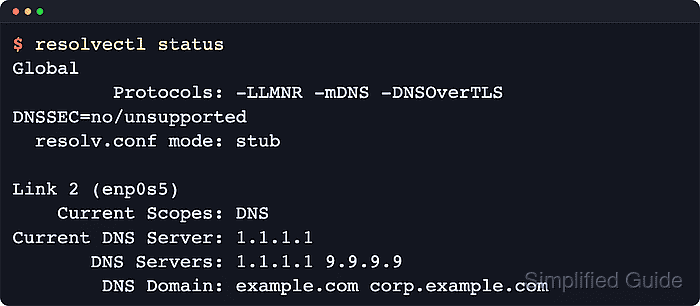
On current Linux systems, the active network stack owns the DNS settings for each interface. systemd-resolved commonly provides the local stub resolver seen through /etc/resolv.conf, but the upstream DNS servers usually come from either systemd-networkd network files or NetworkManager connection profiles rather than from one global resolver file.
Changing the wrong layer can leave old DNS servers in place or mix manual and DHCP-provided resolvers in confusing ways. Confirm which service manages the target interface before editing anything, keep an IP-based recovery path for remote hosts, and expect a brief traffic interruption when the active network profile or service is reloaded.
Related: How to check DNS resolution in Linux
Related: How to troubleshoot a Linux network outage
Tool: DNS Record Lookup
Methods to change DNS servers in Linux:
Steps to change DNS servers in Linux:
Change DNS servers on Linux systems managed by systemd-networkd
Use this method when systemd-networkd owns the target interface and networkctl status IFACE shows an active Network File. This is common on current server-oriented Linux installations that keep systemd-resolved as the local resolver stub.
With systemd-networkd, per-link DNS settings belong to the network file that matches the interface. When the link gets its address from DHCPv4, UseDNS=false stops DHCP from reapplying its resolver list, while DNS= and Domains= in a drop-in provide the static servers and search suffixes that the host should advertise for that link.
- Confirm that systemd-networkd owns the target interface and note the basename shown after Network File:.
$ networkctl status enp0s5
● 2: enp0s5
                   Link File: /usr/lib/systemd/network/99-default.link
                Network File: /run/systemd/network/10-netplan-enp0s5.network
                       State: routable (configured)
##### snipped #####
                         DNS: 10.211.55.1
              Search Domains: localdomain
Create the drop-in directory from the basename of the active network file. The example below uses 10-netplan-enp0s5.network because that is the file managing the verified interface.
- Create a drop-in directory that matches the active network file.
$ sudo mkdir -p /etc/systemd/network/10-netplan-enp0s5.network.d
- Write a drop-in that disables DHCP-provided DNS for the link and sets the preferred resolvers.
[DHCPv4]
UseDNS=false

[Network]
DNS=1.1.1.1
DNS=9.9.9.9
Domains=example.com corp.example.com
Repeat DNS= for each resolver. Skip Domains= when no search suffix is required. If the interface uses static IPv4 addressing instead of DHCP, omit the [DHCPv4] section and keep only the [Network] settings.
- Restart systemd-networkd and systemd-resolved so the new per-link DNS settings are loaded.
$ sudo systemctl restart systemd-networkd systemd-resolved
Restarting the active network service can briefly interrupt SSH or other traffic on that interface. Use a console or other out-of-band path when changing a remote host.
- Confirm that the link now lists the new DNS servers.
$ networkctl status enp0s5 ● 2: enp0s5 ##### snipped ##### DNS: 1.1.1.1 9.9.9.9 Search Domains: example.com corp.example.com - Confirm that systemd-resolved sees the same per-link resolver settings.
$ resolvectl status enp0s5
Link 2 (enp0s5)
    Current Scopes: DNS
         Protocols: +DefaultRoute -LLMNR -mDNS -DNSOverTLS DNSSEC=no/unsupported
Current DNS Server: 1.1.1.1
       DNS Servers: 1.1.1.1 9.9.9.9
        DNS Domain: example.com corp.example.com
On hosts that do not provide resolvectl, inspect the network manager output and the generated /etc/resolv.conf instead.
- Query a known name through the updated resolver path.
$ resolvectl query example.com
example.com: 104.20.23.154                                  -- link: enp0s5
             172.66.147.243                                 -- link: enp0s5
             2606:4700:10::6814:179a                        -- link: enp0s5
             2606:4700:10::ac42:93f3                        -- link: enp0s5

-- Information acquired via protocol DNS in 8.9ms.
-- Data is authenticated: no; Data was acquired via local or encrypted transport: no
-- Data from: network
Change DNS servers on Linux systems managed by NetworkManager
Use this method when NetworkManager shows the target interface as connected and bound to an active connection profile. This is common on current desktop Linux installations and on server deployments that keep network settings in NetworkManager profiles.
When DHCP should continue supplying the IP address, gateway, and routes, keep ipv4.method set to auto and override only the resolver properties on the connection profile. Setting ipv4.ignore-auto-dns yes tells NetworkManager to stop accepting DHCP-provided DNS servers and use only the addresses listed in ipv4.dns.
- List the active connection profiles and note the profile name attached to the target interface.
$ nmcli -f NAME,TYPE,DEVICE connection show --active
NAME            TYPE      DEVICE
netplan-enp0s5  ethernet  enp0s5
lo              loopback  lo
- Review the current IPv4 DNS behavior for the selected profile.
$ nmcli -f ipv4.method,ipv4.dns,ipv4.ignore-auto-dns,ipv4.dns-search connection show "netplan-enp0s5"
ipv4.method:                            auto
ipv4.dns:                               --
ipv4.ignore-auto-dns:                   no
ipv4.dns-search:                        --
- Set the static DNS servers on the profile while keeping automatic IPv4 addressing.
$ sudo nmcli connection modify "netplan-enp0s5" ipv4.ignore-auto-dns yes ipv4.dns "1.1.1.1 9.9.9.9"
Keep ipv4.method auto when DHCP should continue providing the interface address, gateway, and routes.
- Set DNS search domains if short host names must resolve through specific suffixes.
$ sudo nmcli connection modify "netplan-enp0s5" ipv4.dns-search "example.com corp.example.com"
Skip this step when no search list is required.
- Reactivate the connection profile so the updated resolver settings are applied.
$ sudo nmcli connection up "netplan-enp0s5"
Connection successfully activated (D-Bus active path: /org/freedesktop/NetworkManager/ActiveConnection/3)
Reactivating the active profile can briefly drop connectivity on that interface.
- Verify the live DNS settings advertised by NetworkManager.
$ nmcli -f IP4.DNS,IP4.DOMAIN device show enp0s5
IP4.DNS[1]:                             1.1.1.1
IP4.DNS[2]:                             9.9.9.9
IP4.DOMAIN[1]:                          example.com
IP4.DOMAIN[2]:                          corp.example.com
- Confirm that systemd-resolved uses the updated NetworkManager profile settings.
$ resolvectl status enp0s5
Link 2 (enp0s5)
    Current Scopes: DNS
         Protocols: +DefaultRoute -LLMNR -mDNS -DNSOverTLS DNSSEC=no/unsupported
Current DNS Server: 1.1.1.1
       DNS Servers: 1.1.1.1 9.9.9.9
        DNS Domain: example.com corp.example.com
On distributions where NetworkManager writes /etc/resolv.conf directly, use nmcli device show and inspect /etc/resolv.conf if resolvectl is unavailable.
- Query a known host name to confirm lookups succeed through the updated resolver list.
$ resolvectl query example.com
example.com: 172.66.147.243                                 -- link: enp0s5
             104.20.23.154                                  -- link: enp0s5
             2606:4700:10::ac42:93f3                        -- link: enp0s5
             2606:4700:10::6814:179a                        -- link: enp0s5

-- Information acquired via protocol DNS in 32.2ms.
-- Data is authenticated: no; Data was acquired via local or encrypted transport: no
-- Data from: network

Mohd Shakir Zakaria is a cloud architect with deep roots in software development and open-source advocacy. Certified in AWS, Red Hat, VMware, ITIL, and Linux, he specializes in designing and managing robust cloud and on-premises infrastructures.


