High CPU temperature can explain throttling, sudden shutdowns, loud fan behavior, or workloads that slow down after a few minutes. Checking the current reading in Linux gives a hardware signal before changing cooling, firmware, or workload settings.
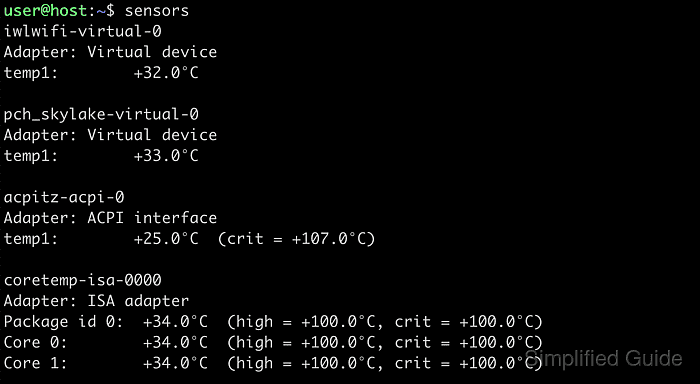
Most Linux systems expose hardware-monitoring data through kernel drivers under /sys, and the sensors command from lm-sensors turns that telemetry into readable package and core temperatures. Depending on the processor and driver, the relevant lines may appear as Package id 0, Core 0, Tctl, or Tdie instead of a single generic CPU temperature label.
Some systems do not export usable CPU thermal data even when sensors is installed and working. Containers, many virtual machines, and some laptop firmware builds can return only battery or generic ACPI readings, or report No sensors found!, which means the platform is not exposing CPU telemetry and the check has to move to hardware that does.
Steps to view CPU temperature in Linux:
- Install lm-sensors if the sensors command is missing.
$ sudo apt install lm-sensors
On Fedora and openSUSE, the package is usually named lm_sensors. Sensor probing with sensors-detect is a separate hardware setup step and should only be run where hardware probing is acceptable.
Related: How to view thermal information in Linux - Display the current temperature readings with sensors.
$ sensors
coretemp-isa-0000
Adapter: ISA adapter
Package id 0:  +43.0°C  (high = +100.0°C, crit = +100.0°C)
Core 0:        +41.0°C  (high = +100.0°C, crit = +100.0°C)
Core 1:        +42.0°C  (high = +100.0°C, crit = +100.0°C)
Look for the package or core lines that represent the processor temperature. On AMD systems, the same reading may appear as Tctl or Tdie.
- Refresh the readings continuously when temperature changes under load matter more than a single snapshot.
$ watch -n 2 sensors
Press Ctrl+C to stop the refresh loop. Rising package or core values under load and lower values at idle confirm that the system is exporting live thermal telemetry.
- Treat battery-only or ACPI-only output as a platform limitation rather than a valid CPU reading.
$ sensors
BAT0-acpi-0
Adapter: ACPI interface
in0:          12.58 V
When the output contains no Package id, Core, Tctl, or Tdie lines, the platform is not exposing usable CPU temperature data. Run the same check on the physical host or on hardware with working hwmon support.
- Treat No sensors found! as missing sensor exposure, not as a safe temperature state.
$ sensors
No sensors found!
Make sure you loaded all the kernel drivers you need.
Try sensors-detect to find out which these are.
Containers and some virtual machines return this result because they do not expose host hardware sensors. On a physical system, rerun the check after the required monitoring drivers are loaded or after sensor detection has been reviewed.

Mohd Shakir Zakaria is a cloud architect with deep roots in software development and open-source advocacy. Certified in AWS, Red Hat, VMware, ITIL, and Linux, he specializes in designing and managing robust cloud and on-premises infrastructures.


