SDDM manages startup login in Kubuntu KDE Plasma. It can open a selected session automatically after boot without asking for the account's login password.
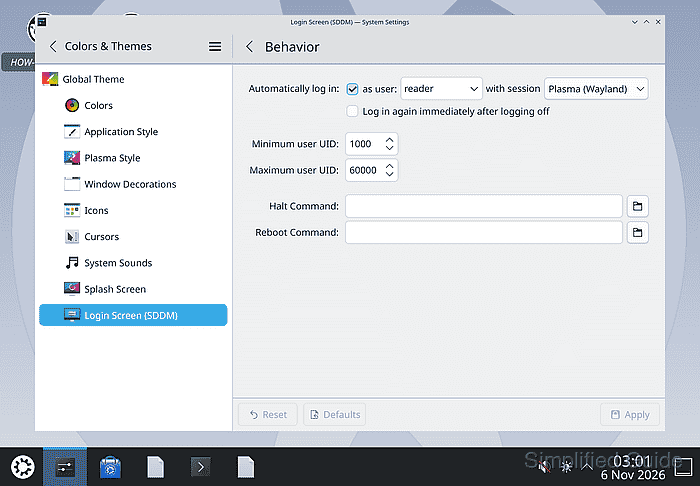
Anyone who can turn on the computer can then use that account and its files once the disk is unlocked. Automatic login suits a computer in a trusted physical location, and the account retains its password for administrative tasks.
Automatic login does not unlock an encrypted disk, disable screen locking after inactivity or sleep, or automatically unlock a password-protected KDE Wallet. Those password prompts can still appear even when SDDM has skipped its login screen.
Steps to enable automatic login in Kubuntu KDE Plasma:
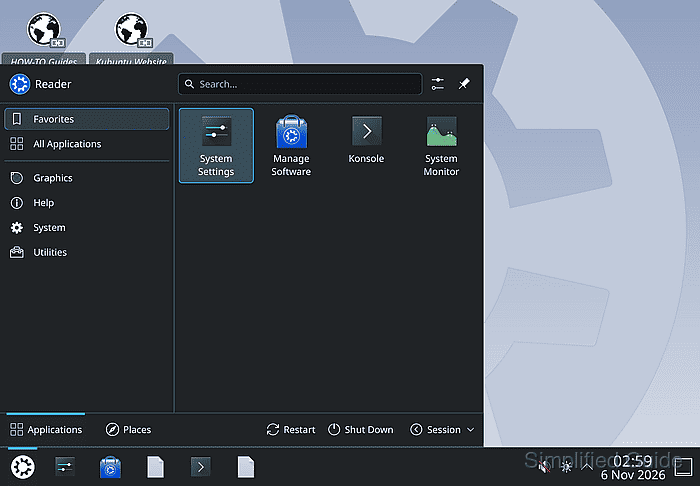
- Open System Settings from the application menu.
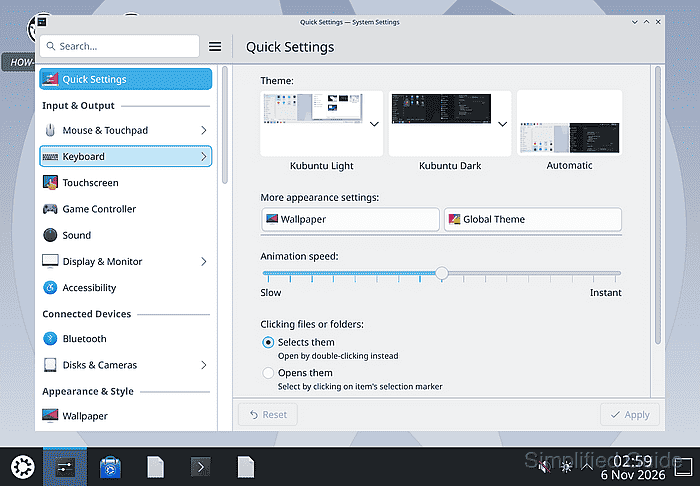
- Enter SDDM in the System Settings search box.
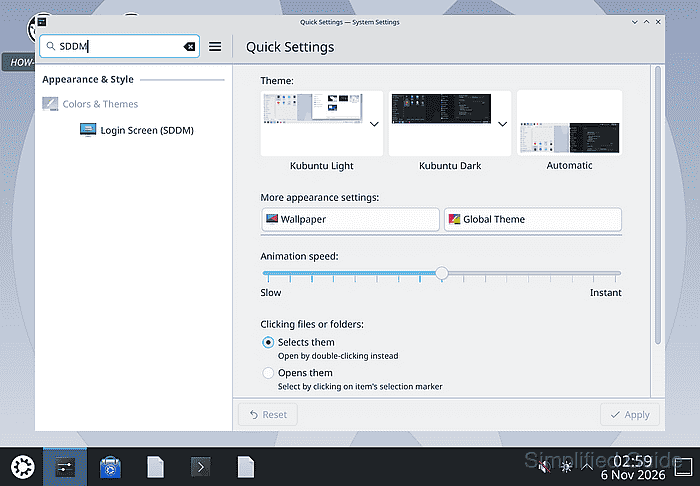
- Select Login Screen (SDDM) from the results.
- Click Behavior… to open the login options.
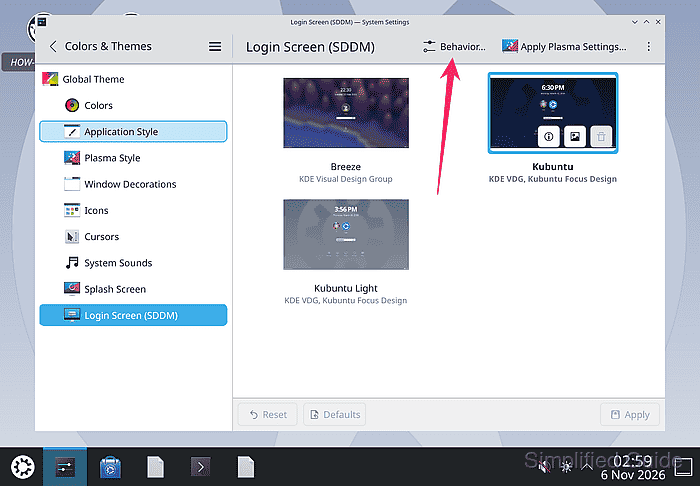
- Enable Automatically log in using its checkbox.
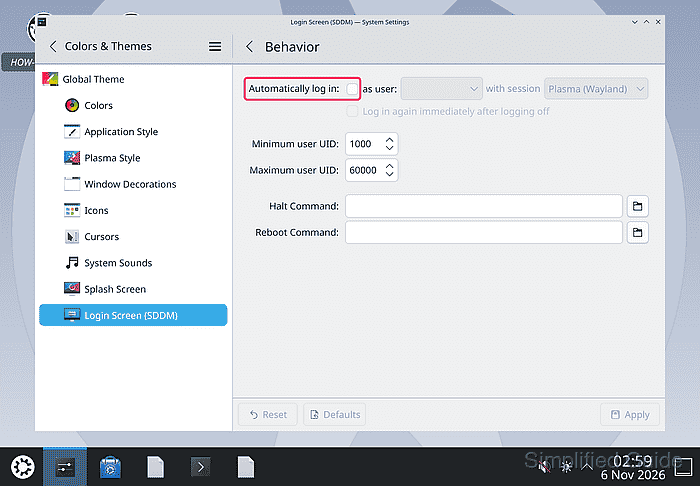
- Select your account from the as user list.
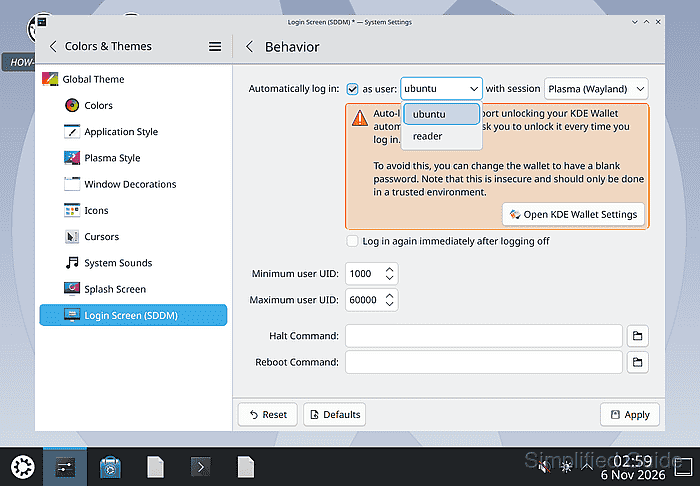
- Select your usual Plasma session from the with session list.
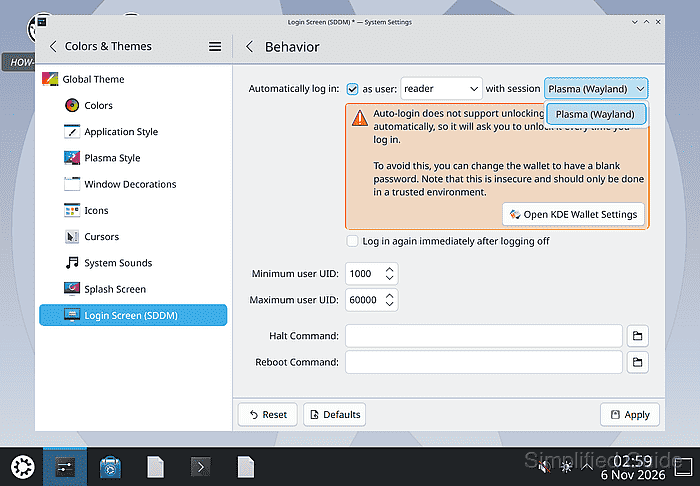
Plasma (Wayland) is the default session in Kubuntu 26.04 LTS, and the list shows only the sessions installed on the computer.
- Click Apply to save the automatic-login settings.
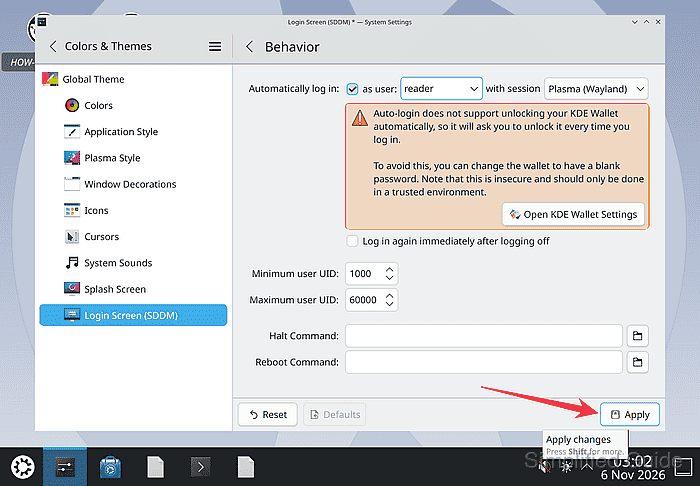
- Approve the change with the password for the account shown and OK if prompted.
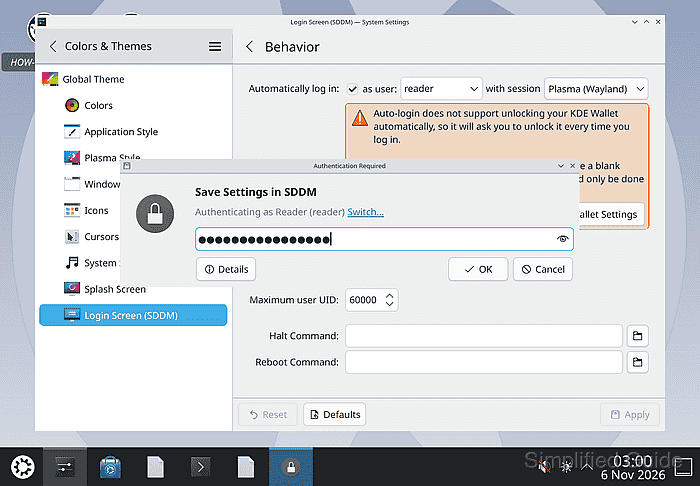
Automatically log in can appear cleared right after saving, but the account and session are saved once the password is accepted.
- Restart the computer.
Restarting closes open applications and can lose unsaved work.
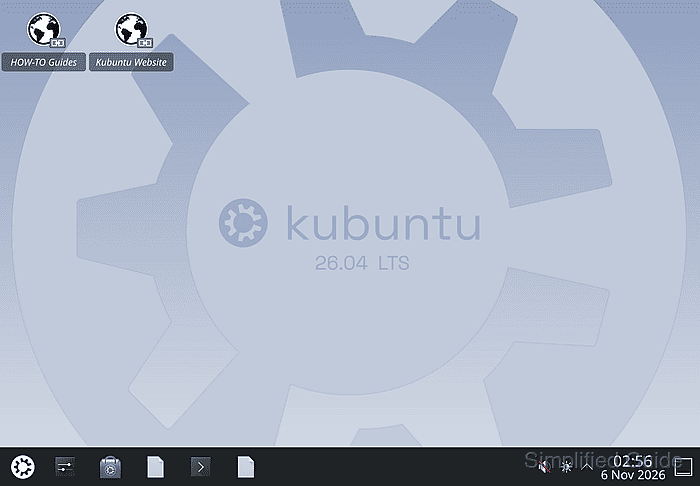
- Check that the selected KDE Plasma desktop opens without the SDDM account password prompt.
You can restore the startup login prompt later by clearing Automatically log in under Login Screen (SDDM) > Behavior… and applying the change.