Windows computers, NAS devices, and Samba servers can make folders available over a network using SMB. Kubuntu can access these shared folders through the Dolphin file manager without setting up a system-wide mount.
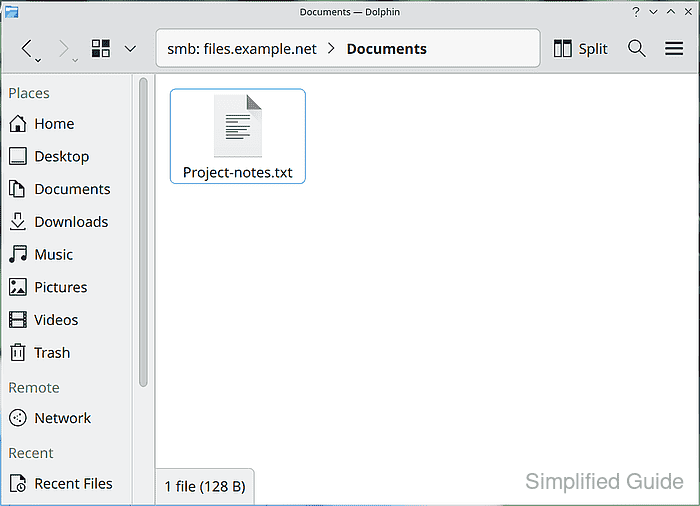
A direct share address avoids relying on the server appearing under Network. The folder must already be shared, and its owner can supply the server name or IP address, share name, and any required sign-in details.
The server controls which files the connected account can read or change. Its username and password may differ from the Kubuntu login, and read access does not necessarily include permission to save changes.
Steps to access shared folders in Kubuntu (KDE):
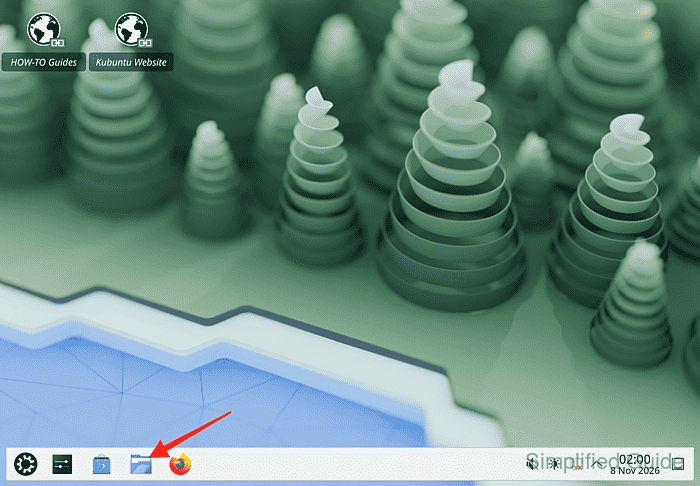
- Open Dolphin using the folder icon on the desktop panel.
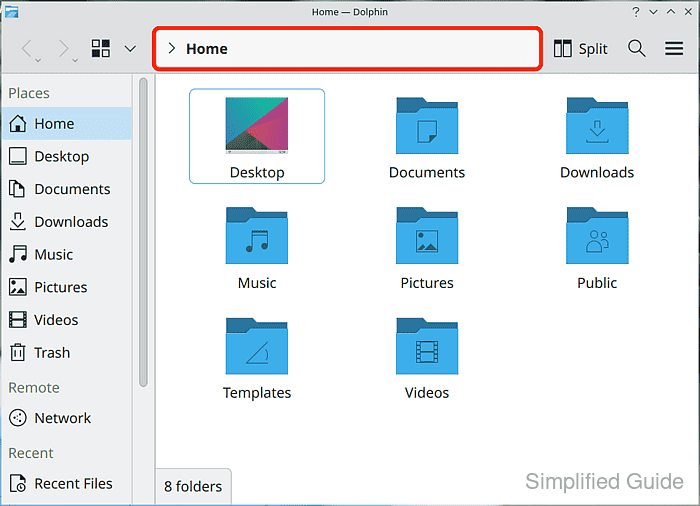
- Press Ctrl+L to edit Dolphin's location bar.
- Enter the shared folder's SMB address in the location bar.
smb://files.example.net/Documents
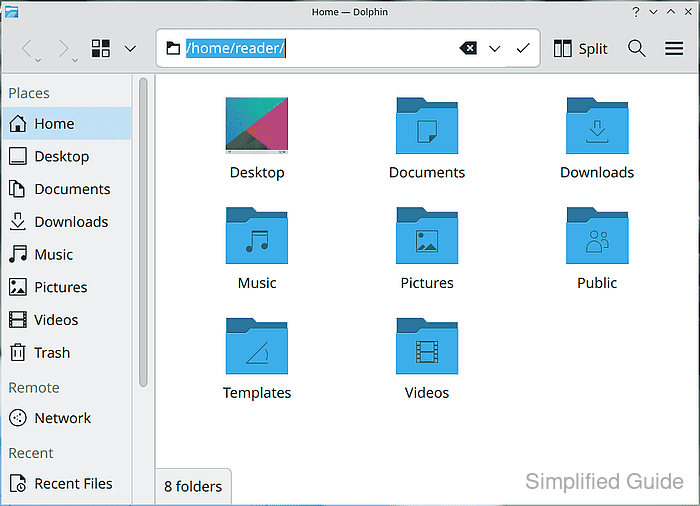
The address format is
smb://SERVER/SHARE, whereSERVERis the server name or IP address andSHAREis the name assigned to the shared folder. A Windows path such as\\SERVER\Documentsbecomessmb://SERVER/Documents. - Press Enter to connect to the shared folder.
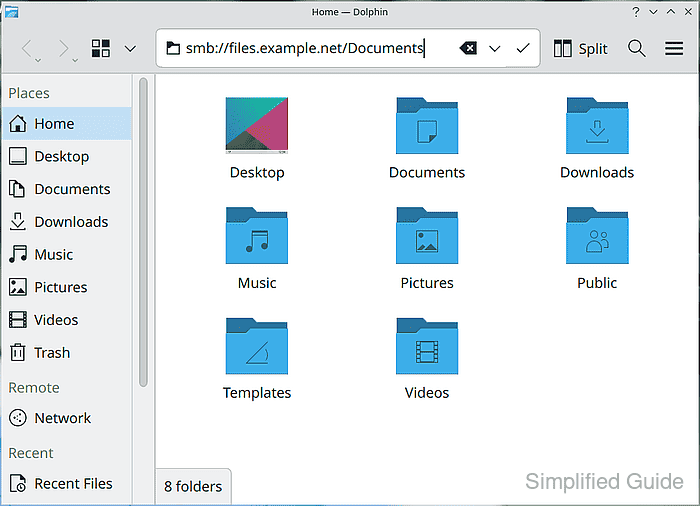
A guest-accessible share or an existing authenticated session may open without a sign-in prompt. If the server cannot be reached, the address and network connection need checking before sign-in can succeed.
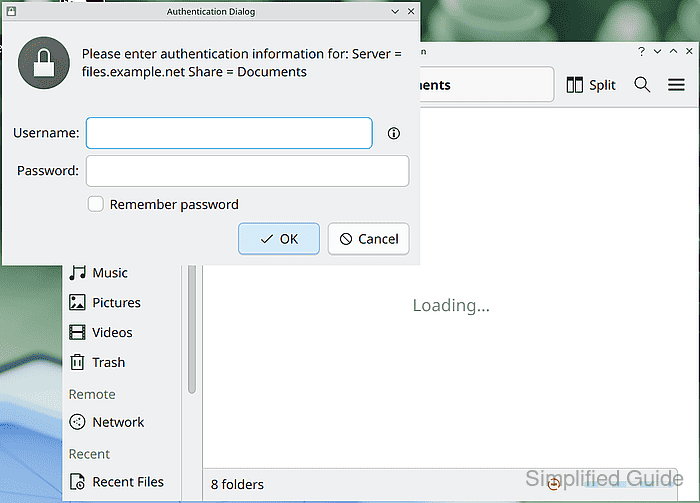
Only a recognized server should receive the share account's credentials. The server and share names appear at the top of the authentication dialog.
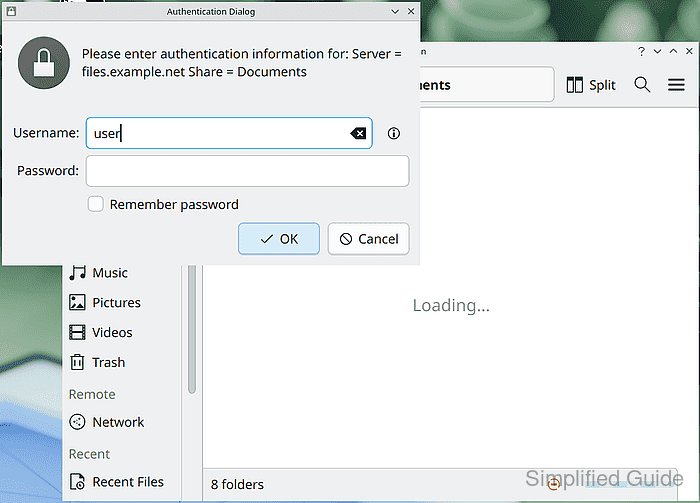
- Enter the share account's name in Username if an authentication dialog appears.
- Enter that account's password in Password.
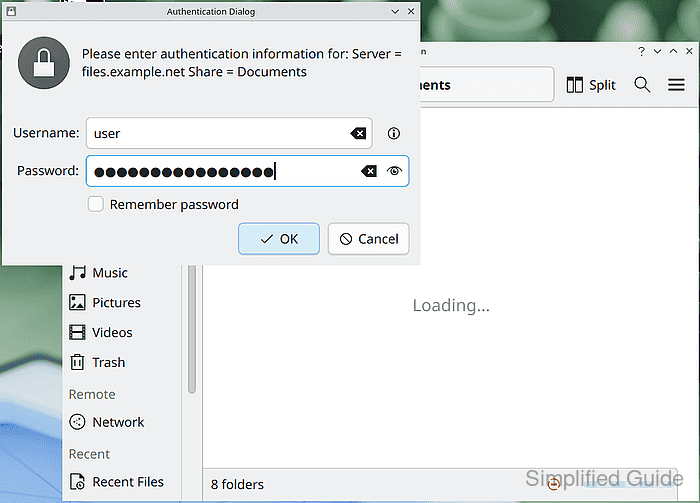
Leaving Remember password unchecked avoids saving the password for future connections on this computer.
- Click OK to sign in.
- Open a familiar file from the shared folder in Dolphin.
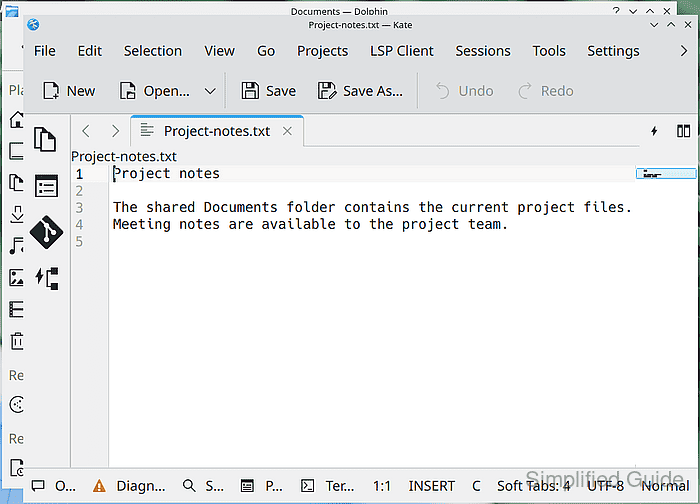
The location bar shows the server and share name. Files open in their associated applications; a text file may open in Kate.
- Confirm that the file opens with its expected contents.
An authentication or permission error, or an unreadable file, means access is not yet working. The folder listing alone does not confirm that the account can read a file.