Pods in Kubernetes receive replaceable IP addresses, so another workload should not connect to a Pod directly. A Service gives matching Pods a stable cluster DNS name and virtual IP, which is the usual internal entry point for an HTTP application, API, or backend listener.
A ClusterIP Service is the default Service type for traffic that stays inside the cluster. The Service selector must match the labels on the Pods, and the Service port must send traffic to the container port that the application actually listens on.
kubectl expose deployment copies the Deployment selector into the new Service and keeps the first Service object small enough to inspect. For source-controlled releases, save the resulting Service manifest with the workload YAML and review the selector before applying it to a shared namespace.
Steps to create a Kubernetes Service:
- Create a namespace for the Service test.
$ kubectl create namespace app-service
namespace/app-service created
Use the target application namespace instead of app-service when exposing a real workload.
Related: How to create a Kubernetes namespace
- Create a sample Deployment with two Pods and a container port.
$ kubectl create deployment web --namespace app-service --image=nginx:1.29.5-alpine --replicas=2 --port=80
deployment.apps/web created
The sample Deployment gives the Service ready Pods to select. Use the existing application Deployment when the workload is already running.
- Wait for the Deployment rollout to finish.
$ kubectl rollout status deployment/web --namespace app-service --timeout=180s
Waiting for deployment "web" rollout to finish: 0 of 2 updated replicas are available...
Waiting for deployment "web" rollout to finish: 1 of 2 updated replicas are available...
deployment "web" successfully rolled out
- Expose the Deployment as a ClusterIP Service.
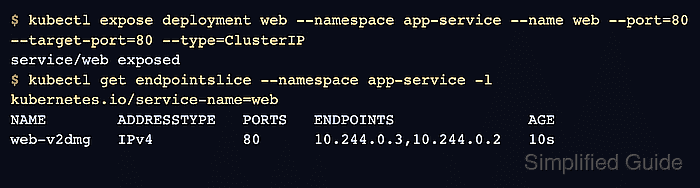
$ kubectl expose deployment web --namespace app-service --name web --port=80 --target-port=80 --type=ClusterIP
service/web exposed
--port is the Service port that clients use. --target-port is the container port behind the Service.
- Inspect the Service address and selector.
$ kubectl get service web --namespace app-service -o wide
NAME   TYPE        CLUSTER-IP      EXTERNAL-IP   PORT(S)   AGE   SELECTOR
web    ClusterIP   10.96.194.197   <none>        80/TCP    10s   app=web
The SELECTOR value must match labels on the Pods that should receive traffic.
- Check the EndpointSlice for ready Service backends.
$ kubectl get endpointslice --namespace app-service -l kubernetes.io/service-name=web
NAME        ADDRESSTYPE   PORTS   ENDPOINTS               AGE
web-v2dmg   IPv4          80      10.244.0.3,10.244.0.2   10s
An empty ENDPOINTS column usually means the selector does not match ready Pods, the Pods are not ready, or the target port does not match the workload.
- Start a temporary Pod that requests the Service DNS name.
$ kubectl run service-check --namespace app-service --restart=Never --image=curlimages/curl:8.10.1 -- -sSI http://web
pod/service-check created
- Wait for the temporary request Pod to complete.
$ kubectl wait pod/service-check --namespace app-service --for=jsonpath='{.status.phase}'=Succeeded --timeout=60s pod/service-check condition met - Read the request Pod logs to confirm the Service reaches the backend.
$ kubectl logs service-check --namespace app-service
HTTP/1.1 200 OK
Server: nginx/1.29.5
Content-Type: text/html
##### snipped #####
A 200 OK response from http://web proves cluster DNS resolved the Service name and the Service routed traffic to a selected Pod.
- Delete the test namespace when the Service was created only for validation.
$ kubectl delete namespace app-service
namespace "app-service" deleted
Skip this command for a real application namespace. Delete only the test Service, Deployment, or request Pod if the namespace contains other workloads.

Mohd Shakir Zakaria is a cloud architect with deep roots in software development and open-source advocacy. Certified in AWS, Red Hat, VMware, ITIL, and Linux, he specializes in designing and managing robust cloud and on-premises infrastructures.


