Recurring batch work in Kubernetes belongs in a CronJob when a task should start on a calendar schedule and then exit. The CronJob controller creates Job objects from a template, so reports, backups, cleanup commands, and other finite work can run inside the cluster with normal Job status and Pod logs.
A manifest keeps the schedule, time zone, overlap control, missed-run deadline, and retained Job history in the same object that stores the jobTemplate. That layout makes the controller behavior reviewable before any scheduled run starts.
Use a disposable namespace while validating the schedule, then move the manifest into the application namespace that owns the real workload. The lab schedule runs every minute so the first Job appears quickly; replace it with the production cron expression before keeping the object.
Related: How to run a Kubernetes Job
Related: How to create a Kubernetes namespace
Steps to create a Kubernetes CronJob:
- Create a namespace for the CronJob test.
$ kubectl create namespace batch-demo
namespace/batch-demo created
Use the application namespace instead of batch-demo when adding a real CronJob to an existing workload.
- Create a CronJob manifest.
- cronjob-report.yaml
apiVersion: batch/v1
kind: CronJob
metadata:
  name: report-minute
  namespace: batch-demo
spec:
  schedule: "*/1 * * * *"
  timeZone: "Etc/UTC"
  concurrencyPolicy: Forbid
  startingDeadlineSeconds: 120
  successfulJobsHistoryLimit: 1
  failedJobsHistoryLimit: 1
  jobTemplate:
    spec:
      template:
        spec:
          restartPolicy: OnFailure
          containers:
            - name: report
              image: busybox:1.36
              command:
                - /bin/sh
                - -c
                - date -u; echo report finished
timeZone makes the schedule independent of the controller manager host time zone. concurrencyPolicy: Forbid skips a new run when the previous run is still active, and the history limits keep only one completed and one failed Job for the lab object.
- Apply the CronJob manifest.
$ kubectl apply -f cronjob-report.yaml
cronjob.batch/report-minute created
- Check the accepted CronJob schedule.
$ kubectl get cronjob report-minute --namespace batch-demo
NAME            SCHEDULE      TIMEZONE   SUSPEND   ACTIVE   LAST SCHEDULE   AGE
report-minute   */1 * * * *   Etc/UTC    False     0        <none>          0s
- Check the CronJob again after the next minute boundary.
$ kubectl get cronjob report-minute --namespace batch-demo
NAME            SCHEDULE      TIMEZONE   SUSPEND   ACTIVE   LAST SCHEDULE   AGE
report-minute   */1 * * * *   Etc/UTC    False     1        1s              37s
LAST SCHEDULE confirms that the controller has started at least one scheduled run. If it stays <none> past the expected time, inspect namespace events before changing the manifest.
Related: How to check Kubernetes events - List the generated Job.
$ kubectl get jobs --namespace batch-demo
NAME                     STATUS    COMPLETIONS   DURATION   AGE
report-minute-29707949   Running   0/1           1s         1s
- Wait for the generated Job to complete.
$ kubectl wait --for=condition=complete job/report-minute-29707949 --namespace batch-demo --timeout=120s
job.batch/report-minute-29707949 condition met
Use the generated Job name shown by kubectl get jobs. A timeout means the Job Pod is still running or failed before completion.
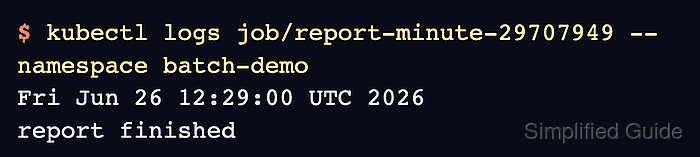
- Read the Job logs.
$ kubectl logs job/report-minute-29707949 --namespace batch-demo
Fri Jun 26 12:29:00 UTC 2026
report finished
Logs come from the Pod created for that Job run. Collect logs before deleting the test namespace when the output needs audit or handoff.
Related: How to view Kubernetes pod logs - Delete the test namespace.
$ kubectl delete namespace batch-demo
namespace "batch-demo" deleted
Skip this command for a real application namespace. Delete only the test CronJob and generated Jobs if the namespace contains other workloads.

Mohd Shakir Zakaria is a cloud architect with deep roots in software development and open-source advocacy. Certified in AWS, Red Hat, VMware, ITIL, and Linux, he specializes in designing and managing robust cloud and on-premises infrastructures.


