Jupyter Notebook opens its file browser at the server root directory, which controls where notebooks, folders, and kernels are created from the Notebook interface. Setting that root is useful when projects live outside the account home directory or when a dedicated workspace should be the first location users see.
Notebook 7 runs on Jupyter Server, so persistent startup-directory settings belong in /~/.jupyter/jupyter_server_config.py as ServerApp traits. The active setting is c.ServerApp.root_dir, not the older NotebookApp.notebook_dir setting used by legacy Notebook 6 examples.
Use an absolute directory path that already exists and is readable by the account that starts Notebook. Command-line flags and service-unit arguments can still override the config file, so check the effective configuration before treating a saved setting as active.
Steps to change the Jupyter Notebook startup directory:
- Create the target Notebook directory if it does not already exist.
$ mkdir -p ~/notebook-projects
Use the real project directory that should appear as the Notebook file browser root. The account that starts Notebook must be able to read and write this directory.
- Show the active Jupyter configuration directory.
$ jupyter --config-dir
/home/analyst/.jupyter
- Generate the Jupyter Server config file if it does not already exist.
$ jupyter server --generate-config
Writing default config to: '/home/analyst/.jupyter/jupyter_server_config.py'
If /~/.jupyter/jupyter_server_config.py already exists, save a backup before overwriting a file that contains custom settings.
- Open the Jupyter Server config file.
$ vi ~/.jupyter/jupyter_server_config.py
- Add the startup-directory settings.
c.ServerApp.root_dir = "/home/analyst/notebook-projects"
c.ServerApp.open_browser = False
Replace /home/analyst/notebook-projects with an absolute path on the system that starts Notebook. open_browser = False keeps server-side starts from launching a browser automatically.
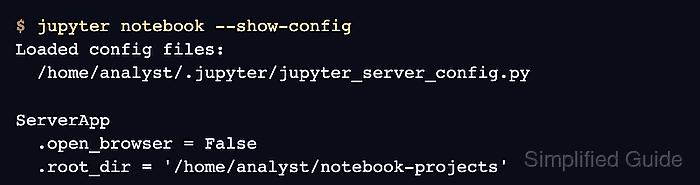
- Confirm Notebook reads the configured root directory.
$ jupyter notebook --show-config
Loaded config files:
  /home/analyst/.jupyter/jupyter_server_config.py

ServerApp
  .open_browser = False
  .root_dir = '/home/analyst/notebook-projects'
Remove older launcher, shortcut, alias, or service-unit options such as --notebook-dir or --ServerApp.root_dir when they should no longer override the config file.
- Start Jupyter Notebook without opening a browser automatically.
$ jupyter notebook --no-browser --port=8899
[I ServerApp] Serving notebooks from local directory: /home/analyst/notebook-projects
[I ServerApp] Jupyter Server 2.20.0 is running at:
[I ServerApp] http://localhost:8899/tree?token=<token>
[I ServerApp]     http://127.0.0.1:8899/tree?token=<token>
The token in the startup URL grants access to the running Notebook session. Do not paste a real token URL into shared tickets, screenshots, or logs.
- List the running Jupyter server.
$ jupyter server list
Currently running servers:
http://localhost:8899/?token=<token> :: /home/analyst/notebook-projects
The path after :: should match the configured startup directory. Another Notebook server can still run from a different directory, so match the port and root path before stopping a session.
- Stop the test server when the directory check is complete.
$ jupyter server stop 8899
[JupyterServerStopApp] Shutting down server on 8899...
Related: How to stop a running Jupyter Server