Notebook 7 extensions are installed through the JupyterLab extension system that the modern Notebook interface uses in the browser. A prebuilt extension package can add themes, commands, renderers, sidebars, or other interface features without the legacy Notebook 6 nbextension install flow.
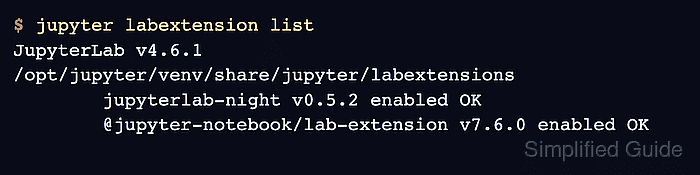
The package must be installed into the same Python environment that runs jupyter notebook. The sample package is jupyterlab-night because it is a small prebuilt theme extension whose enabled state appears in jupyter labextension list.
Classic Notebook extension commands such as jupyter nbextension install and jupyter nbextension enable do not apply to Notebook 7 front-end extensions. For NbClassic or Notebook 6 deployments, use the extension's Classic Notebook instructions instead of mixing the two systems.
Steps to install a Jupyter Notebook extension:
- Open a terminal in the Python environment that runs Jupyter Notebook.
- Confirm that the environment runs Notebook 7.
$ jupyter notebook --version
7.6.0
Notebook 7 uses the JupyterLab extension system for front-end extensions. If this command reports Notebook 6.x or opens the NbClassic interface, use the extension's Classic Notebook instructions instead.
- Install the prebuilt extension package with pip.
$ python -m pip install jupyterlab-night
Collecting jupyterlab-night
  Downloading jupyterlab_night-0.5.2-py3-none-any.whl.metadata (3.6 kB)
Downloading jupyterlab_night-0.5.2-py3-none-any.whl (16 kB)
Installing collected packages: jupyterlab-night
Successfully installed jupyterlab-night-0.5.2
Replace jupyterlab-night with the package name for the extension being installed. Many Notebook 7-compatible extensions use a Python package name for installation and a separate extension namespace in Jupyter's enabled-extension list.
- Restart any already-running Jupyter Notebook server before using the new extension.
Refresh open browser tabs after the restart so the Notebook front end loads the new extension bundle. If Notebook runs as a service, restart that service instead of starting a second server.
Related: How to stop a running Jupyter Server
Related: How to create a systemd service for Jupyter Notebook - Verify that Jupyter sees the front-end extension as enabled.
$ jupyter labextension list
JupyterLab v4.6.1
/opt/jupyter/venv/share/jupyter/labextensions
        jupyterlab_pygments v0.3.0 enabled OK (python, jupyterlab_pygments)
        jupyterlab-night v0.5.2 enabled OK (python, jupyterlab_night)
        @jupyter-notebook/lab-extension v7.6.0 enabled OK
The enabled OK status confirms that Jupyter can load the extension bundle. Extension names in this output can differ from the pip package name.

Mohd Shakir Zakaria is a cloud architect with deep roots in software development and open-source advocacy. Certified in AWS, Red Hat, VMware, ITIL, and Linux, he specializes in designing and managing robust cloud and on-premises infrastructures.


