Third-party analytics, telemetry clients, and other independent browser scripts should not hold up the first pass through a page's HTML. The async attribute on an external script tag lets the browser fetch that file while parsing continues, then run it as soon as the file is ready.
An async script is intentionally not ordered with nearby scripts or the end of document parsing. It may run before or after the browser reaches a later element, and multiple async files execute by availability rather than by their source order in the HTML.
Async loading works best for files that do not provide globals needed by the rest of the page. When an async file still needs to touch the DOM, give it its own DOM-ready guard instead of relying on where the script tag appears.
Steps to load an external JavaScript file with async:
- Pick an independent external script for async loading.
Use defer instead when the file must run after HTML parsing, after another script, or before application initialization.
Related: How to load JavaScript with defer
- Create the HTML page with an async script tag in the document head.
- index.html
<!doctype html>
<html lang="en">
  <head>
    <meta charset="utf-8">
    <title>Async script demo</title>
    <script async src="analytics.js"></script>
  </head>
  <body>
    <main>
      <h1>Async script demo</h1>
      <p id="parse-status">HTML parser reached the body.</p>
      <p id="analytics-status">Waiting for analytics...</p>
    </main>

    <script>
      window.demoEvents = window.demoEvents || [];
      window.demoEvents.push("HTML parsed after async script tag");
      console.log("HTML parsed after async script tag");
    </script>
  </body>
</html>
async only changes external scripts loaded with src. Inline code already runs where the parser reaches it. A script tag without type=“module” loads a classic script.
- Create the async script as a self-contained file.
- analytics.js
function onDomReady(callback) {
  if (document.readyState === "loading") {
    document.addEventListener("DOMContentLoaded", callback, { once: true });
    return;
  }

  callback();
}

window.demoEvents = window.demoEvents || [];
window.demoEvents.push("async analytics loaded");
console.log("async analytics loaded");

onDomReady(() => {
  const status = document.querySelector("#analytics-status");

  if (status) {
    status.textContent = "Async analytics loaded";
  }

  window.demoEvents.push("async script updated DOM after ready");
  console.log("async script updated DOM after ready");
});
The DOM-ready helper protects the status update when the async file becomes available before the browser finishes parsing the body.
- Serve the files through a local HTTP server.
$ python3 -m http.server 8000
Serving HTTP on :: port 8000 (http://[::]:8000/) ...
Do not test script loading from a file:// URL. Local file loading does not match normal page delivery, request timing, or security checks.
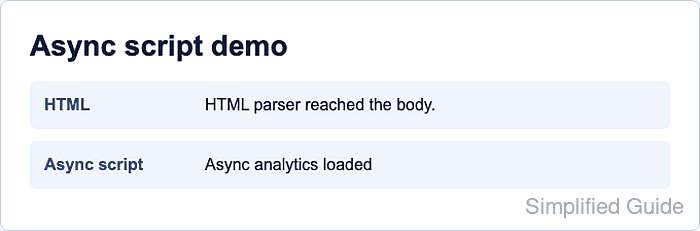
- Open the page through the local server and confirm both status lines appear.
http://localhost:8000/

HTML parser reached the body.
Async analytics loaded
- Check the browser console for the parser and async-script messages.
HTML parsed after async script tag
async analytics loaded
async script updated DOM after ready
The body message can appear before the async script message when the file finishes loading after parsing reaches the body. Do not depend on that order for other async files.
- Stop the local HTTP server after verification.
Press Ctrl+C in the terminal that is running python3 -m http.server.

Mohd Shakir Zakaria is a cloud architect with deep roots in software development and open-source advocacy. Certified in AWS, Red Hat, VMware, ITIL, and Linux, he specializes in designing and managing robust cloud and on-premises infrastructures.


