Configuring Kibana session timeouts controls how long a browser login can stay usable after inactivity and after its total age has passed. Shorter limits help shared dashboards, security operations screens, and admin tabs stop accepting old browser sessions.
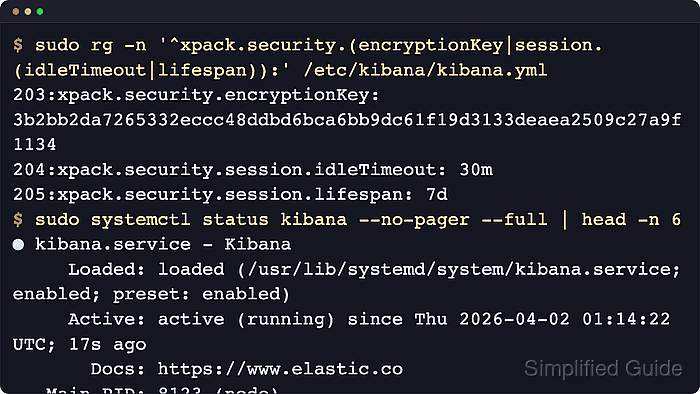
Kibana represents each login with an encrypted browser cookie and an encrypted document in the hidden session index. xpack.security.session.idleTimeout is a sliding inactivity limit, while xpack.security.session.lifespan is an absolute limit that expires the session even when the user keeps making requests.
Self-managed Kibana reads these settings from kibana.yml during startup, so package installs usually change /etc/kibana/kibana.yml and archive or container installs may use another KBN_PATH_CONF directory. Keep xpack.security.encryptionKey fixed before tightening session rules, because a missing, changed, or mismatched key signs out active users and causes inconsistent behavior across load-balanced Kibana nodes.
Steps to configure Kibana session timeouts:
- Back up the active Kibana configuration file.
$ sudo cp --archive /etc/kibana/kibana.yml /etc/kibana/kibana.yml.bak
Use the kibana.yml file under the active KBN_PATH_CONF directory when the service is not using the packaged /etc/kibana path.
- Open the active Kibana configuration file.
$ sudoedit /etc/kibana/kibana.yml
Debian and RPM packages use /etc/kibana/kibana.yml by default. Archive installs usually use config/kibana.yml under the extracted Kibana home path.
- Add the global session idle timeout and absolute lifespan.
xpack.security.session.idleTimeout: "30m"
xpack.security.session.lifespan: "7d"
Durations use ms, s, m, h, d, w, M, or Y suffixes. Current self-managed defaults are 3d of inactivity and 30d of total session age; provider-specific settings under xpack.security.authc.providers inherit these values unless overridden.
Tool: YAML ValidatorDo not set both timeout values to 0 unless another cleanup policy exists. With both values disabled, Kibana does not automatically remove session documents until users log out.
- Confirm a persistent session encryption key is set.
$ sudo grep -nF 'xpack.security.encryptionKey:' /etc/kibana/kibana.yml
203:xpack.security.encryptionKey: "redacted_32_character_security_key"
If no line appears, set a random value with at least 32 characters before restarting Kibana and keep the same value on every node in the deployment.
Related: How to set Kibana encryption keysChanging an existing xpack.security.encryptionKey signs out active sessions immediately.
- Confirm the saved session settings.
$ sudo grep -nF 'xpack.security' /etc/kibana/kibana.yml
203:xpack.security.encryptionKey: "redacted_32_character_security_key"
204:xpack.security.session.idleTimeout: "30m"
205:xpack.security.session.lifespan: "7d"
If the output includes other security settings, confirm the two xpack.security.session.* lines match the intended values before applying the restart.
- Restart the Kibana service to apply the updated session settings.
$ sudo systemctl restart kibana.service
- Check that the Kibana service is active again.
$ systemctl is-active kibana.service
active
Use sudo journalctl --unit=kibana.service --since "10 min ago" --no-pager if the unit does not return active or restarts repeatedly.
Broken YAML or an unsupported setting keeps the web UI unavailable until the configuration is corrected.
- Check that Kibana answers its status endpoint.
$ curl --silent --show-error --output /dev/null --write-out "%{http_code}\n" http://localhost:5601/api/status
200
Use the client-facing HTTPS URL, add the configured server.basePath prefix, and include authentication or CA trust options when the deployment requires them.
Related: How to check Kibana status - Leave a signed-in Kibana tab idle longer than the configured idleTimeout.
A short temporary value such as 2m speeds up the idle-expiration check before the final production value is restored.
- Reload the tab or make another authenticated request after the timeout window passes.
- Confirm Kibana redirects to the login page or the configured external identity provider after the session expires.
SAML and OpenID Connect providers can redirect straight to the identity provider instead of showing the local Kibana login form. Repeat the test while staying active when the absolute lifespan limit also needs confirmation.