Installing Kibana on CentOS, RHEL, or Fedora uses Elastic's RPM repository to add the web interface for a self-managed Elasticsearch deployment. Kibana lets operators open dashboards, search data in Discover, manage saved objects, and use Elastic apps without querying Elasticsearch APIs directly.
The RPM package registers the kibana.service systemd unit, installs the application under /usr/share/kibana, and reads package configuration from /etc/kibana/kibana.yml. Elastic's current RPM repository provides Kibana 9.x packages through dnf or yum, so the installed Kibana version should match the Elasticsearch cluster it will enroll with.
A fresh secured Elastic Stack setup usually uses a Kibana enrollment token generated on an Elasticsearch node. Remote browser access remains local-only until server.host is changed, and opening port 5601 should happen only on networks protected by a firewall, VPN, or reverse proxy.
Steps to install Kibana on CentOS, RHEL, or Fedora:
- Import the Elastic package signing key.
$ sudo rpm --import https://artifacts.elastic.co/GPG-KEY-elasticsearch
No output indicates the key was imported successfully.
- Save the official Kibana RPM repository definition at /etc/yum.repos.d/kibana.repo.
[kibana-9.x]
name=Kibana repository for 9.x packages
baseurl=https://artifacts.elastic.co/packages/9.x/yum
gpgcheck=1
gpgkey=https://artifacts.elastic.co/GPG-KEY-elasticsearch
enabled=1
autorefresh=1
type=rpm-md
The enabled repository follows Elastic's current Kibana RPM instructions. Keep stack upgrades coordinated so Kibana and Elasticsearch stay on the same version series.
- Install the Kibana package from the Elastic repository.
$ sudo dnf install --assumeyes kibana
Package Arch    Version   Repository      Size
Installing:
 kibana aarch64 0:9.4.2-1 kibana-9.x   1.4 GiB
##### snipped #####
Complete!
Use dnf on Fedora, RHEL 8 and later, and current CentOS Stream releases. Use sudo yum install --assumeyes kibana only on older Red Hat based systems that are still supported by the Kibana version being installed.
- Confirm the installed RPM package.
$ rpm -q kibana
kibana-9.4.2-1.aarch64
The version and architecture suffix reflect the host, such as aarch64 or x86_64.
- Generate a fresh Kibana enrollment token on an Elasticsearch node.
$ sudo /usr/share/elasticsearch/bin/elasticsearch-create-enrollment-token -s kibana
eyJ2ZXIiOiI5LjQuMiIsImFkciI6WyJodHRwczovL2VzLmV4YW1wbGUubmV0OjkyMDAiXSwiZmdyIjoi##### snipped #####
The token is valid for about 30 minutes and writes the current security connection settings into /etc/kibana/kibana.yml during enrollment. Add --url "https://<es-host>:9200" when the token tool must reach a non-default Elasticsearch endpoint. Use /usr/share/kibana/bin/kibana-setup --enrollment-token "<token>" for detached CLI enrollment when the browser-based setup flow is not practical.
- Set server.host in /etc/kibana/kibana.yml when Kibana must accept remote browser connections.
server.host: "0.0.0.0"
Keep the default localhost binding for local-only access, or use a specific interface IP when only one private network should reach the UI.
Binding to 0.0.0.0 exposes port 5601 on every interface, so limit access with a firewall, VPN, reverse proxy, or private route before exposing the service.
Related: How to set the Kibana server host
- Allow TCP port 5601 through firewalld when remote access is required.
$ sudo firewall-cmd --permanent --add-port=5601/tcp
success
Skip this step when Kibana stays on localhost, when another firewall stack is active, or when a reverse proxy is the only public listener.
- Reload firewalld after adding the port rule.
$ sudo firewall-cmd --reload
success
- Reload the systemd manager configuration.
$ sudo /bin/systemctl daemon-reload
The RPM installs /usr/lib/systemd/system/kibana.service, and reloading systemd makes the new unit available immediately.
- Enable Kibana at boot.
$ sudo systemctl enable kibana.service
Created symlink /etc/systemd/system/multi-user.target.wants/kibana.service -> /usr/lib/systemd/system/kibana.service.
- Start the Kibana service.
$ sudo systemctl start kibana.service
The start command does not print success output, so check the service state before opening the browser setup URL.
- Check the Kibana service status for the running state and setup URL.
$ sudo systemctl status kibana --no-pager
● kibana.service - Kibana
     Loaded: loaded (/usr/lib/systemd/system/kibana.service; enabled; preset: enabled)
     Active: active (running) since Thu 2026-06-18 14:18:45 UTC; 9s ago
##### snipped #####
Jun 18 14:18:54 kibana.example.net kibana[8123]: Kibana has not been configured.
Jun 18 14:18:54 kibana.example.net kibana[8123]: Go to http://kibana.example.net:5601/?code=123456 to get started.
The first-start status output commonly shows the browser URL and a six-digit verification code while Kibana waits for enrollment. Use sudo journalctl --unit=kibana.service --no-pager -n 50 when the unit does not reach active (running) or the setup URL never appears.
- Open the setup URL from the status output and paste the current enrollment token.
http://kibana.example.net:5601/?code=123456
Click Configure Elastic after pasting the token, and enter the six-digit verification code from the service status output if the browser asks for it.
- Sign in with the elastic user and the current password for the Elasticsearch cluster.
On RPM package installs of Elasticsearch, reset the password on an Elasticsearch node first if the current elastic password was not saved from the initial setup.
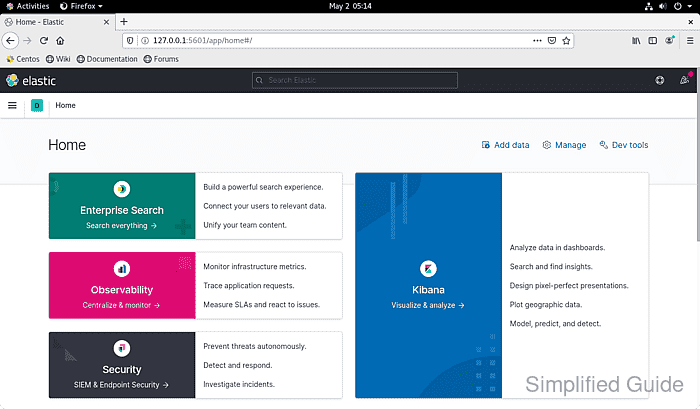
- Confirm the Kibana home page loads after enrollment and sign-in complete.
First-time access can land on the home page, a solution overview, or sample-data prompts instead of an existing dashboard, but the main Kibana navigation should be available.

Mohd Shakir Zakaria is a cloud architect with deep roots in software development and open-source advocacy. Certified in AWS, Red Hat, VMware, ITIL, and Linux, he specializes in designing and managing robust cloud and on-premises infrastructures.


