Enabling the Filebeat HTTP endpoint exposes local runtime metrics for the running Beat process. Administrators use it after configuration changes, output changes, or input troubleshooting to confirm that Filebeat is listening and returning its own counters before relying on downstream dashboards.
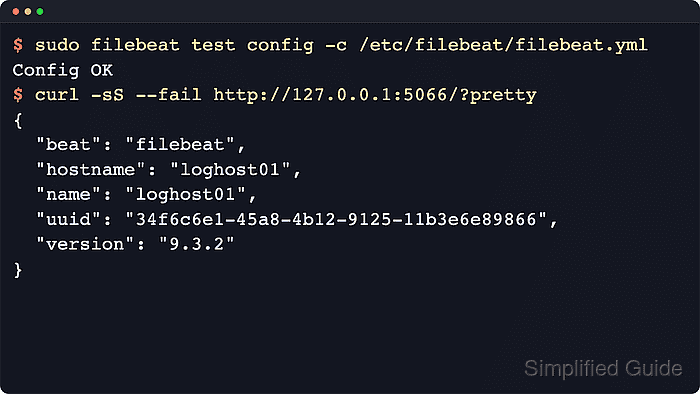
The endpoint is controlled by http.enabled in the active Filebeat configuration. Elastic keeps it disabled by default, binds it to localhost on port 5066 when enabled, and documents /, /stats, and /inputs/ as the main inspection paths.
Elastic still labels the endpoint as technical preview functionality, and the responses can expose host, process, input, and pipeline details. Keep http.host bound to a loopback name or address unless a separate monitoring collector must connect from another host, and leave http.pprof.enabled off unless short local profiling is the explicit task.
Steps to enable the Filebeat HTTP endpoint:
- Open the Filebeat configuration file.
$ sudoedit /etc/filebeat/filebeat.yml
Package-based Linux installs use /etc/filebeat/filebeat.yml. Archive, container, and custom foreground deployments can use the same settings in their active config file.
- Add the HTTP endpoint settings.
http.enabled: true
http.host: "127.0.0.1"
http.port: 5066
Do not bind the endpoint to 0.0.0.0 or a routable address unless a trusted network and external access controls already protect it. The endpoint itself does not add an authentication prompt.
- Test the Filebeat configuration.
$ sudo filebeat test config -c /etc/filebeat/filebeat.yml
Config OK
Related: How to test a Filebeat configuration
- Restart the Filebeat service.
$ sudo systemctl restart filebeat
- Confirm that Filebeat is listening on the local endpoint port.
$ sudo ss -ltnp 'sport = :5066'
State  Recv-Q Send-Q Local Address:Port Peer Address:PortProcess
LISTEN 0      4096       127.0.0.1:5066      0.0.0.0:*    users:(("filebeat",pid=3086,fd=7))
A local bind on 127.0.0.1 or ::1 keeps the metrics endpoint reachable from the host itself, not from the wider network.
- Query the endpoint root for Filebeat identity details.
$ curl -sS --fail 'http://127.0.0.1:5066/?pretty'
{
  "beat": "filebeat",
  "hostname": "filebeat-host",
  "name": "filebeat-host",
  "uuid": "34f6c6e1-45a8-4b12-9125-11b3e6e89866",
  "version": "9.4.2"
}
Current releases can include extra fields such as build information, architecture, UID, username, and licensing state.
- Query /stats for runtime and pipeline counters.
$ curl -sS --fail 'http://127.0.0.1:5066/stats?pretty'
{
  "beat": {
    "info": {
      "name": "filebeat",
      "version": "9.4.2"
    }
  },
  "filebeat": {
    "events": {
      "active": 0,
      "added": 0,
      "done": 0
    }
  },
  "libbeat": {
    "output": {
      "type": "console"
    },
    "pipeline": {
      "events": {
        "active": 0,
        "published": 0,
        "total": 0
      }
    }
  },
##### snipped #####
}
The full response includes beat process metrics plus libbeat output and pipeline counters. Event totals can remain at zero until Filebeat reads or publishes data.
- Query /inputs/ when per-input metrics are needed.
$ curl -sS --fail 'http://127.0.0.1:5066/inputs/?pretty'
[
  {
    "id": "app-log",
    "input": "filestream",
    "events_pipeline_total": 0,
    "files_active": 0,
    "messages_read_total": 0,
##### snipped #####
  }
]
Each object represents one running input instance. Idle inputs can legitimately show zeros until matching files receive new data.

Mohd Shakir Zakaria is a cloud architect with deep roots in software development and open-source advocacy. Certified in AWS, Red Hat, VMware, ITIL, and Linux, he specializes in designing and managing robust cloud and on-premises infrastructures.


