Disk watermarks keep Elasticsearch from filling a data path so completely that shard allocation stalls, writes fail, or emergency index blocks appear during growth or recovery.
The disk-based shard allocation decider compares each node's storage usage against the low, high, and flood_stage thresholds. The low watermark stops new shard allocations to fuller nodes, the high watermark relocates shards away, and the flood stage applies the index.blocks.read_only_allow_delete safety block to indices with shards on the affected node. Current releases also support max_headroom caps for percentage or ratio thresholds so large disks do not require an impractically large amount of free space.
Percentage and ratio watermarks measure used disk space, while byte values measure free disk space, and the three main thresholds must all use the same unit family. Elasticsearch enforces disk watermarks on single-data-node clusters as well. When explicit percentage watermarks are set, their built-in max_headroom defaults no longer apply unless the matching headroom settings are also set. Secured clusters typically require https plus authentication, with cluster monitor privilege for reads and manage for updates.
Steps to configure Elasticsearch disk watermarks:
- Review the current default or overridden disk watermarks before making changes.
$ curl -sS "http://localhost:9200/_cluster/settings?include_defaults=true&filter_path=defaults.cluster.routing.allocation.disk.watermark.*,persistent.cluster.routing.allocation.disk.watermark,transient.cluster.routing.allocation.disk.watermark&pretty"
{
  "defaults" : {
    "cluster" : {
      "routing" : {
        "allocation" : {
          "disk" : {
            "watermark" : {
              "flood_stage.frozen.max_headroom" : "20GB",
              "flood_stage" : "95%",
              "high" : "90%",
              "low" : "85%",
              "flood_stage.frozen" : "95%",
              "flood_stage.max_headroom" : "100GB",
              "low.max_headroom" : "200GB",
              "high.max_headroom" : "150GB"
            }
          }
        }
      }
    }
  }
}
The built-in max_headroom defaults are shown only while the corresponding watermarks are not explicitly set. Percentage and ratio values use used disk space, byte values use free disk space, and the low, high, and flood_stage settings must all use the same unit family.
- Apply persistent percentage watermarks together with matching max_headroom caps.
$ curl -sS -H "Content-Type: application/json" -X PUT "http://localhost:9200/_cluster/settings?pretty" -d '{
  "persistent": {
    "cluster.routing.allocation.disk.watermark.low": "80%",
    "cluster.routing.allocation.disk.watermark.low.max_headroom": "200GB",
    "cluster.routing.allocation.disk.watermark.high": "90%",
    "cluster.routing.allocation.disk.watermark.high.max_headroom": "150GB",
    "cluster.routing.allocation.disk.watermark.flood_stage": "95%",
    "cluster.routing.allocation.disk.watermark.flood_stage.max_headroom": "100GB"
  }
}'
{
  "acknowledged" : true,
  "persistent" : {
    "cluster" : {
      "routing" : {
        "allocation" : {
          "disk" : {
            "watermark" : {
              "flood_stage.max_headroom" : "100GB",
              "flood_stage" : "95%",
              "high" : "90%",
              "low.max_headroom" : "200GB",
              "low" : "80%",
              "high.max_headroom" : "150GB"
            }
          }
        }
      }
    }
  },
  "transient" : { }
}
Lowering watermarks too aggressively can keep replicas unassigned or cause immediate shard relocation on already crowded nodes.
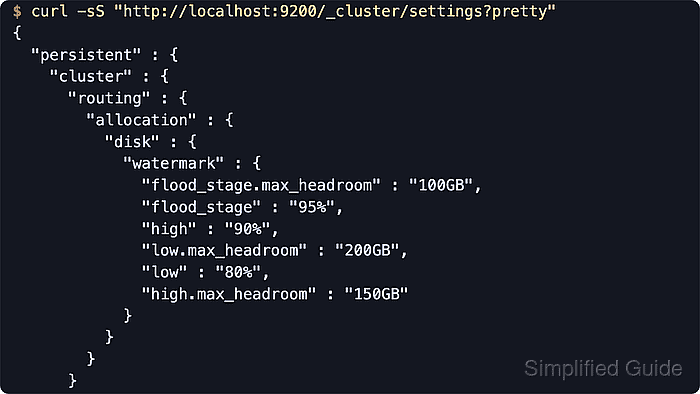
- Read the cluster settings again to confirm the active override values.
$ curl -sS "http://localhost:9200/_cluster/settings?pretty"
{
  "persistent" : {
    "cluster" : {
      "routing" : {
        "allocation" : {
          "disk" : {
            "watermark" : {
              "flood_stage.max_headroom" : "100GB",
              "flood_stage" : "95%",
              "high" : "90%",
              "low.max_headroom" : "200GB",
              "low" : "80%",
              "high.max_headroom" : "150GB"
            }
          }
        }
      }
    }
  },
  "transient" : { }
}
If the cluster uses dedicated frozen nodes, configure cluster.routing.allocation.disk.watermark.flood_stage.frozen and its max_headroom separately instead of assuming the general flood-stage values apply there.
- Compare the new thresholds with current node disk usage.
$ curl -sS "http://localhost:9200/_cat/allocation?v&h=shards,disk.indices,disk.used,disk.avail,disk.total,disk.percent,host,node"
shards disk.indices disk.used disk.avail disk.total disk.percent host       node
     2       22.3kb   270.8gb      1.5tb      1.7tb           14 192.0.2.40 node-01
Compare disk.percent to percentage watermarks or disk.avail to byte watermarks.
- Check cluster health while Elasticsearch rebalances away from nodes above the high watermark.
$ curl -sS "http://localhost:9200/_cluster/health?filter_path=status,relocating_shards,active_shards_percent_as_number&pretty"
{
  "status" : "green",
  "relocating_shards" : 0,
  "active_shards_percent_as_number" : 100.0
}
A non-zero relocating_shards count is expected while nodes drain below the high watermark. The read_only_allow_delete block added at flood_stage is automatically released when the affected node falls back below the high watermark.
Watermark changes do not create free space. If a node is already above flood_stage, reduce disk usage or add capacity before treating writes as restored.
- Clear the custom watermarks when the cluster should return to Elasticsearch defaults.
$ curl -sS -H "Content-Type: application/json" -X PUT "http://localhost:9200/_cluster/settings?pretty" -d '{
  "persistent": {
    "cluster.routing.allocation.disk.watermark.low": null,
    "cluster.routing.allocation.disk.watermark.low.max_headroom": null,
    "cluster.routing.allocation.disk.watermark.high": null,
    "cluster.routing.allocation.disk.watermark.high.max_headroom": null,
    "cluster.routing.allocation.disk.watermark.flood_stage": null,
    "cluster.routing.allocation.disk.watermark.flood_stage.max_headroom": null
  }
}'
{
  "acknowledged" : true,
  "persistent" : { },
  "transient" : { }
}
Assigning null removes the explicit overrides instead of setting a literal null string.
- Confirm the defaults are effective again.
$ curl -sS "http://localhost:9200/_cluster/settings?include_defaults=true&filter_path=defaults.cluster.routing.allocation.disk.watermark.*&pretty"
{
  "defaults" : {
    "cluster" : {
      "routing" : {
        "allocation" : {
          "disk" : {
            "watermark" : {
              "flood_stage.frozen.max_headroom" : "20GB",
              "flood_stage" : "95%",
              "high" : "90%",
              "low" : "85%",
              "flood_stage.frozen" : "95%",
              "flood_stage.max_headroom" : "100GB",
              "low.max_headroom" : "200GB",
              "high.max_headroom" : "150GB"
            }
          }
        }
      }
    }
  }
}
The general defaults remain 85 low, 90 high, and 95 flood stage, with separate frozen-tier flood-stage settings when dedicated frozen nodes are in use.

Mohd Shakir Zakaria is a cloud architect with deep roots in software development and open-source advocacy. Certified in AWS, Red Hat, VMware, ITIL, and Linux, he specializes in designing and managing robust cloud and on-premises infrastructures.


