Managing the Docker daemon is the control point for bringing container workloads online, taking them down for maintenance, or applying daemon-level changes without guessing what the host is actually running.
On current systemd-based Linux hosts, the main daemon unit is usually docker.service, it often depends on containerd.service, and distro packages may also enable docker.socket for on-demand activation. Rootless Docker uses a per-user service instead, so the system units below apply to the normal rootful daemon.
Stopping or restarting the daemon can interrupt running containers unless the host is configured for live-restore, and a live reload only applies settings that dockerd can reread without a full restart. When the goal is to keep Docker down for maintenance, stop or disable docker.socket as well or the next local docker client request can start the daemon again.
Steps to manage the Docker service with systemctl in Linux:
- Check which Docker runtime units are installed before changing their state.
$ systemctl list-unit-files docker.service docker.socket containerd.service
UNIT FILE          STATE   PRESET
containerd.service enabled enabled
docker.service     enabled enabled
docker.socket      enabled enabled

3 unit files listed.
Current Ubuntu packages enable all three units by default. Other distributions can omit docker.socket or use different presets, so read this output before assuming how the daemon is started.
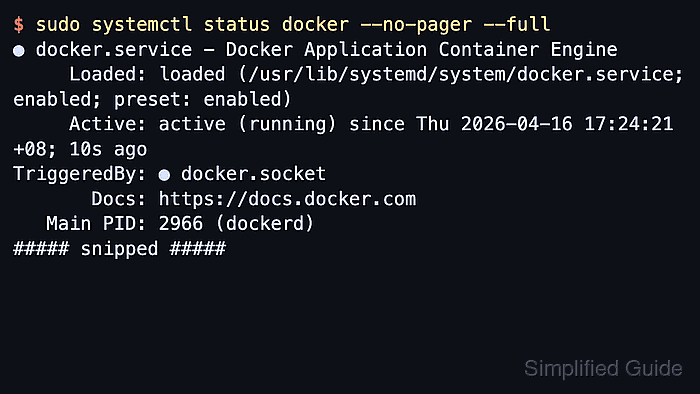
- Inspect the current Docker daemon status before changing anything.
$ sudo systemctl status docker --no-pager --full
● docker.service - Docker Application Container Engine
     Loaded: loaded (/usr/lib/systemd/system/docker.service; enabled; preset: enabled)
     Active: active (running) since Thu 2026-04-16 17:24:21 +08; 10s ago
TriggeredBy: ● docker.socket
       Docs: https://docs.docker.com
   Main PID: 2966 (dockerd)
##### snipped #####
The Loaded: line shows the unit file path and boot-time state. TriggeredBy: confirms whether a socket-activated install can start the daemon on demand.
- Start the Docker daemon when it is installed but not currently running.
$ sudo systemctl start docker

$ sudo docker info --format '{{.ServerVersion}}'
29.1.3
Starting docker.service pulls in its containerd.service dependency when needed, but it does not change the unit's boot-time enablement state.
- Reload the Docker daemon after changing a reloadable daemon setting.
$ sudo systemctl reload docker
Current Docker documentation uses systemctl reload docker as the no-downtime path for rereading supported daemon.json settings. Options such as storage paths or other startup-only changes still require a full restart.
- Restart the Docker daemon when a full process recycle is required.
$ sudo systemctl restart docker
A restart replaces the daemon process. Without live-restore, running containers stop while the daemon goes down and return only according to their restart policy.
- Stop the Docker daemon and its activation socket when Docker must stay down for maintenance.
$ sudo systemctl stop docker.service docker.socket

$ systemctl is-active docker.service docker.socket
inactive
inactive
Stopping only docker.service can still leave docker.socket listening. A later docker client request can start the daemon again.
Stop containerd.service too only when maintenance requires the whole Docker runtime stack to be down, not just the Docker API socket.
- Disable Docker boot-time start and socket activation when the host should not run Docker automatically.
$ sudo systemctl disable --now docker.service docker.socket containerd.service
Removed "/etc/systemd/system/multi-user.target.wants/docker.service".
Removed "/etc/systemd/system/sockets.target.wants/docker.socket".
Removed "/etc/systemd/system/multi-user.target.wants/containerd.service".

$ systemctl is-enabled docker.service docker.socket containerd.service
disabled
disabled
disabled
Docker's current post-install documentation pairs docker.service and containerd.service for boot-time control. Including docker.socket prevents on-demand reactivation through the Unix socket.
- Re-enable Docker when the daemon should start now and return on later boots.
$ sudo systemctl enable --now docker.service docker.socket containerd.service
Created symlink /etc/systemd/system/multi-user.target.wants/docker.service -> /usr/lib/systemd/system/docker.service.
Created symlink /etc/systemd/system/sockets.target.wants/docker.socket -> /usr/lib/systemd/system/docker.socket.
Created symlink /etc/systemd/system/multi-user.target.wants/containerd.service -> /usr/lib/systemd/system/containerd.service.

$ systemctl is-enabled docker.service docker.socket containerd.service
enabled
enabled
enabled
enable changes the boot-time symlinks, and --now applies the same units immediately in the current boot.
- Review the recent journal when start, stop, reload, or restart does not behave as expected.
$ sudo journalctl -u docker.service -n 5 --no-pager
Apr 16 17:22:53 host systemd[1]: Reloading docker.service - Docker Application Container Engine...
Apr 16 17:22:53 host systemd[1]: Reloaded docker.service - Docker Application Container Engine.
Apr 16 17:22:53 host dockerd[2028]: time="2026-04-16T17:22:53.897668445+08:00" level=info msg="Got signal to reload configuration" config-file=/etc/docker/daemon.json
Apr 16 17:22:53 host dockerd[2028]: time="2026-04-16T17:22:53.928658528+08:00" level=warning msg="max downloads and uploads is not yet implemented with the containerd store"
Apr 16 17:22:53 host dockerd[2028]: time="2026-04-16T17:22:53.929572736+08:00" level=info msg="Reloaded configuration" config="{##### snipped #####}"
journalctl -u docker.service is the quickest way to confirm whether the daemon failed to parse a setting, shut down cleanly, or was activated again by docker.socket.
- Confirm that the Docker daemon is responding again after the chosen lifecycle change.
$ sudo docker info --format '{{.ServerVersion}}'
29.1.3

Mohd Shakir Zakaria is a cloud architect with deep roots in software development and open-source advocacy. Certified in AWS, Red Hat, VMware, ITIL, and Linux, he specializes in designing and managing robust cloud and on-premises infrastructures.


