LM Studio-backed Codex runs keep coding prompts on a local model server while Codex still works from the repository that owns the task. The run succeeds only when the LM Studio server is listening locally and the model name passed to Codex matches an identifier exposed by that server.
LM Studio exposes OpenAI-compatible model-list and Responses endpoints on its local server. Codex local-provider mode selects the LM Studio backend and sends the selected model identifier to the Responses endpoint.
Keep the server on the loopback interface unless another machine intentionally needs access, because any client that reaches the port can submit prompts to the loaded model. Use a model and context setting large enough for agent work; LM Studio recommends more than about 25k context for tools such as Codex because file context and tool output can grow quickly.
Related: How to use local models with Codex
Related: How to troubleshoot local models in Codex
Steps to use LM Studio models with Codex:
- Start the LM Studio local server on the default Codex port.
$ lms server start --port 1234 --bind 127.0.0.1
Starting server...
Waking up LM Studio service...
Success! Server is now running on port 1234
127.0.0.1 keeps the API on the local machine. Bind to another address only when remote access is intentional and authentication is enabled.
Related: local-server-enable - Check that the local server is running.
$ lms server status
The server is running on port 1234.
- List the model IDs visible through LM Studio's OpenAI-compatible endpoint.
$ curl http://127.0.0.1:1234/v1/models
{"object":"list","data":[{"id":"openai/gpt-oss-20b","object":"model","owned_by":"lmstudio"}]}
Use the returned id value as the -m argument. If the model does not appear, download or load it in LM Studio first.
Related: model-download - Send a minimal Responses request to the same model ID.
$ curl -X POST http://127.0.0.1:1234/v1/responses \
-H "Content-Type: application/json" \
-d '{"model":"openai/gpt-oss-20b","input":"Reply with exactly: OK"}'
{"id":"resp_123","object":"response","status":"completed","model":"openai/gpt-oss-20b"
##### snipped #####
"text":"OK"}
If /v1/models works but /v1/responses fails, update LM Studio or reload the model before changing Codex flags.
Related: How to troubleshoot local models in Codex - Run Codex from the repository that should receive the task.
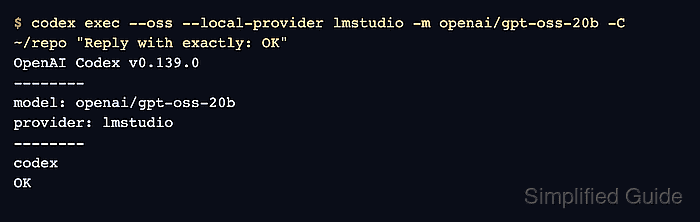
$ codex exec --oss --local-provider lmstudio -m openai/gpt-oss-20b -C ~/repo "Reply with exactly: OK"
OpenAI Codex v0.139.0
--------
workdir: /home/user/repo
model: openai/gpt-oss-20b
provider: lmstudio
--------
codex
OK
--local-provider lmstudio keeps the run on the LM Studio backend even when another local provider is configured elsewhere.
- Save the final LM Studio-backed reply when another command or review step needs the result.
$ codex exec --oss --local-provider lmstudio -m openai/gpt-oss-20b -C ~/repo --output-last-message /tmp/codex-lmstudio.txt "Reply with exactly: OK"
OK
--output-last-message writes only the final assistant message and overwrites the destination file when it already exists.
- Read the saved reply and confirm it contains only the final assistant message.
$ cat /tmp/codex-lmstudio.txt
OK
- Remove the sample output file if it was only used for the smoke test.
$ rm /tmp/codex-lmstudio.txt

Mohd Shakir Zakaria is a cloud architect with deep roots in software development and open-source advocacy. Certified in AWS, Red Hat, VMware, ITIL, and Linux, he specializes in designing and managing robust cloud and on-premises infrastructures.


