Desktop browsers can share a computer's proxy configuration. Google Chrome normally uses the computer's proxy settings, so changing them can also affect applications that honor those settings.
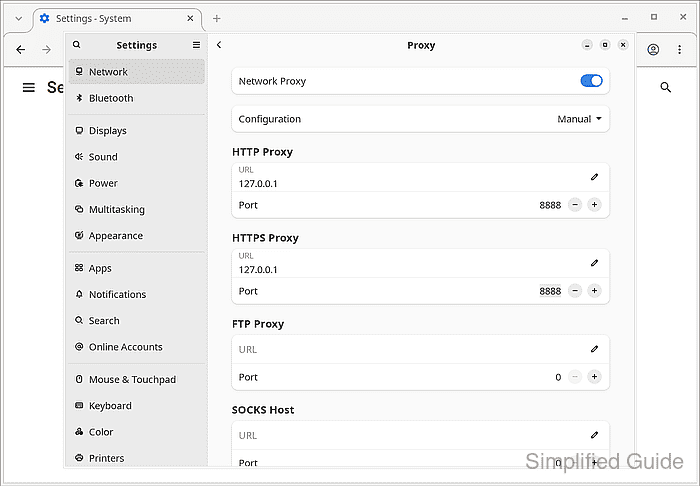
A manual proxy requires a server address and port from your network administrator or proxy provider. An incorrect setting can stop browsing or send requests through an unintended server, so use a trusted proxy and keep a record of the previous settings.
The proxy fields sit in the operating system's own settings, so their labels differ on Windows, macOS and Linux. An administrator policy or proxy extension can override those settings, which can explain why a change has no effect in the browser.
Steps to change proxy settings in Google Chrome:
- Open Chrome's System settings at chrome://settings/system in the address bar.
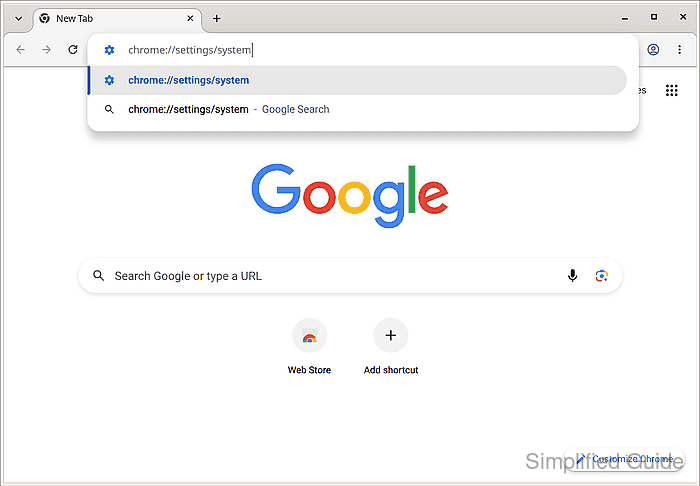
The menu route is ⋮ → Settings → System.
- Click Open your computer's proxy settings.
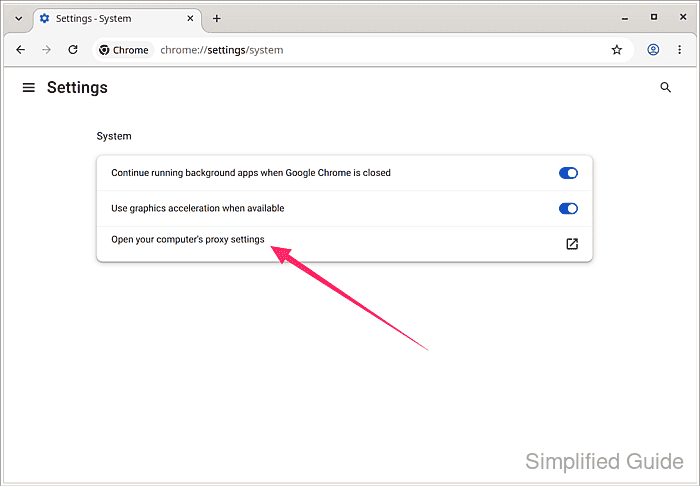
Windows opens its proxy settings. On macOS, the proxy options are under Details → Proxies for the active network service in System Settings → Network. On Linux with GNOME, select Proxy under Network, which is the window shown in the next pictures. An extension or administrator message here means that source controls the browser's proxy.
- Write down any proxy settings already in use.
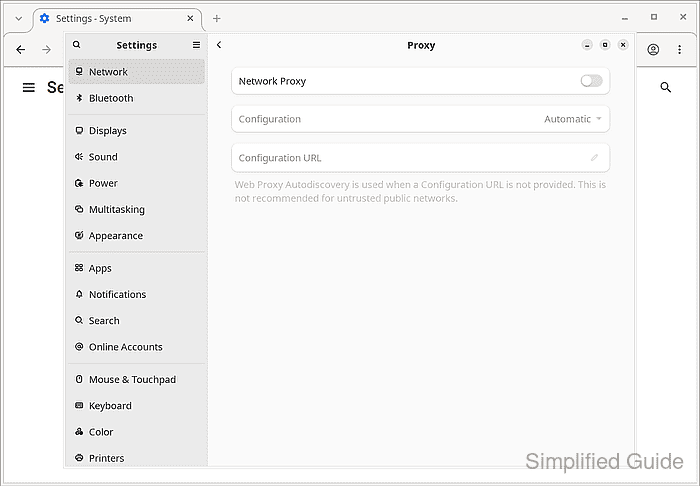
A written note or screenshot gives you the values to restore if the new proxy prevents access.
- Turn on the manual proxy.
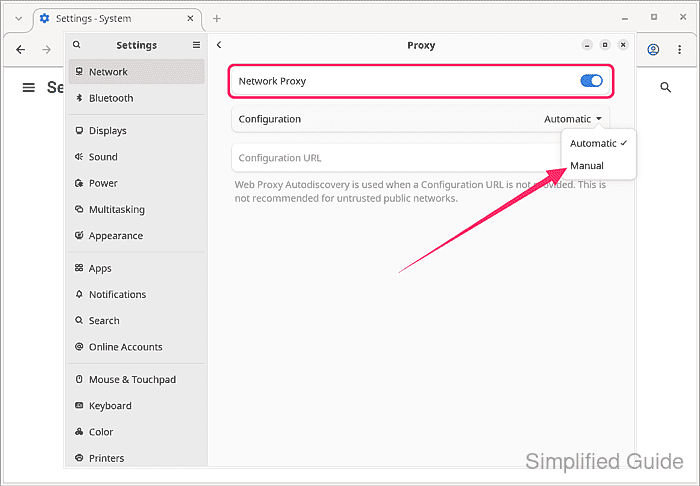
On GNOME, turn on Network Proxy and choose Manual from Configuration. On Windows 11, click Set up beside Use a proxy server and turn on Use a proxy server. On macOS, turn on the HTTP and HTTPS web proxy options under Proxies.
Related: How to configure proxy settings in Windows
Related: How to configure proxy settings in macOS - Enter the proxy server address and port for HTTP and HTTPS.
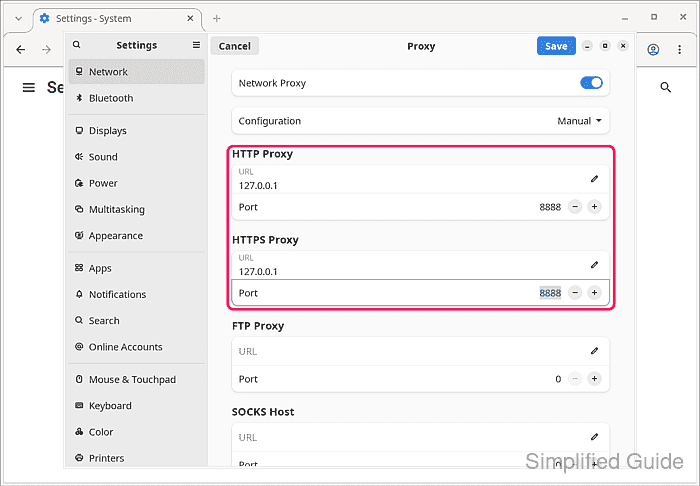
The address 127.0.0.1 and port 8888 shown are examples, so use the values from your administrator or provider. Windows has one Proxy IP address and Port for both, and macOS has a server and port for each proxy option.
- Click Save to apply the proxy settings.
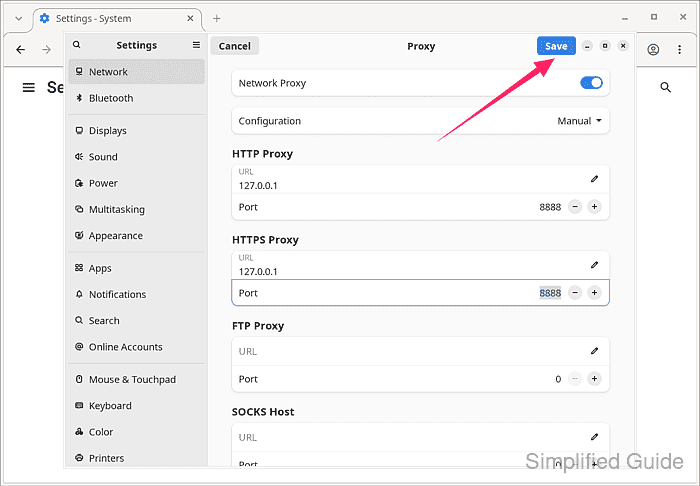
On macOS, click OK.
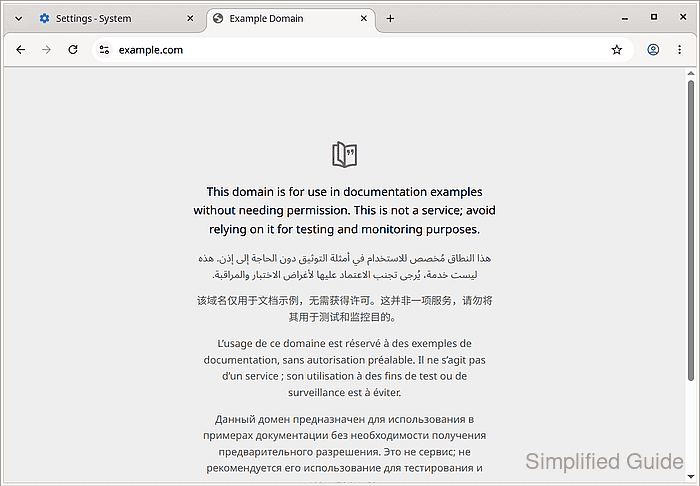
- Open a website in a new Chrome tab to check that it loads.
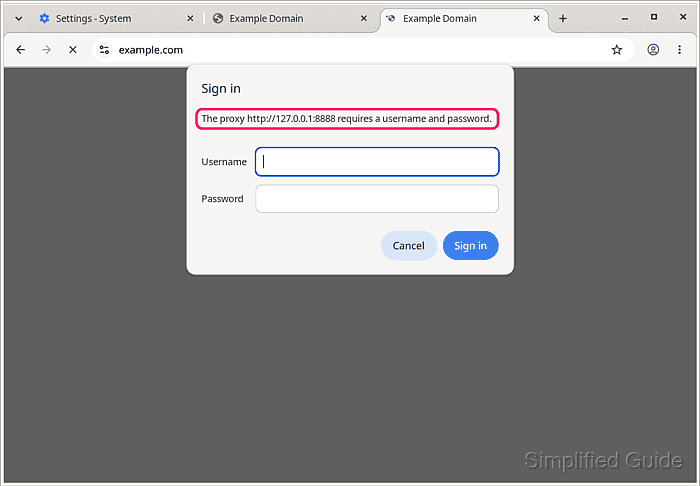
If your proxy needs a password, Chrome shows a Sign in dialog naming the proxy. Enter your proxy username and password and click Sign in, or click Cancel if the dialog names a proxy you do not recognize, because your credentials would go to that server.
ERR_PROXY_CONNECTION_FAILED means Chrome could not reach the proxy at the saved address and port. To undo a bad setting, restore the values you wrote down, or turn the proxy off in the same settings if the computer used none before, clicking Save or OK if the window shows one. When your provider gives an exit address, a public-IP check should show it.
Tool: What Is My IP Address?