Hybrid app tests can fail even when the target screen is visible because Appium starts each session in the native app context. Native locators can tap controls around a WebView, but DOM locators such as CSS selector and XPath only work after the session switches into the WebView context for the loaded page.
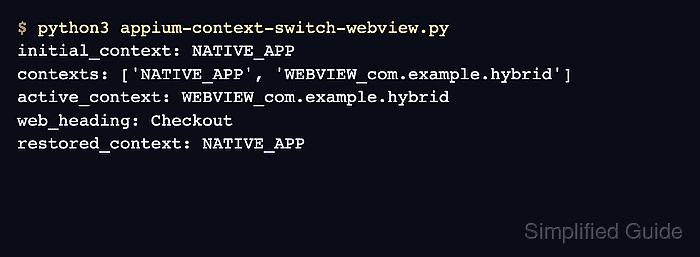
The Context API exposes the context list, the active context, and the context switch operation through Appium clients. In Python, driver.contexts lists names such as NATIVE_APP and a driver-specific WEBVIEW value, driver.current_context reports the active one, and driver.switch_to.context() changes where element commands are sent.
A WEBVIEW context appears only after the hybrid screen has loaded and the active driver can attach to it. Keep native navigation and DOM checks in the same test flow, wait for a WEBVIEW name before switching, and return to NATIVE_APP before sending native mobile commands again.
Steps to switch Appium to a WebView context with Python:
- Open the hybrid screen in the existing Appium session before listing contexts.
# Run this after the test has navigated to the screen that contains the WebView.
print("initial_context:", driver.current_context)
NATIVE_APP is the normal starting context for a mobile app session. A context switch changes only the active command target; it does not create a new Appium session.
- Wait for Appium to expose a WEBVIEW context.
from selenium.webdriver.support.ui import WebDriverWait

def find_webview_context(session):
    return next((name for name in session.contexts if name.startswith("WEBVIEW")), None)

webview_context = WebDriverWait(driver, 15).until(find_webview_context)
print("contexts:", driver.contexts)
If more than one WEBVIEW context appears, replace the prefix match with the exact context name that belongs to the target screen.
- Switch to the selected WEBVIEW context.
driver.switch_to.context(webview_context)
print("active_context:", driver.current_context)
- Locate the web element with a DOM selector.
from selenium.webdriver.common.by import By

heading = driver.find_element(By.CSS_SELECTOR, "h1")
print("web_heading:", heading.text)
Use Selenium-style DOM locators only after the active context starts with WEBVIEW. Native locators such as accessibility id belong in NATIVE_APP.
- Switch back to the native app context before continuing with mobile controls.
driver.switch_to.context("NATIVE_APP")
print("restored_context:", driver.current_context)
- Run the updated test and confirm the context round trip.
$ python3 appium-context-switch-webview.py
initial_context: NATIVE_APP
contexts: ['NATIVE_APP', 'WEBVIEW_com.example.hybrid']
active_context: WEBVIEW_com.example.hybrid
web_heading: Checkout
restored_context: NATIVE_APP
If the context list stays at NATIVE_APP, keep the app on the WebView screen and check the platform driver prerequisites for WebView automation before retrying.

Mohd Shakir Zakaria is a cloud architect with deep roots in software development and open-source advocacy. Certified in AWS, Red Hat, VMware, ITIL, and Linux, he specializes in designing and managing robust cloud and on-premises infrastructures.


