How to create and use aliases in Zsh
Repeated option-heavy commands are easy to mistype in an interactive Zsh terminal, especially when the same command is run many times during one session. A Zsh alias gives that command a short name for simple replacements such as a preferred ls format, while shell functions are better for shortcuts that need arguments, tests, or branching.
The alias builtin stores a name-to-command replacement in the current shell. A temporary alias starts working as soon as it is defined, and unalias removes it from that shell without changing any startup file.
Persistent aliases belong in ~/.zshrc because Zsh reads that file for interactive shells. Reload the file with source or open a new terminal, then confirm both the stored alias definition and the command output before relying on the shortcut.
Related: How to configure Zsh startup files
Related: Create and use aliases in Bash
Steps to create and use Zsh aliases:
- Define a temporary alias in the current terminal.
$ alias ll='ls -lh'
Do not put spaces around the equals sign. Quote the replacement command when it includes spaces or options.
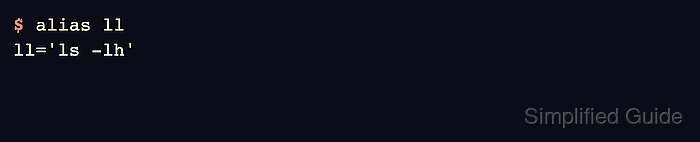
- Confirm the alias definition.
$ alias ll
ll='ls -lh'
Zsh prints alias definitions without the word alias in the output. The line still means ll expands to ls -lh.
- Run the alias against a directory.
$ ll ~/projects/demo
total 0
-rw-r--r-- 1 operator operator 0 Jun  5 02:11 report.txt
Zsh expands aliases in interactive shells. Use a function or the full command inside scripts instead of depending on user aliases.
Related: How to create a function in Zsh
- Remove the temporary alias when the shortcut is no longer needed.
$ unalias ll
- Add the alias to ~/.zshrc.
$ nano ~/.zshrc
- ~/.zshrc
alias ll='ls -lh'
Keep interactive aliases in ~/.zshrc. Use a function when the shortcut needs parameters, branching, or more than one command.
Related: How to configure Zsh startup files
Related: How to create a function in Zsh - Check ~/.zshrc for syntax errors.
$ zsh -n ~/.zshrc
No output from zsh -n means Zsh parsed the file without finding a syntax error.
- Reload ~/.zshrc in the current terminal.
$ source ~/.zshrc
- Confirm that the persistent alias loaded.
$ alias ll
ll='ls -lh'
- Run the alias after reloading the startup file.
$ ll ~/projects/demo
total 0
-rw-r--r-- 1 operator operator 0 Jun  5 02:11 report.txt