How to install WordPress on XAMPP
Installing WordPress on XAMPP creates a local Windows site for theme work, plugin testing, content imports, and configuration checks before anything changes on a hosted server. The XAMPP stack keeps the web server, database, files, and first administrator account on the workstation, so the install can be rebuilt or removed without touching production data.
XAMPP for Windows packages Apache, PHP, MariaDB, phpMyAdmin, and the XAMPP Control Panel into one local install. A default setup serves browser projects from the local htdocs document root and exposes the stack homepage at http://localhost/ after Apache starts.
Use XAMPP as a development stack, not as the runtime for a public site. WordPress hosting recommendations can be newer than the versions bundled with a local XAMPP package, so check the included PHP and database versions before using the local copy for compatibility testing.
Steps to install WordPress on XAMPP:
- Install XAMPP for Windows from Apache Friends and keep the main path at C:\xampp.
https://www.apachefriends.org/download.html
WordPress currently recommends PHP 8.3 or newer with MariaDB 10.6+ or MySQL 8.0+ for hosted sites. Use the newest XAMPP package that fits the test and confirm the included versions when compatibility matters.
Installing under Program Files commonly causes write-permission problems when editing files under htdocs.
- Open the XAMPP Control Panel.
- Start Apache and MySQL from the XAMPP Control Panel.
XAMPP uses the MySQL label in the control panel even when the packaged database server is MariaDB.
If Apache fails to start, stop the existing listener on port 80 first, especially IIS or the World Wide Web Publishing Service.
- Open the local XAMPP homepage and confirm that the stack responds.
http://localhost/
- Create a dedicated project folder under the XAMPP document root.
C:\xampp\htdocs\wordpress-xampp
Keeping WordPress in its own folder avoids replacing the default XAMPP landing page and keeps the local URL predictable.
- Download the current WordPress ZIP package and extract it on Windows.
https://wordpress.org/download/
- Copy the extracted WordPress files into the project folder.
Copy the contents of the extracted wordpress directory into wordpress-xampp so the site opens at /wordpress-xampp/ instead of /wordpress/.
- Open phpMyAdmin from the local XAMPP stack.
http://localhost/phpmyadmin/
- Create an empty database for the local site.
Database name: wordpress_xampp
Collation: utf8mb4_general_ci
Use the default utf8mb4 collation offered by the active MariaDB server unless the project already requires a specific language collation.
- Create a dedicated local database user with all privileges on the new database.
Username: wordpress_xampp
Host: localhost
Password: choose-a-strong-password
Privileges: ALL on wordpress_xampp
The default root database account can work on a disposable local-only lab, but a dedicated user makes the local install closer to a hosted site.
- Open the WordPress configuration page for the new local project.
http://localhost/wordpress-xampp/wp-admin/setup-config.php
- Enter the database connection details from phpMyAdmin.
Database Name: wordpress_xampp
Username: wordpress_xampp
Password: choose-a-strong-password
Database Host: localhost
Table Prefix: wp_
If WordPress cannot write wp-config.php automatically, copy wp-config-sample.php to wp-config.php inside C:\xampp\htdocs\wordpress-xampp, refresh the installer, and submit the same database values again.
- Complete the site details form and create the first WordPress administrator account.
Site Title: WordPress on XAMPP
Username: localadmin
Password: choose-a-strong-password
Email: admin@example.test
Avoid the username admin on any install that might later be migrated or exposed outside the local machine.
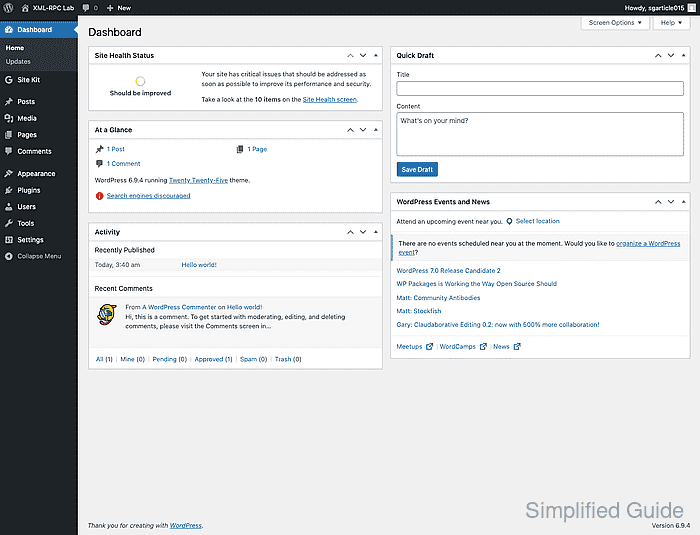
- Sign in to the local WordPress dashboard.
http://localhost/wordpress-xampp/wp-admin/
- Open the local front page and confirm the site loads from the XAMPP project URL.
http://localhost/wordpress-xampp/
- Change the permalink structure to Post name.
Dashboard -> Settings -> Permalinks -> Post name
If WordPress shows rewrite rules instead of saving them automatically, copy the generated block into C:\xampp\htdocs\wordpress-xampp\.htaccess and save it.
Related: How to configure SEO-friendly URLs in WordPress - Request the local login endpoint from Windows Terminal or PowerShell when a command-line smoke test is useful.
C:\> curl.exe -I http://localhost/wordpress-xampp/wp-login.php
HTTP/1.1 200 OK
Server: Apache/2.4.58 (Win64) OpenSSL/3.1.3 PHP/8.2.12
Set-Cookie: wordpress_test_cookie=WP%20Cookie%20check; path=/; HttpOnly
Content-Type: text/html; charset=UTF-8
A 200 OK response from wp-login.php confirms that Apache, PHP, WordPress, and the local project URL are working together.