How to install WordPress on WampServer
Installing WordPress on WampServer keeps a Windows development copy close to the editor, database tools, and browser used for day-to-day theme or plugin work. That makes it safer to test content imports, theme changes, and administrator workflows locally before touching a hosted site.
WampServer packages Apache, PHP, local database services, and phpMyAdmin into one Windows stack served from the www document root. Current releases can expose both MySQL and MariaDB alongside multiple PHP versions, while WordPress itself only needs one active database server, a reachable local web root, and working browser access to the installer.
Use an installed WampServer instance whose local homepage already loads at http://localhost/ before copying the site files. Current WordPress recommendations target PHP 8.3 or newer with MariaDB 10.6+ or MySQL 8.0+, so switch the active WampServer versions first if the local stack is still on an older branch or if another Windows service is already blocking the HTTP port.
Related: How to install WordPress on XAMPP
Related: How to install WordPress on MAMP
Steps to install WordPress on WampServer:
- Start WampServer and confirm that Apache plus one local database service are running. Open http://localhost/ and make sure the WampServer homepage loads.
Use the tray menu to switch to a WordPress-supported PHP version and keep only the intended MySQL or MariaDB service active for the install.
- Create a dedicated project folder under the WampServer web root.
C:\wamp64\www\wordpress-wamp
Older installations can use C:\wamp\www instead of C:\wamp64\www.
- Download the current WordPress ZIP package from wordpress.org and extract it on Windows.
- Copy the extracted WordPress files into the new project folder.
Place the contents of the extracted wordpress directory into wordpress-wamp so the site opens at a short local URL instead of /wordpress/.
- Open phpMyAdmin from the WampServer homepage or tray menu and create a database for the site.
Database name: wordpress_wamp
Use the default utf8mb4 collation offered by the active MySQL or MariaDB service unless the project already requires a specific one.
- Create a dedicated local database user with all privileges on the new database.
Username: wordpress_wamp
Host: localhost
Password: choose-a-strong-password
Privileges: ALL on wordpress_wamp
WordPress installation guidance expects a database user that can access and modify the WordPress database. On a disposable local-only WampServer site, the existing root account can still work when the lab deliberately uses that simpler setup.
- Open the WordPress configuration page for the new local project.
http://localhost/wordpress-wamp/wp-admin/setup-config.php
If the project folder name differs, replace wordpress-wamp with the actual folder name in every later URL.
- Enter the database connection details when the installer asks for them.
Database Name: wordpress_wamp
Username: wordpress_wamp
Password: choose-a-strong-password
Database Host: localhost
Table Prefix: wp_
If the current local workflow still uses the WampServer root account with no password, enter root and leave the password field blank.
- If WordPress cannot write wp-config.php automatically, copy wp-config-sample.php to wp-config.php inside the project folder, refresh the installer, and re-enter the same database values.
Keep the copied file inside the project directory itself, for example C:\wamp64\www\wordpress-wamp\wp-config.php, not beside it.
- Complete the installer form with the local site title and first administrator account.
Site Title: WordPress on WampServer
Username: localadmin
Password: choose-a-strong-password
Email: admin@example.test
Avoid the username admin on any local install that might later be migrated, shared on a LAN, or exposed outside the machine.
- Sign in to the new local dashboard.
http://localhost/wordpress-wamp/wp-admin/
If the installer shows Already Installed instead of the first-run form, the selected database already contains WordPress tables. Use an empty database or remove the old tables before retrying.
- Open the local front page and confirm the site loads from the WampServer project URL.
http://localhost/wordpress-wamp/
- Change the permalink structure to Post name.
Dashboard -> Settings -> Permalinks -> Post name
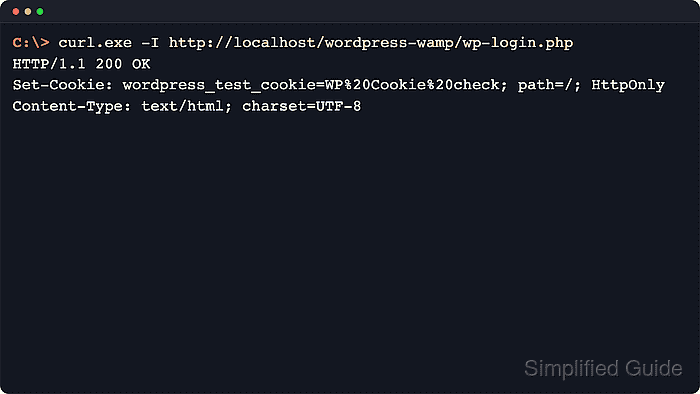
- If a shell check is useful after the browser verification, request the local login page and confirm WordPress returns HTTP 200.
C:\> curl.exe -I http://localhost/wordpress-wamp/wp-login.php
HTTP/1.1 200 OK
Set-Cookie: wordpress_test_cookie=WP%20Cookie%20check; path=/; HttpOnly
Content-Type: text/html; charset=UTF-8
Replace wordpress-wamp with the actual project folder name if it differs from the example.