Table of Contents
How to change boot order in VirtualBox
The boot order in a virtual machine determines which device the system will load from during startup. In VirtualBox, the boot order is configured in the virtual BIOS, just like in a physical machine. You may need to change this order depending on whether you're installing an operating system from a CD-ROM, booting from a hard drive, or starting from a network with PXE boot. Adjusting this sequence ensures the VM prioritizes the correct device when starting up.
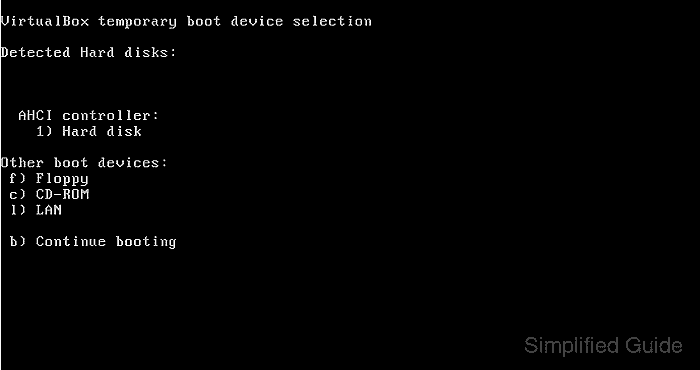
VirtualBox allows you to temporarily change the boot device by pressing the F12 key during boot. This lets you choose a boot device for that session only. However, these changes do not persist after the virtual machine restarts. This temporary option can be useful for troubleshooting or single-use scenarios, but for consistent results, the permanent boot order must be modified.
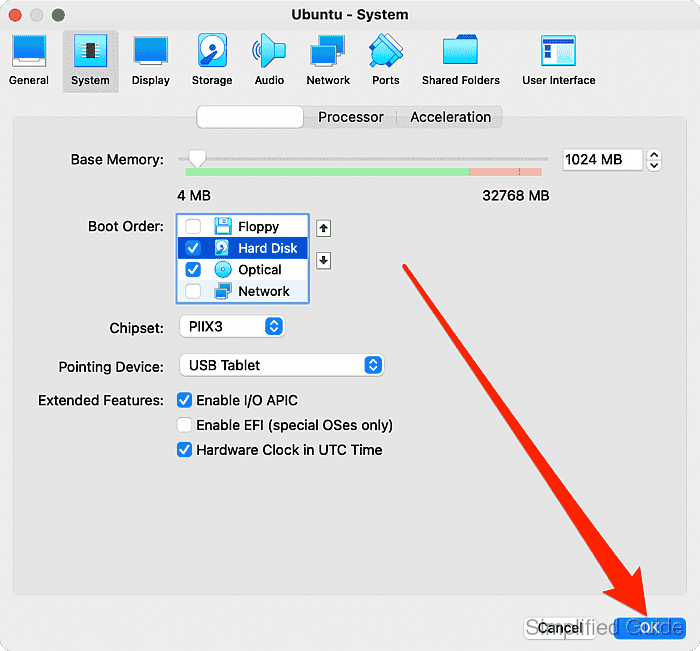
To permanently configure the boot sequence, you need to access the VM's system settings. From here, you can change the boot order to always boot from the desired device. This provides a reliable way to control which device your VM will use to start up, ensuring it aligns with your use case, such as booting from an installation media or the system's primary disk.
Steps to change boot order in VirtualBox:
- Open VirtualBox.
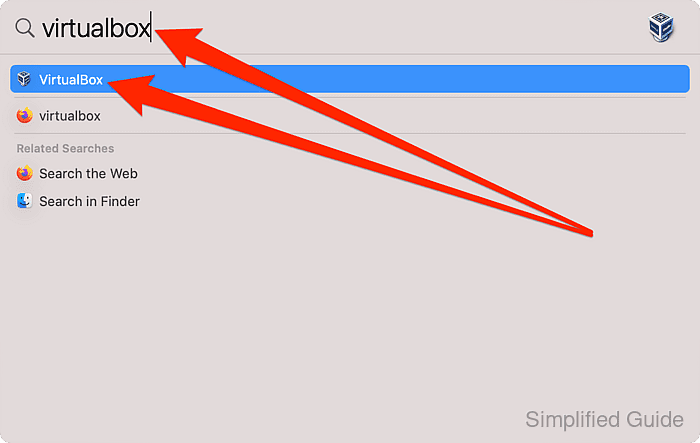
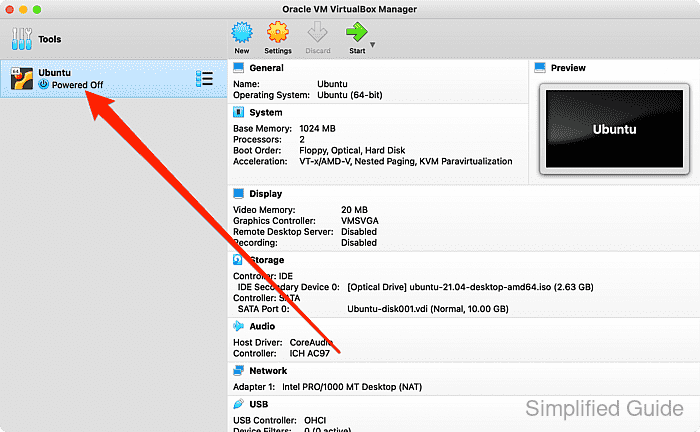
- Ensure the virtual machine is powered off.
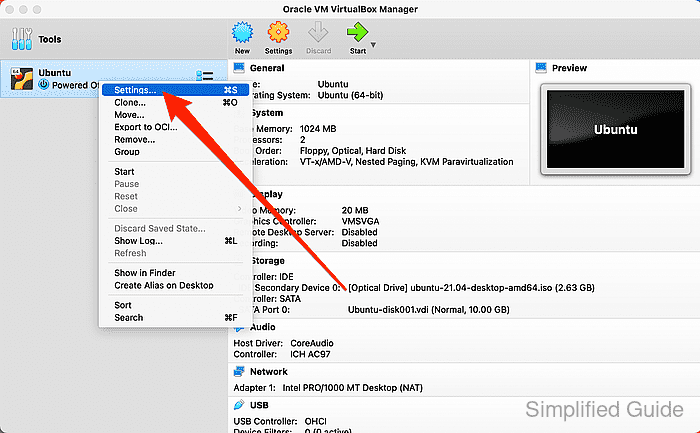
- Right-click on the virtual machine and select Settings.
- Navigate to the System tab in the settings menu.
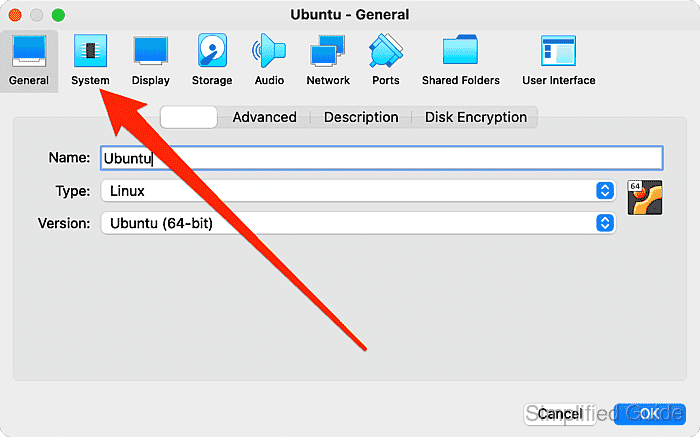
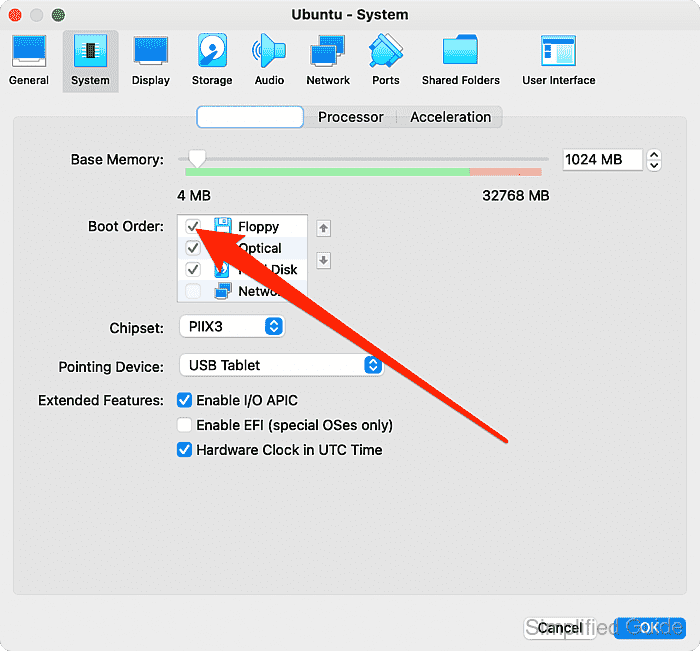
- In the Boot Order section, check or uncheck the devices to include or exclude from the boot list.
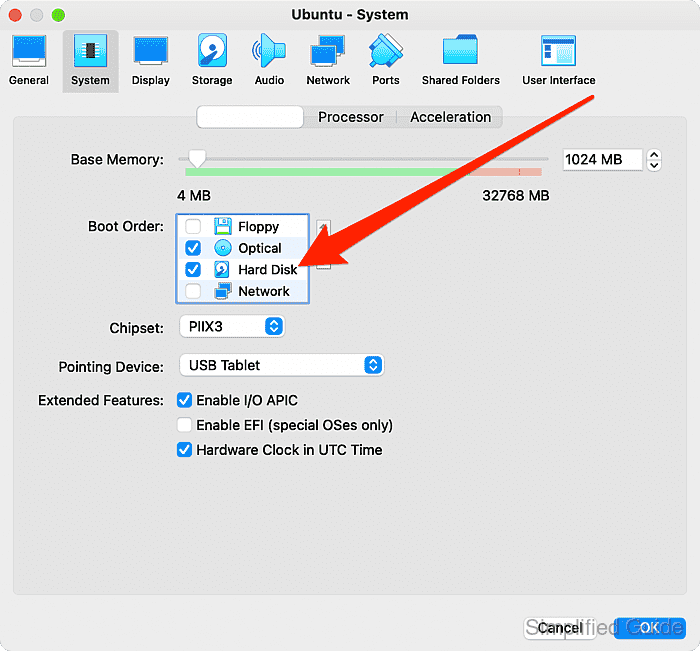
- Select the device you want to prioritize in the boot sequence.
- Use the up and down arrows to change the position of the selected device.
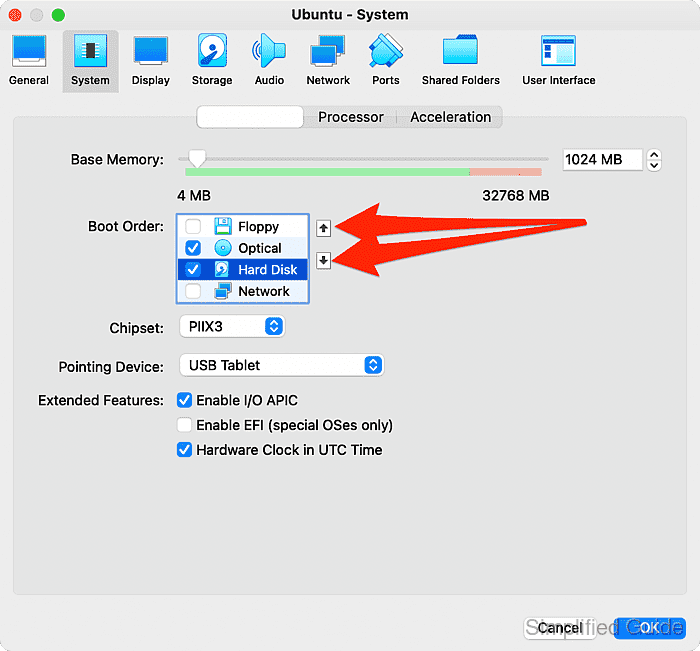
- Click OK to apply the changes.
CLI method to change boot order in VirtualBox:
You can also change the boot order using the command line interface with VBoxManage. Below is a step-by-step guide to list available boot devices and set the boot order:
- List available boot devices. This will display detailed information about the VM, including its current boot order and available devices. Look for the section that lists devices like dvd, disk, floppy, and net.
VBoxManage showvminfo "YourVMName" Name: YourVMName Guest OS: Ubuntu (64-bit) UUID: a-unique-uuid Boot Order: DVD, Hard Disk, Network (PXE) Storage Controllers: IDE Controller (0, 0): /path/to/disk.vdi (UUID: disk-uuid) Available boot devices: 1. Floppy 2. DVD 3. Hard Disk 4. Network (PXE) - Set boot order. In this example, the VM will attempt to boot first from the DVD drive, followed by the hard disk, and then from a network (PXE).
VBoxManage modifyvm "YourVMName" --boot1 dvd --boot2 disk --boot3 net
VM settings updated:
Boot order changed to:
1: DVD
2: Hard Disk
3: Network (PXE)
- Verify the boot order change. This will display the updated settings for the virtual machine. You should see the boot order reflecting the devices you've set.
VBoxManage showvminfo "YourVMName"
Name:            YourVMName
Guest OS:        Ubuntu (64-bit)
UUID:            a-unique-uuid
Boot Order:      DVD, Hard Disk, Network (PXE)
Storage Controllers:
    IDE Controller (0, 0): /path/to/disk.vdi (UUID: disk-uuid)