How to change display manager for Ubuntu, Kubuntu or Debian
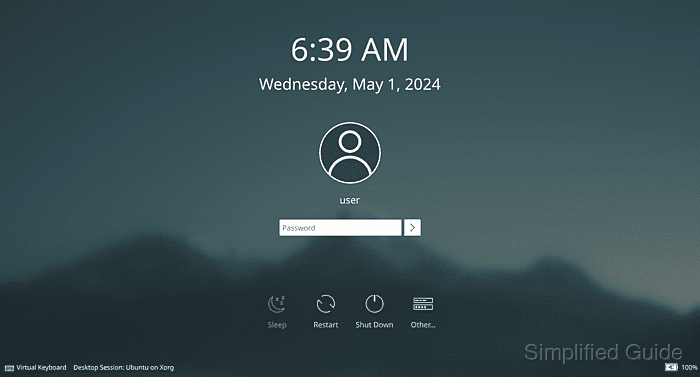
A display manager orchestrates the GUI session on Linux systems and handles user authentication after startup. By default, Ubuntu relies on GDM3, while Kubuntu uses SDDM, though alternatives like LightDM or XDM can be installed for a customized experience.
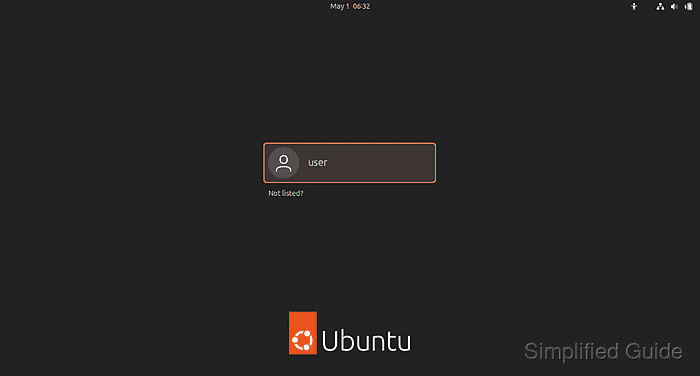
Switching display managers is common when changing desktop environments or optimizing system performance. Each manager offers unique theming capabilities, resource usage profiles, and integration options, allowing users to tailor the login experience to specific requirements.
On Debian-based systems, dpkg-reconfigure and systemctl are frequently used to install, select, and manage the active display manager. This involves verifying current services, adding new components, and ensuring the chosen manager starts automatically on the next system boot.
Steps to switch login manager for Ubuntu, Kubuntu, or Debian:
- Open the terminal.
- Check the current display manager using systemctl.
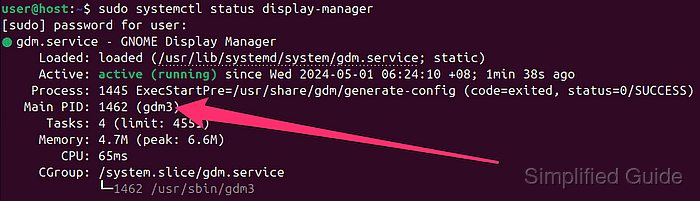
- Install your desired display manager if it's not already installed.
- Use dpkg-reconfigure to configure default desktop manager.
$ sudo dpkg-reconfigure gdm3
[sudo] password for user:
Replace gdm3 with the display manager you want to use. For example, sddm for Kubuntu.
systemctl will gracefully exit if no other display manager is installed.

- Use arrow key to select your preferred display manager, use <tab> key to navigate to the Ok button and press [ENTER].
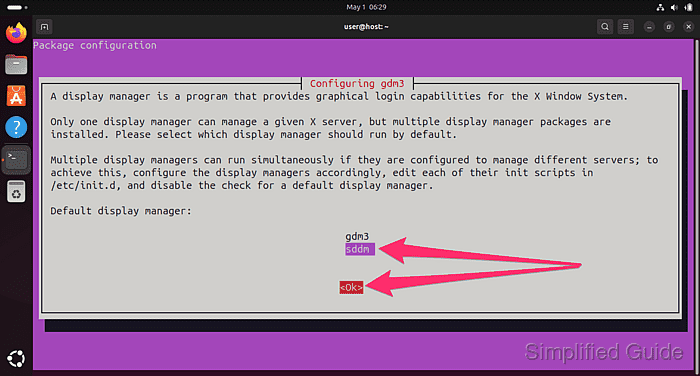
Use <tab> key to navigate to the Ok button and press [ENTER] if you're first presented with the following screen.
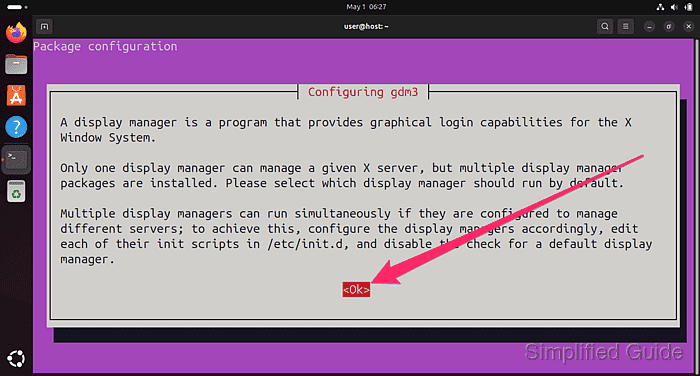 You'll get this screen if you're using a low resolution monitor and/or not running terminal in full screen.
- Reboot the system to apply the changes.
This guide is tested on Ubuntu:
| Version | Code Name |
|---|---|
| 22.04 LTS | Jammy Jellyfish |
| 23.10 | Mantic Minotaur |
| 24.04 LTS | Noble Numbat |